Notifications
Frappe Cloud tells you about events on your team, such as a failed server or an upcoming payment. You get notifications by email and in the console. You choose which categories you get on each channel.
Notification categories
| Category | Covers |
|---|---|
| Billing | Payments, invoices, credit balance, and mandates. |
| Servers | Server lifecycle, resizes, and health. |
| Team | Invitations, role changes, and membership. |
| Trial | When a free trial ends, stops, and is deleted. |
Read notifications in the console
Click Notifications in the sidebar. The number next to it is the count of unread notifications.
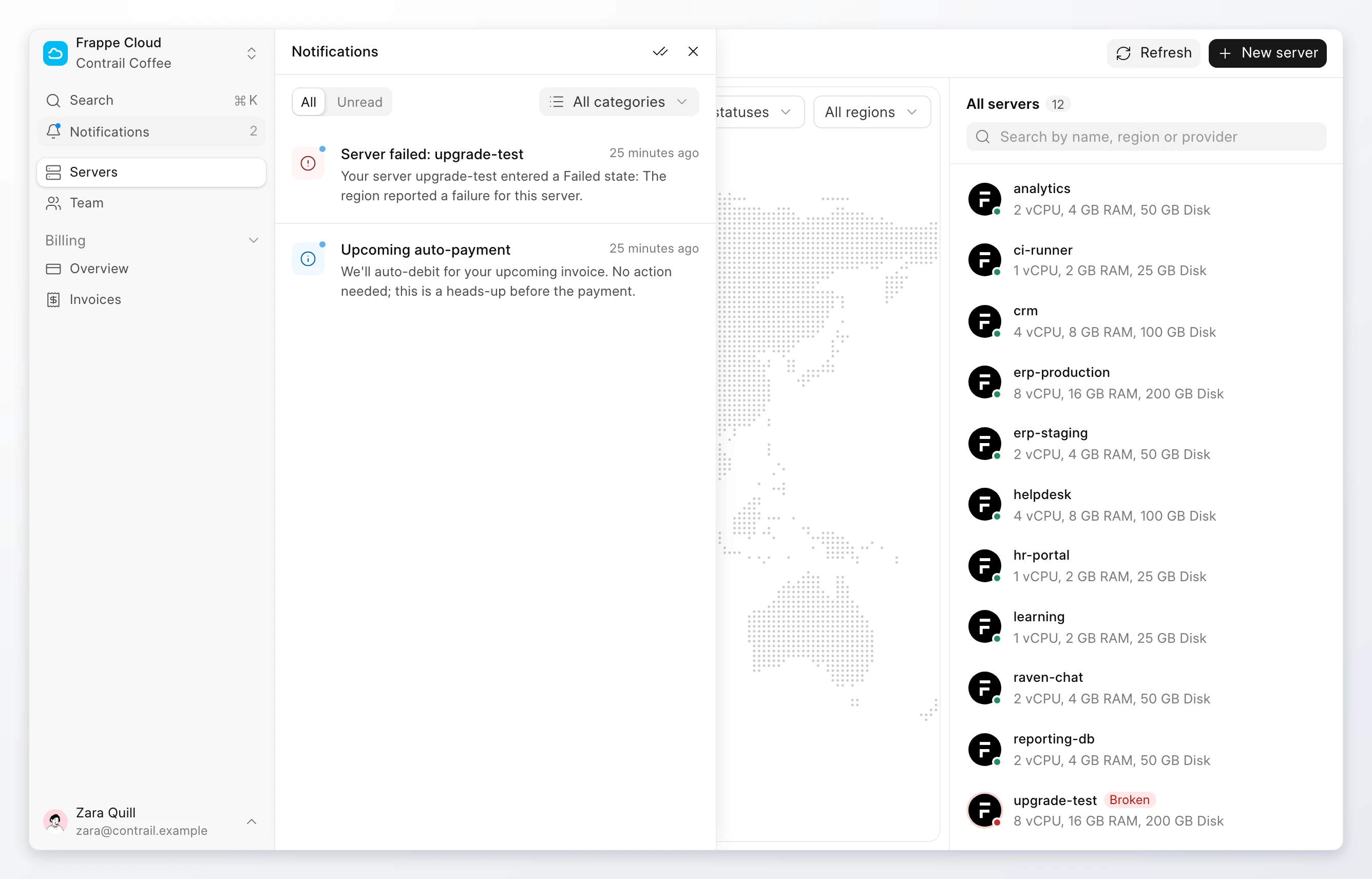
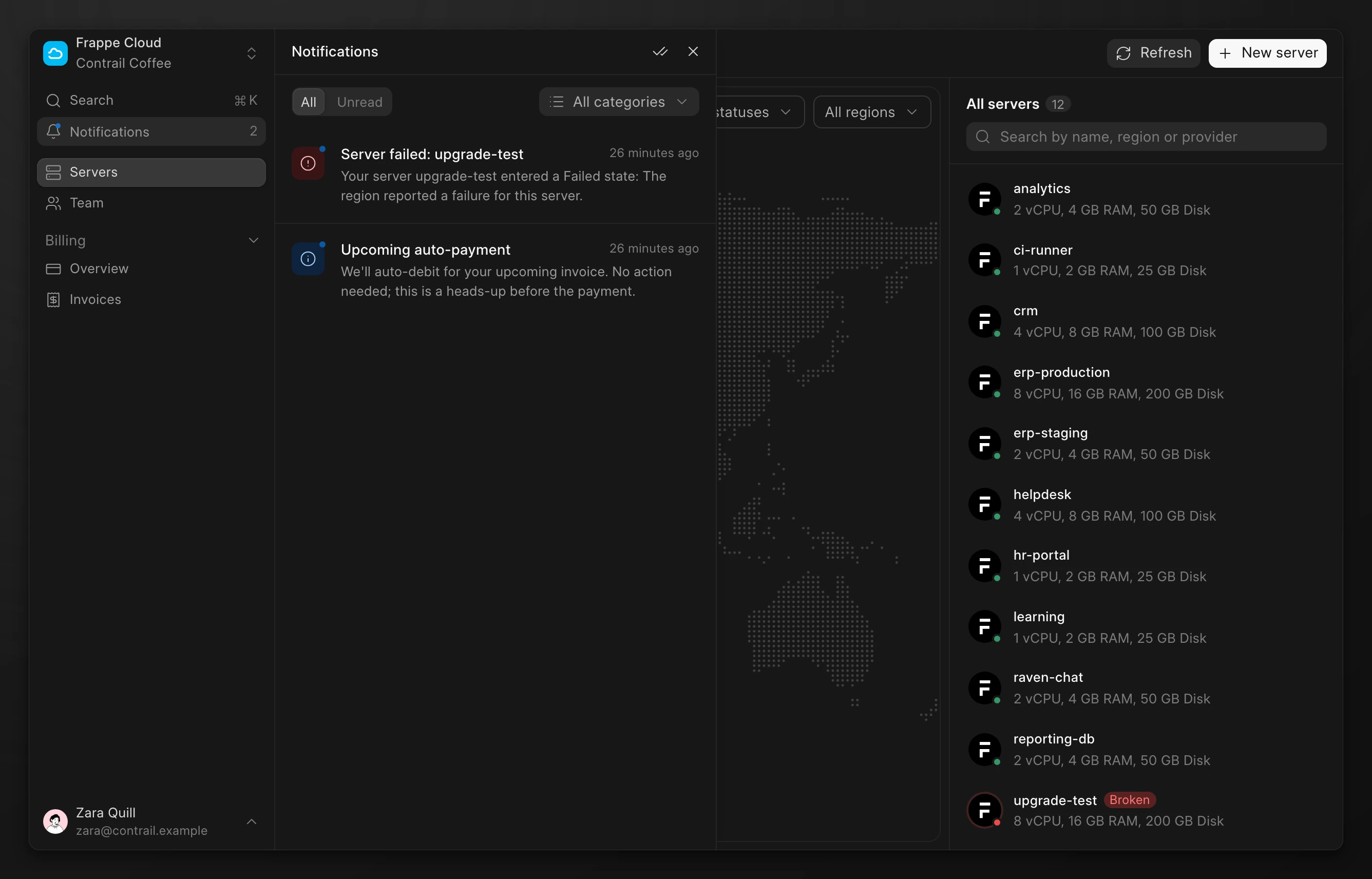
- Click Unread to show only unread notifications. Click All to show all of them.
- Use the All categories menu to show one category.
- Click a notification to mark it as read. If it links to a page, such as a server or an invoice, the page opens.
- Click the double check icon to mark all notifications as read.
- Click Load More at the bottom to see older notifications.
The panel shows notifications for the team you have open. Switch teams to see the notifications of another team.
Choose what you get
- Click your name at the bottom of the sidebar, then click Settings.
- Click Notifications.
- For each category, turn Email and In-app on or off.
- Click Save preferences.
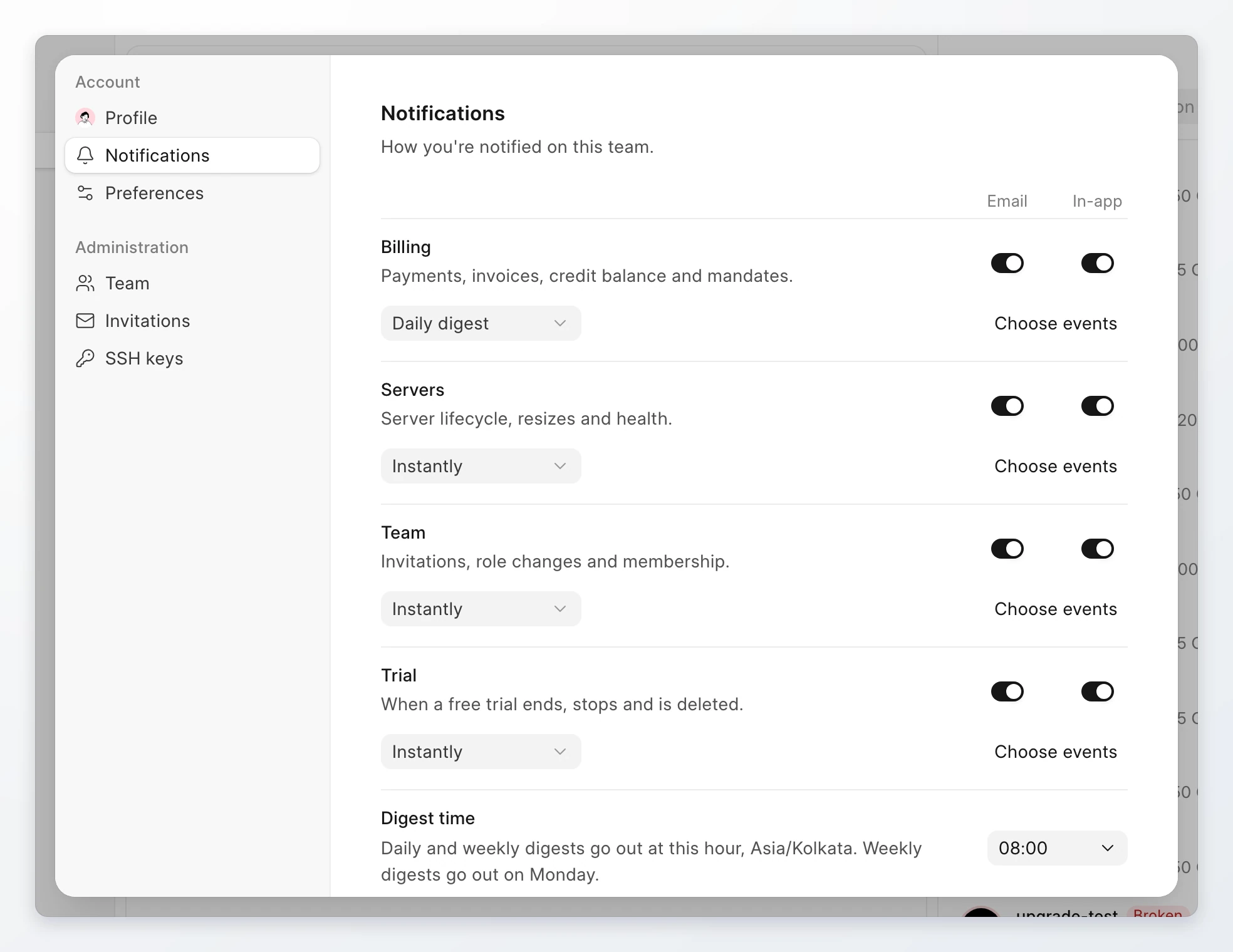
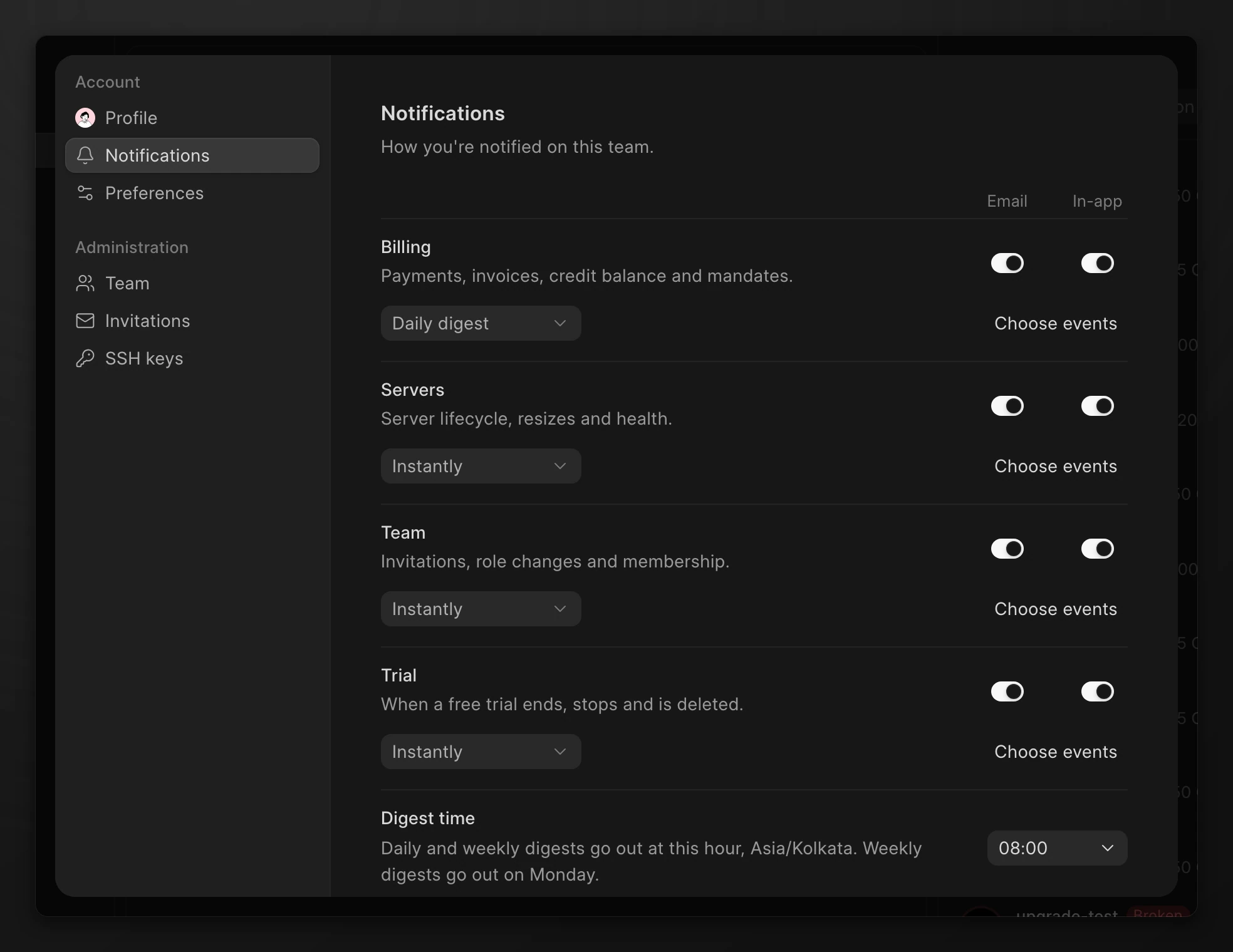
All categories are on for both channels, and email arrives instantly, until you change them. Your preferences apply only to the team you have open. Set them again on each team.
Choose how often you get email
Each category can send email instantly, in a daily digest, or in a weekly digest. A digest is one email with up to 50 updates since the last digest. If more are waiting, the email says so and they stay in your feed. A weekly digest arrives on Monday. Each update links to its page, and Manage notification preferences at the end of the email opens these settings.
- In Notifications, turn Email on for a category.
- Choose Instantly, Daily digest, or Weekly digest from the menu under the category.
- For a digest, choose the Digest time. It applies to all categories of the team, and your time zone shows next to it.
- Click Save preferences.
If you change a category back to Instantly, you get one email with the updates that were waiting.
Choose which events send email
Click Choose events under a category to turn email off for single events. You still see them in the console.
Some events are critical, such as a failed payment or a server that is down. They show Always sent. Critical events are emailed at once, even when you choose a digest or turn Email off for the category.