Invoices
An invoice lists what your team used in one billing cycle and what it owes. Go to Billing > Invoices to see, download, and pay your invoices.
Note
You need the Owner, Admin, or Billing role to see invoices. Only roles that can manage billing can pay an invoice.
Find an invoice
The list shows each invoice with its period, invoice number, status, and amount. The newest invoice is first.
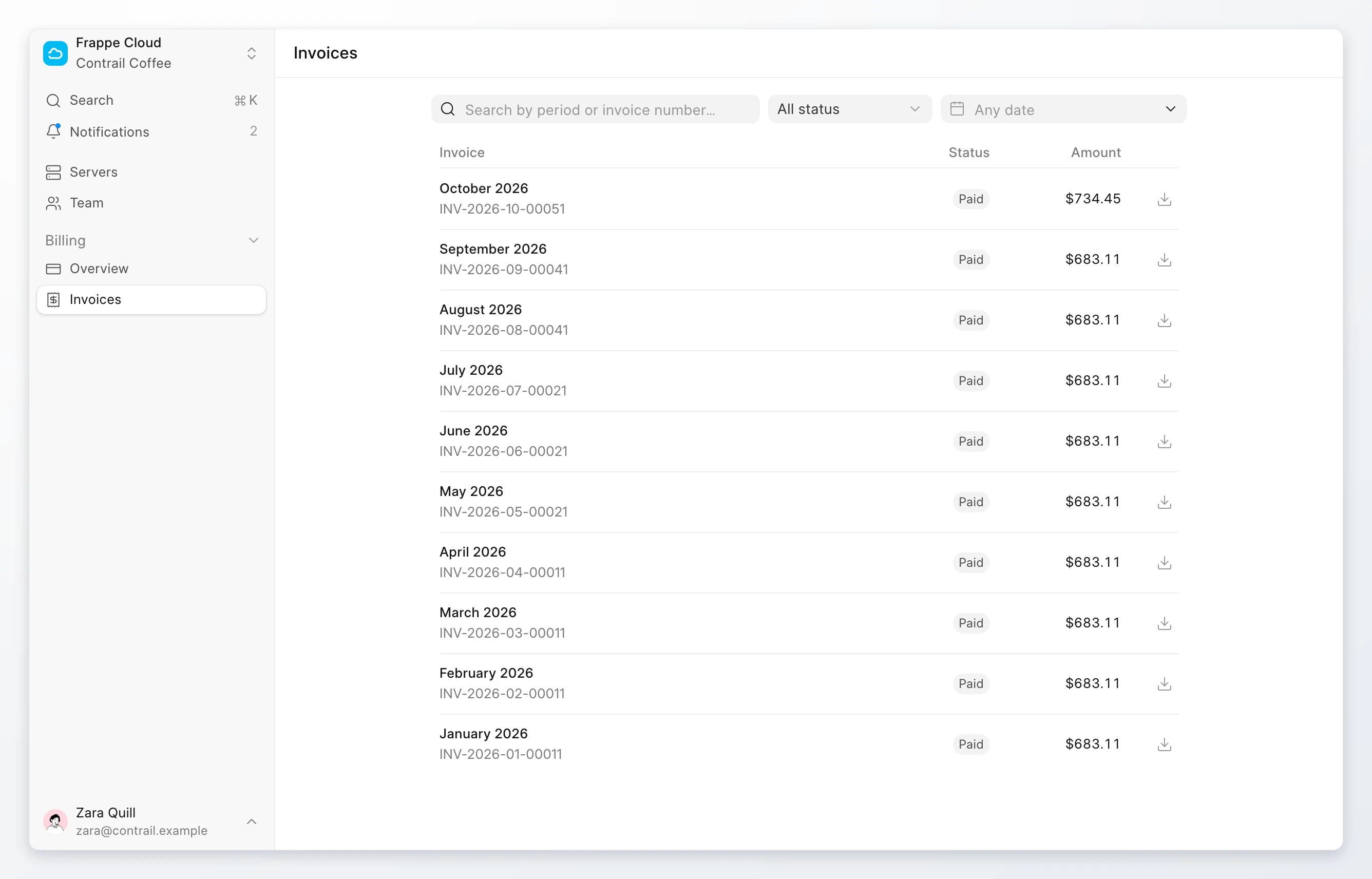
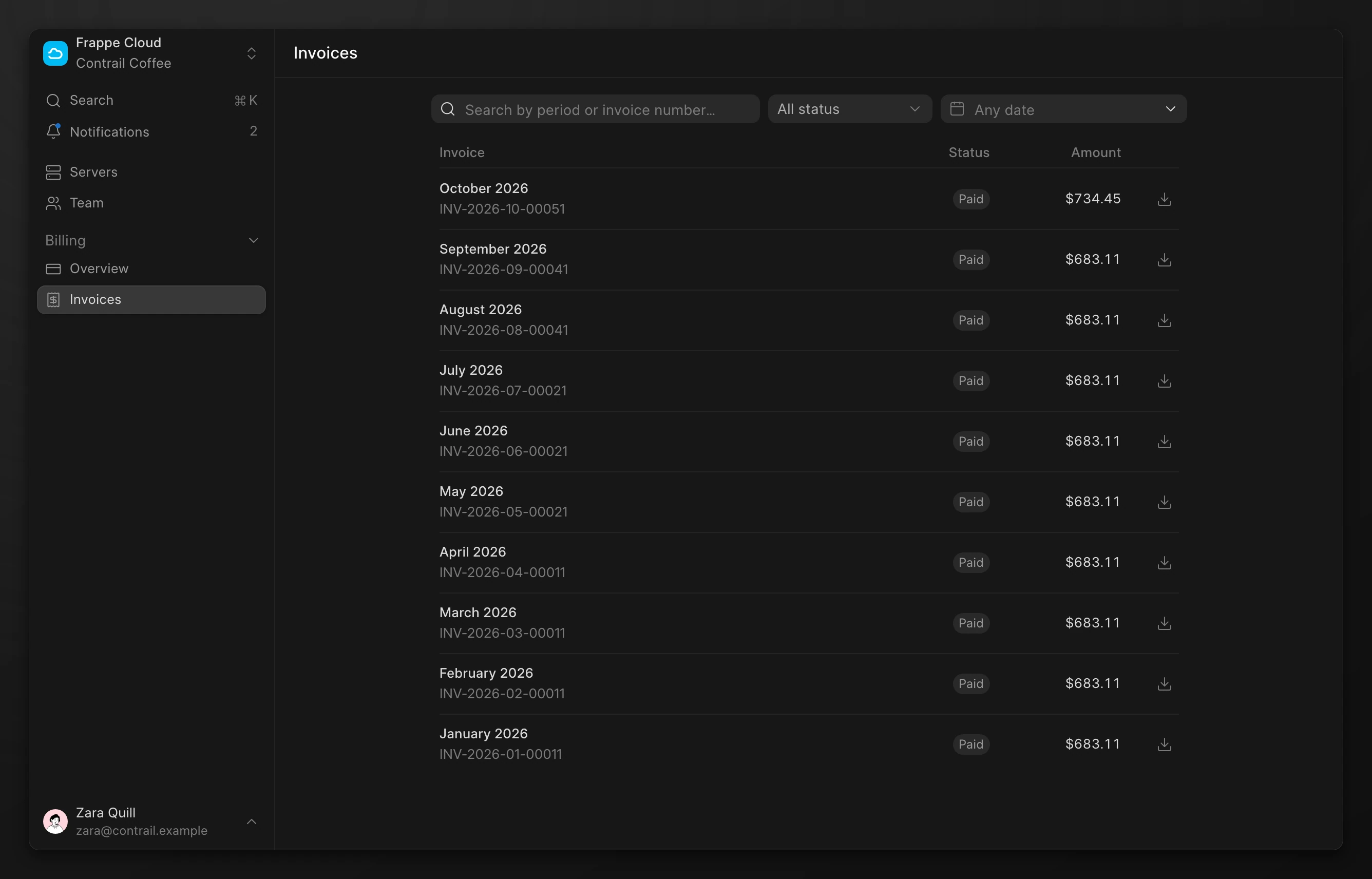
- Type a period or an invoice number in the search box.
- Use the All status menu to show only Outstanding, Paid, or Overdue invoices.
- Use the Any date menu to show the last month, the last 6 months, or the last year.
Invoice statuses
| Status | Meaning |
|---|---|
Outstanding | The invoice is not paid yet. Before it has a due date, it is being prepared and you cannot pay it. After it is issued with a due date, Frappe Cloud collects it from your credits and payment methods. |
Paid | The invoice is paid in full. |
Overdue | The invoice is past its due date and still unpaid. Pay it to keep your servers running. |
Waived | Frappe Cloud cancelled the amount. You do not need to pay it. |
Cancelled | The invoice was cancelled. |
An Outstanding invoice can stay without a due date while your billing details are not complete. Add your billing details to issue it.
See an invoice
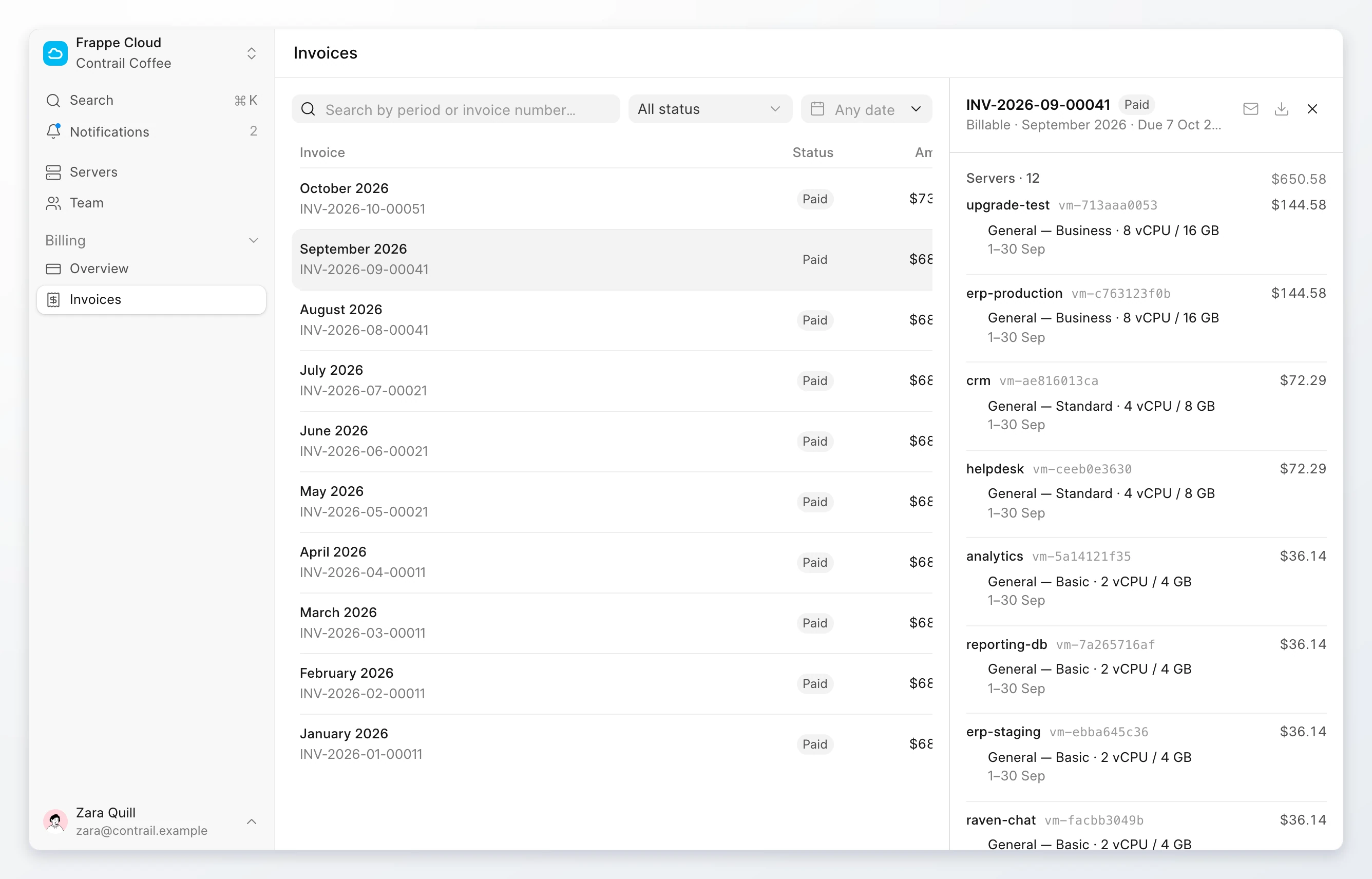
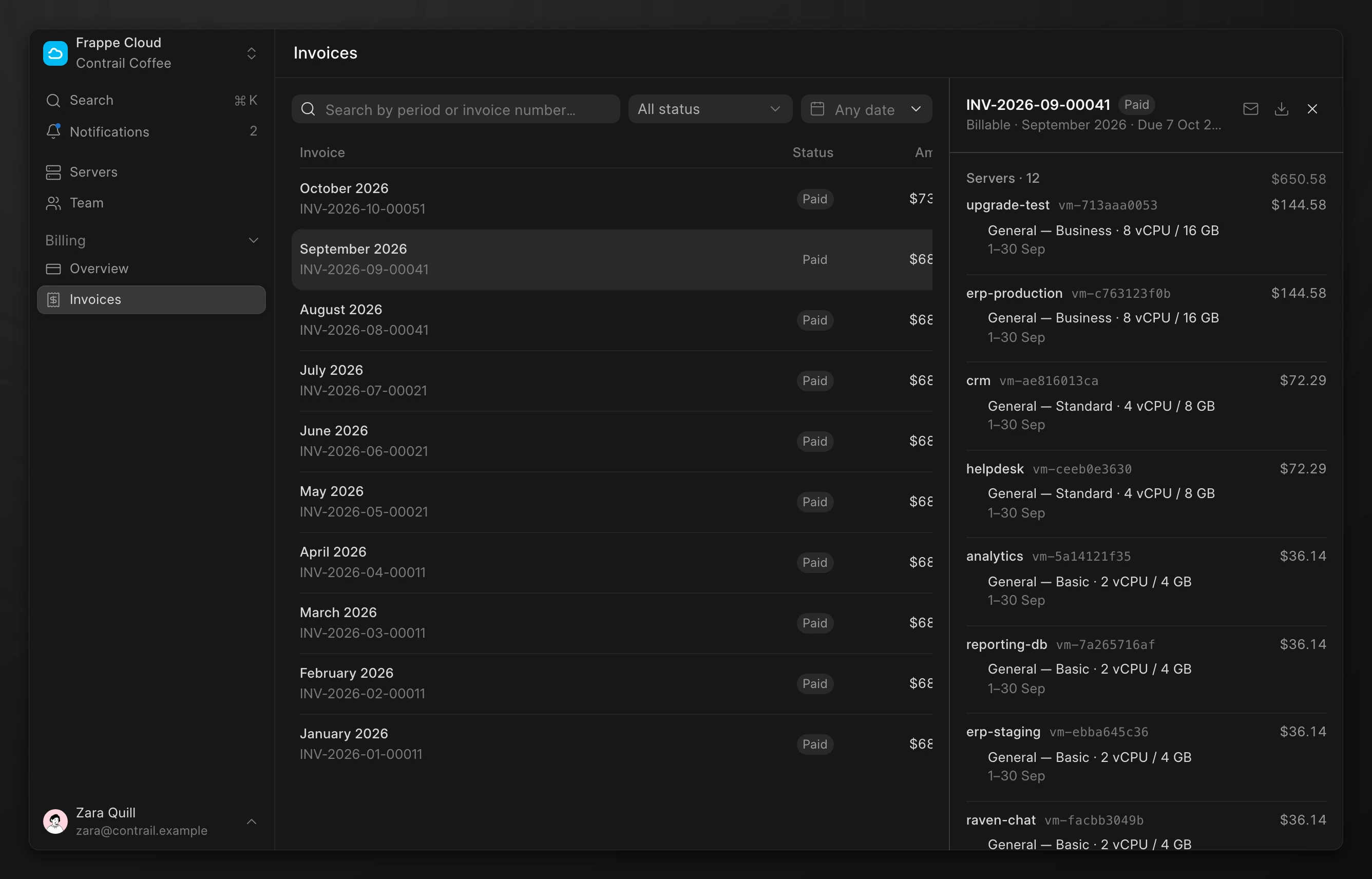
Click an invoice to open it. The panel shows:
- The invoice type, the period, and the due date.
- Each server and service with its plan, its dates, and its amount.
- The subtotal, the credits applied, the tax, and the total.
- How and when the invoice was paid.
- Activity: each payment attempt and its result.
Download an invoice
Click the download icon on the invoice row or at the top of the invoice panel. The PDF is your tax invoice.
The PDF is ready only after the invoice is issued. Until then, the download icon is disabled. You can download up to 30 invoices in one hour.
Pay an outstanding invoice
Frappe Cloud tries to collect each invoice automatically. Pay by hand when an issued invoice is still Outstanding or Overdue, for example after a card is declined. You can pay an Outstanding invoice only after it has a due date.
- Go to Billing > Invoices.
- Click the
OutstandingorOverdueinvoice. - Click Pay with the amount, such as Pay $683.11 now.
The charge uses your saved payment method. While the bank confirms the payment, the panel shows Waiting for your bank to confirm the payment…. The status changes to Paid when the payment is confirmed.
When an invoice is unpaid, Billing > Overview shows a banner with the amount and a Pay now button. The banner is amber for an outstanding invoice and red for an overdue invoice.
When a payment fails
When a charge fails, Frappe Cloud retries it and sends a notification with the reason. If the invoice stays unpaid, it becomes Overdue. If it stays unpaid after that, Frappe Cloud stops the team's servers. The data on the servers is kept.
Warning
Pay an overdue invoice as soon as you can. Stopped servers make your sites unavailable.
To fix a failed payment, add another card or move a working card up the order, then pay the invoice.