Apps
An app is code that you install on a site, such as ERPNext or Raven. The bench holds one copy of each app, and many sites can use it.
Installing an app has two parts. Pilot first gets the app onto the bench, then installs it on a site. When you install from the Marketplace, Pilot does both.
Find an app
Go to Marketplace. The page lists Your custom apps, apps From Frappe, and Community apps.
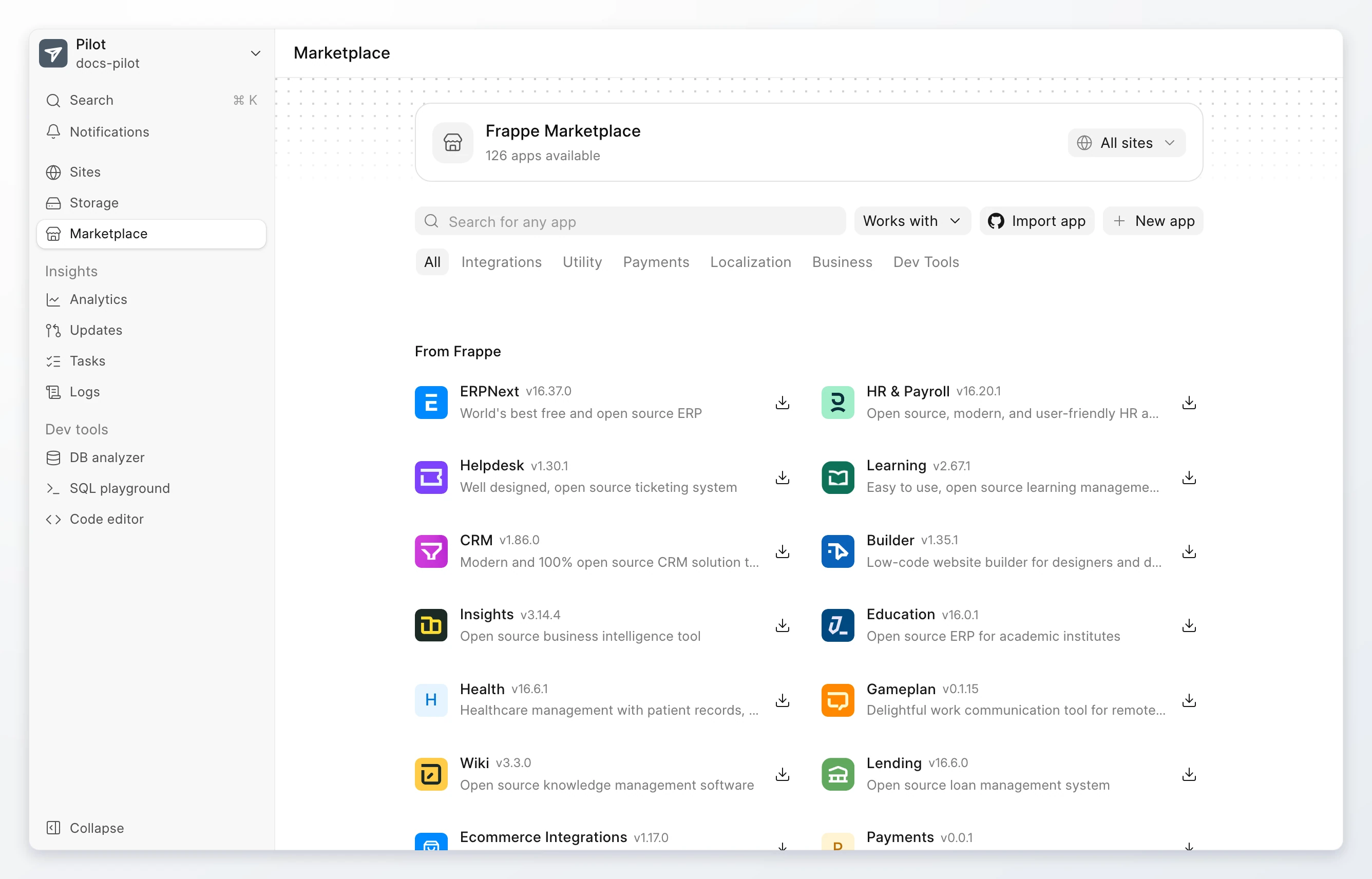
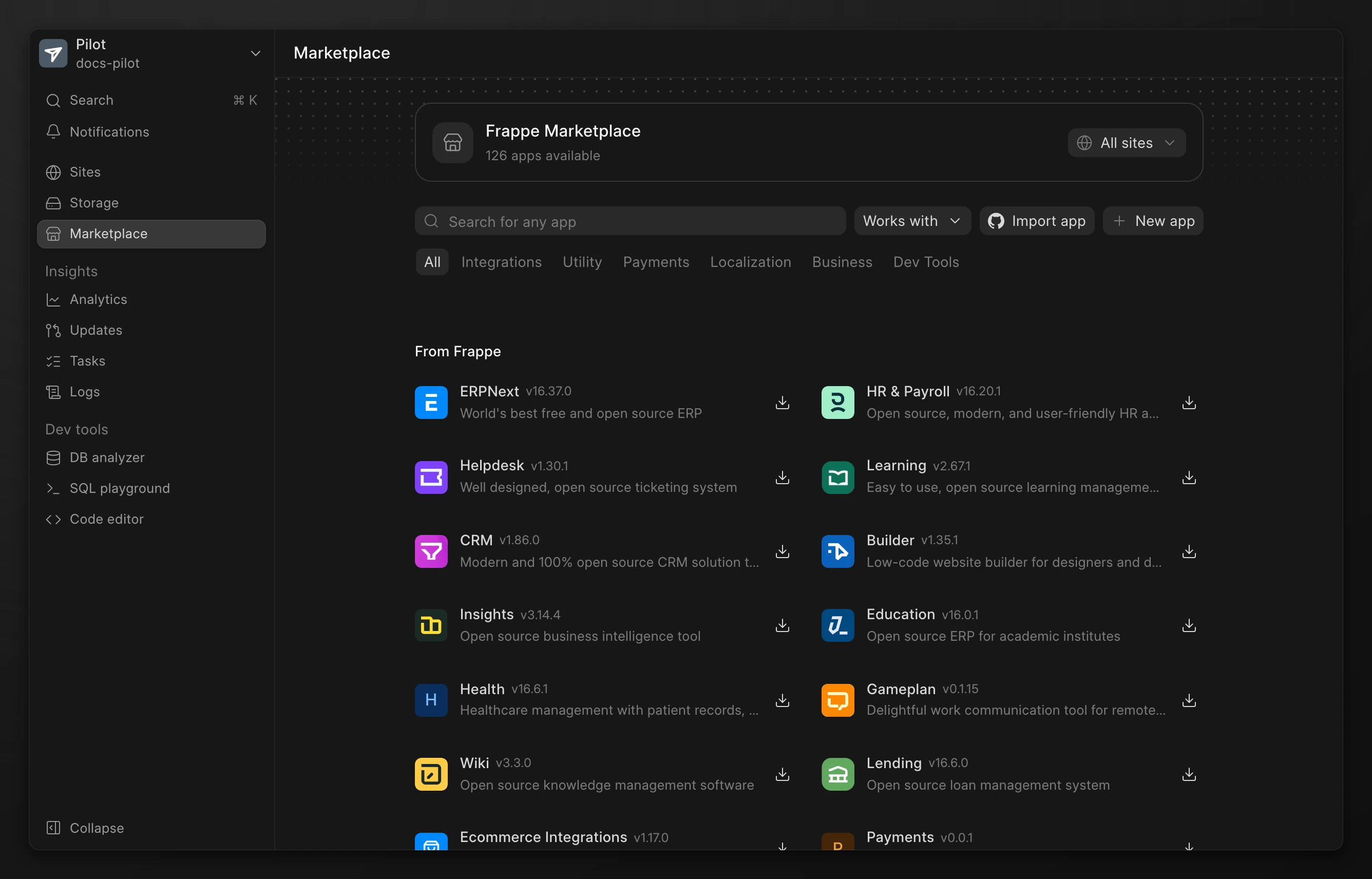
- Type in Search for any app to find an app by name.
- Click a category tab, such as Integrations or Payments, to filter the list.
- Use the Any app menu to show only the apps that work with an app you have, such as ERPNext.
A check mark on an app card means the app is installed on the selected site.
Install an app on a site
- Go to the site page. Click Install app. The Marketplace opens with the site selected.
- Find the app. Click Install on its card.
- Check the site in the Install
<app>on dialog. Click Install.
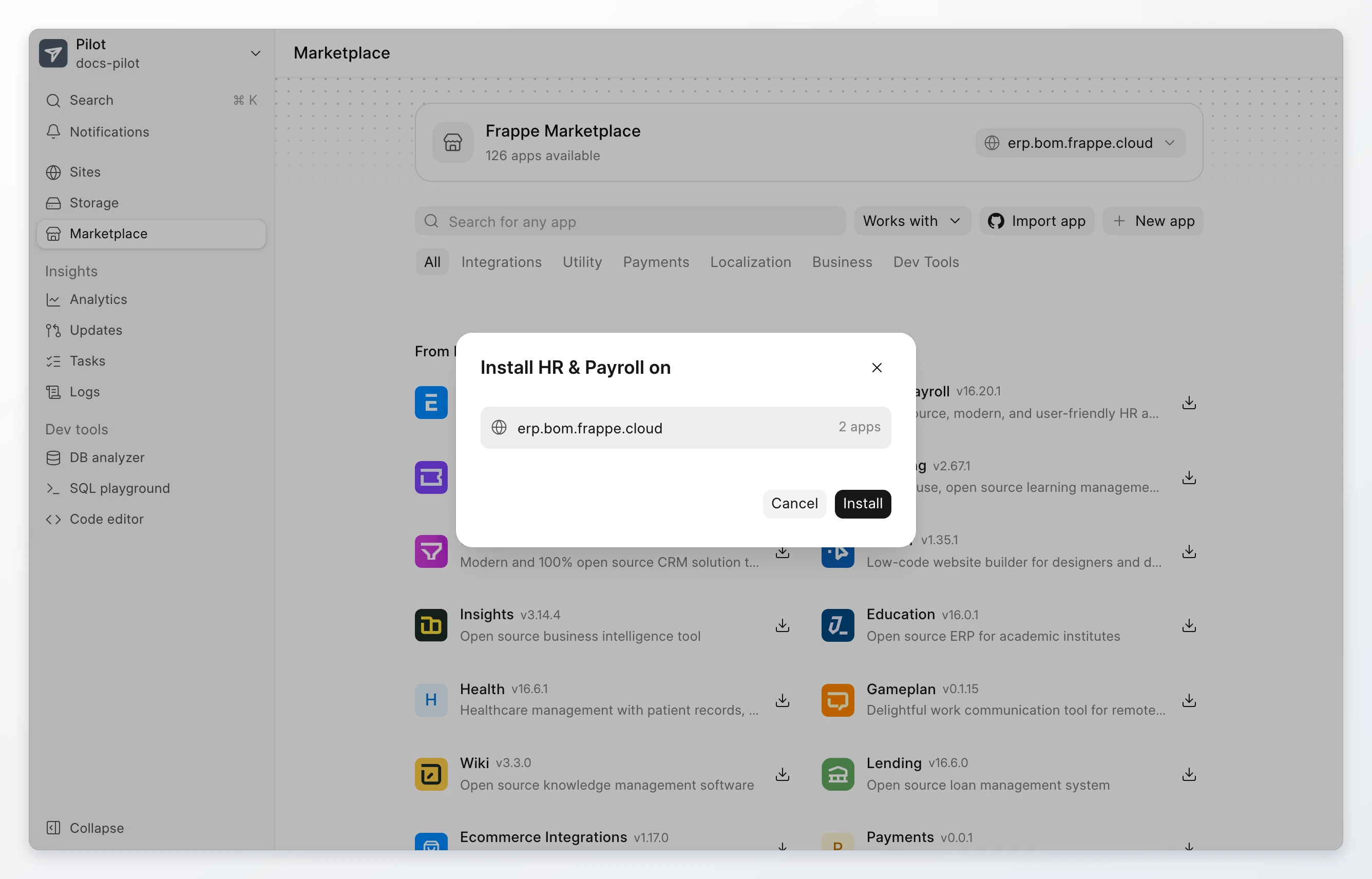
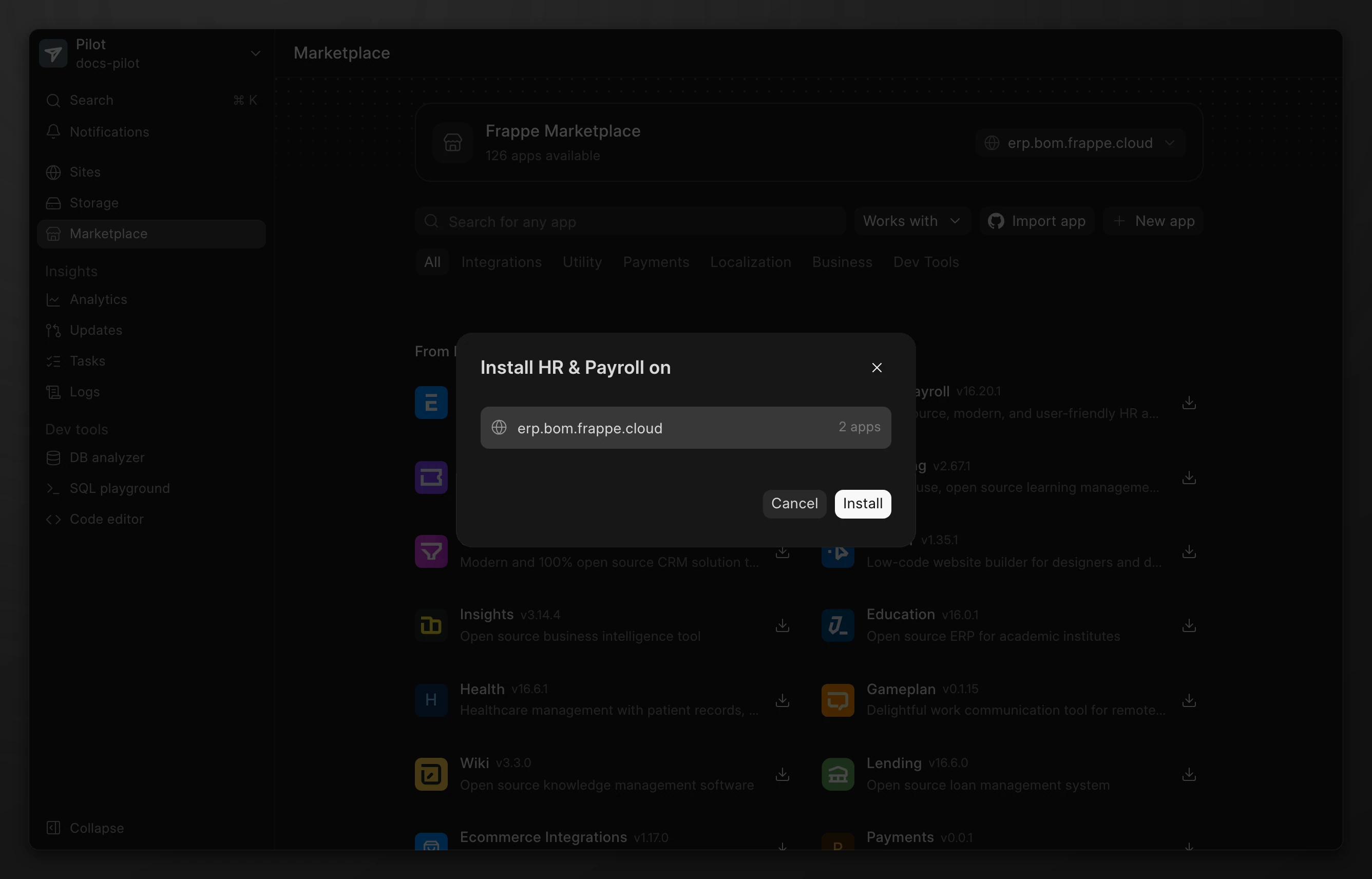
You can also start from the Marketplace. Click the site button next to the page title to select a site. With All sites selected, the install dialog lists every site. Select one site, or select All sites to install the app on every site that does not have it.
Pilot opens the task page and shows each step. Read Logs and tasks.
Import an app from GitHub
Use this for an app that is not in the Marketplace, such as your own app.
- Go to Marketplace. Click Import app.
- Select the source:
- Public repository: type the Repository URL, such as
https://github.com/frappe/crm. - Your GitHub account: select the Repository. If no account is connected, click Connect GitHub first.
- Public repository: type the Repository URL, such as
- Select the Branch. For a public repository, you can type a branch name that is not in the list.
- Pilot checks the repository and shows the app name it found.
- Click Import app. If a site is selected in the Marketplace, the button is Import and install, and Pilot also installs the app on that site.
Pilot validates every app before it adds the app to the bench. If the check fails, the task shows why, and the bench stays as it was.
To connect a GitHub account, go to Settings > General > Git settings.
Create a new app
Use this to start your own app on the bench.
- Go to Marketplace. Click New app.
- Type the App name, such as
people_ops, and a Title. - Type the Publisher and Email. Select a License and type the Initial branch.
- Click Create app.
To edit the code of the app in the browser, read SSH keys and code editor.
Manage the apps on a site
Go to the site page. The Apps tab shows each app with its version. Click the actions menu on an app card.
| Action | What it does |
|---|---|
| Open in editor | Opens the app code in the code editor. It shows when developer mode is allowed. |
| Website and Documentation | Open the app pages, for Marketplace apps that have them. |
| Switch branch | Moves the app to another branch. It shows for apps from GitHub. |
| Uninstall or Remove | Takes the app off the site. |
Switch an app branch
A branch switch changes the app code for every site on the bench. Pilot runs it as an update, with a backup and a migration. Read Updates and migrations.
- Go to the site page. Click the actions menu on the app card.
- Click Switch branch.
- Select the New branch. Click Switch branch.
Uninstall an app from a site
Uninstalling an app drops every doctype that the app owns, with its records. You cannot undo this. Back up the site first if you need the data.
- Go to the site page. Click the actions menu on the app card.
- Click Uninstall. Click Uninstall again to confirm.
For some Marketplace apps, the menu shows Remove. The dialog then gives two choices:
| Choice | Result |
|---|---|
| Disable | The app stops working on the site. Its doctypes and records stay, so installing it again brings the data back. |
| Uninstall | The app stops working, and every doctype it owns is dropped with its records. You cannot undo this. |
You cannot uninstall the frappe app.
From the command line
The Pilot interface has no action to remove an app from the bench. To remove an app that no site uses, connect with SSH and run these commands:
su - frappe
pilot remove-app people_ops