Connect with SSH
You sign in to a server with SSH as the root user. The server accepts only the team SSH keys that you select for it. Passwords do not work over SSH.
Add a key to your team
Team SSH keys belong to the team, not to one person. Each key can sign in to the servers that you select it for.
- Click your name at the bottom of the sidebar, then Settings. In the settings, click SSH keys. You can also press
Ctrl+,or⌘+,to open the settings. - Click Add.
- Type a Name, such as
Work laptop. - Paste your SSH public key, such as the content of
~/.ssh/id_ed25519.pub. - Click Add key.
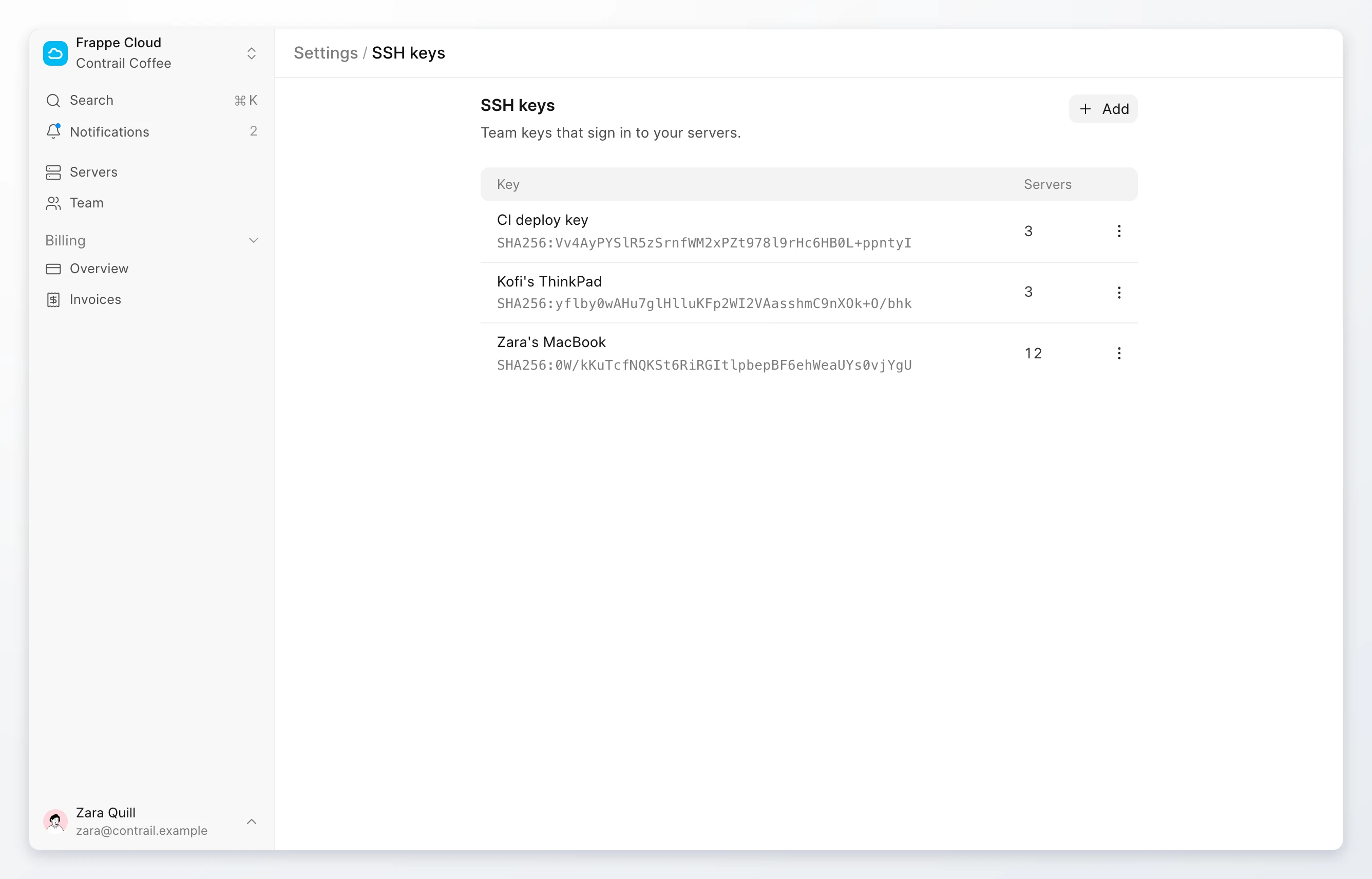
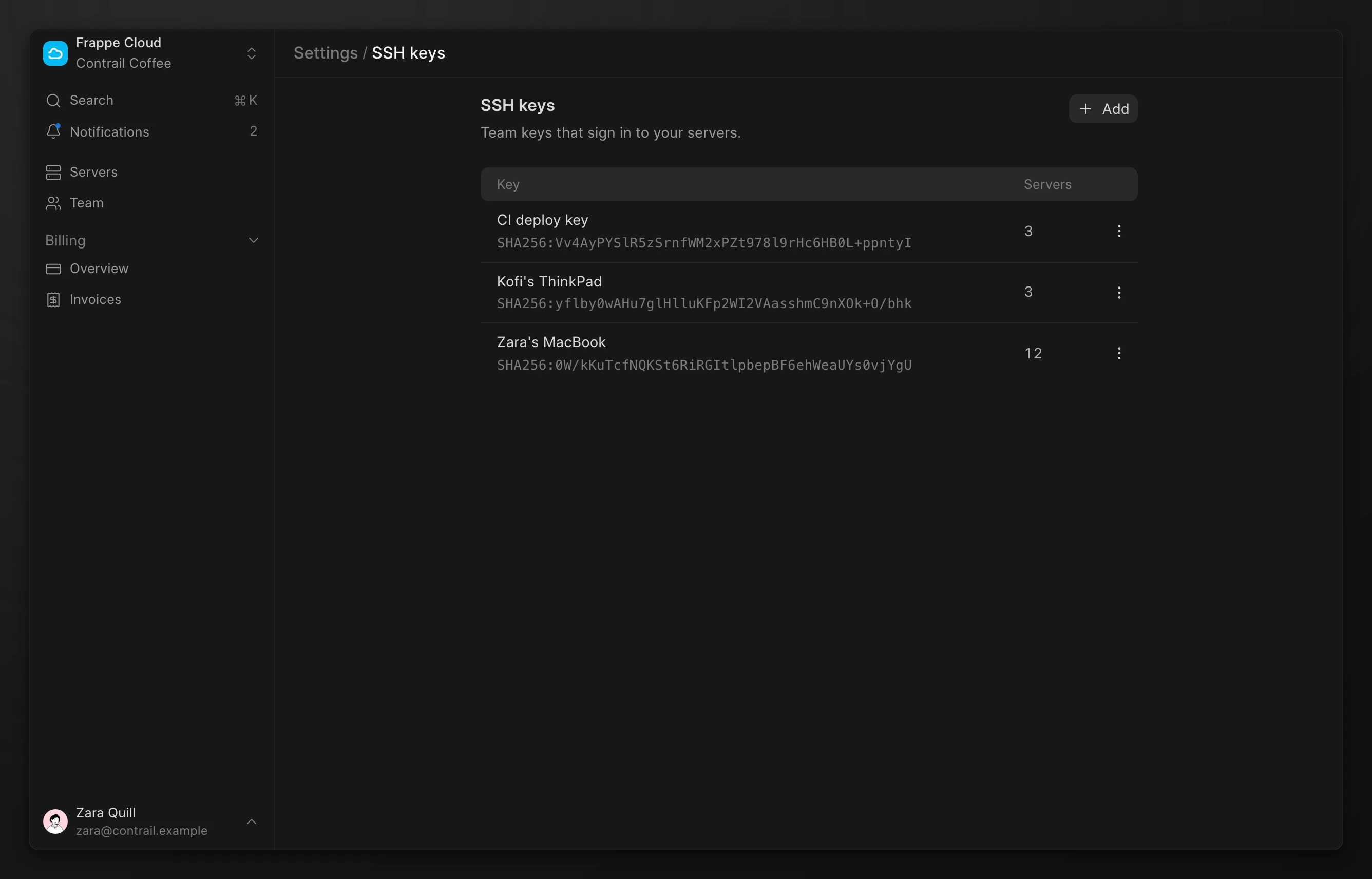
The Servers column shows how many servers use each key. Open the row menu of a key to change it:
| Action | Effect |
|---|---|
| Rotate key | Replace the public key. Use it when a key is lost or old. |
| Delete | Remove the key. This shows only when no server uses the key. |
| Retry sync | Update the key on its servers again. This shows only when an earlier update failed. |
Choose the keys for a server
You select keys when you create a server. To change them later:
- Go to Servers. Click the server. Click the Access tab.
- Under SSH keys, click Edit keys.
- Select or clear keys. Click Save.
The change applies at the next sign-in. Open sessions stay connected.
WireGuard VPN
In a region with a WireGuard VPN gateway, the WireGuard VPN switch lets the team's WireGuard VPN devices reach the private IPv6 address of the server. It is off by default. When it is on, the server heading shows a VPN tag. Click Manage devices to add or delete a device.
Sign in
The Access tab shows the command for the server. Click the copy button next to it.
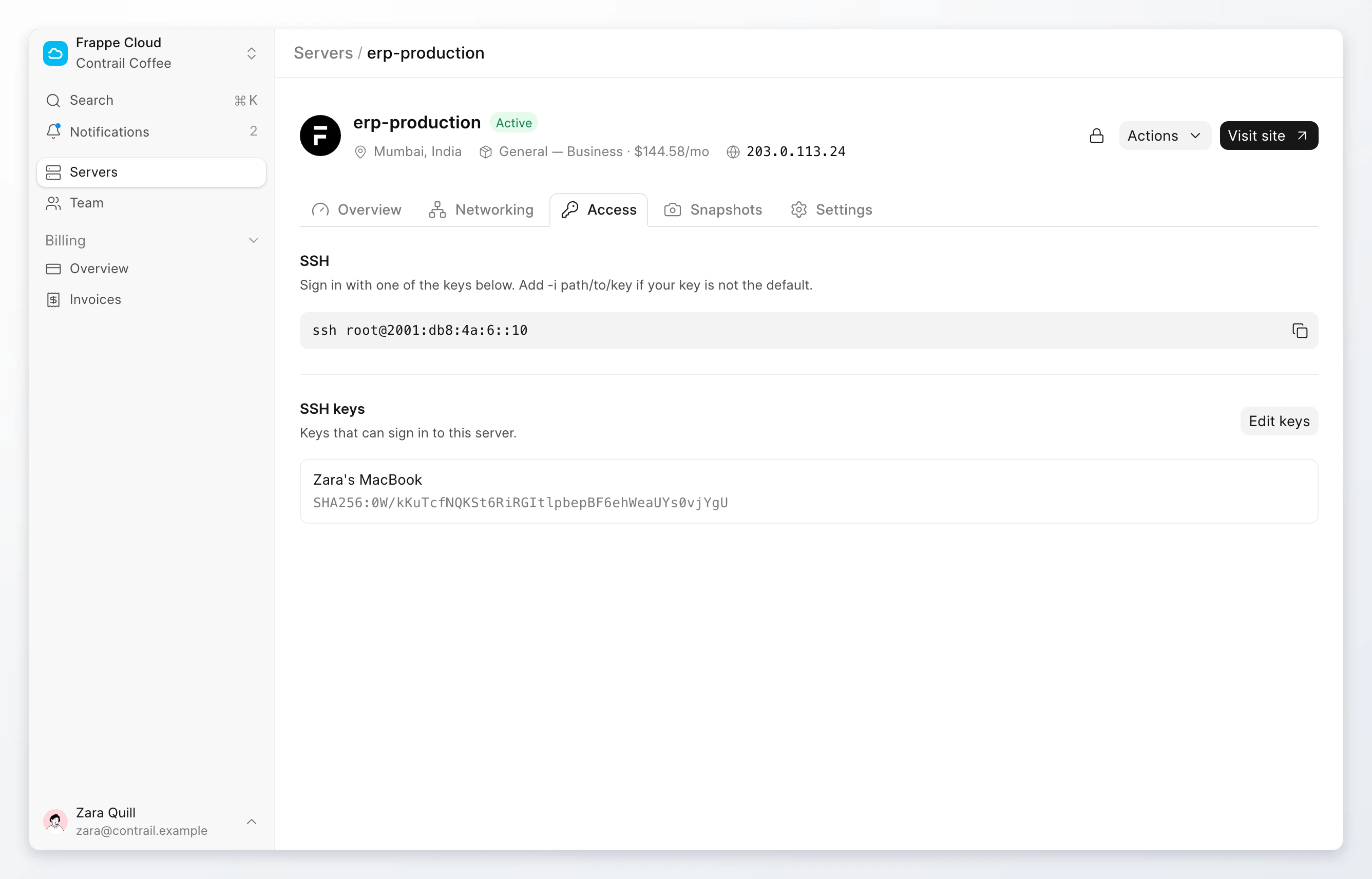
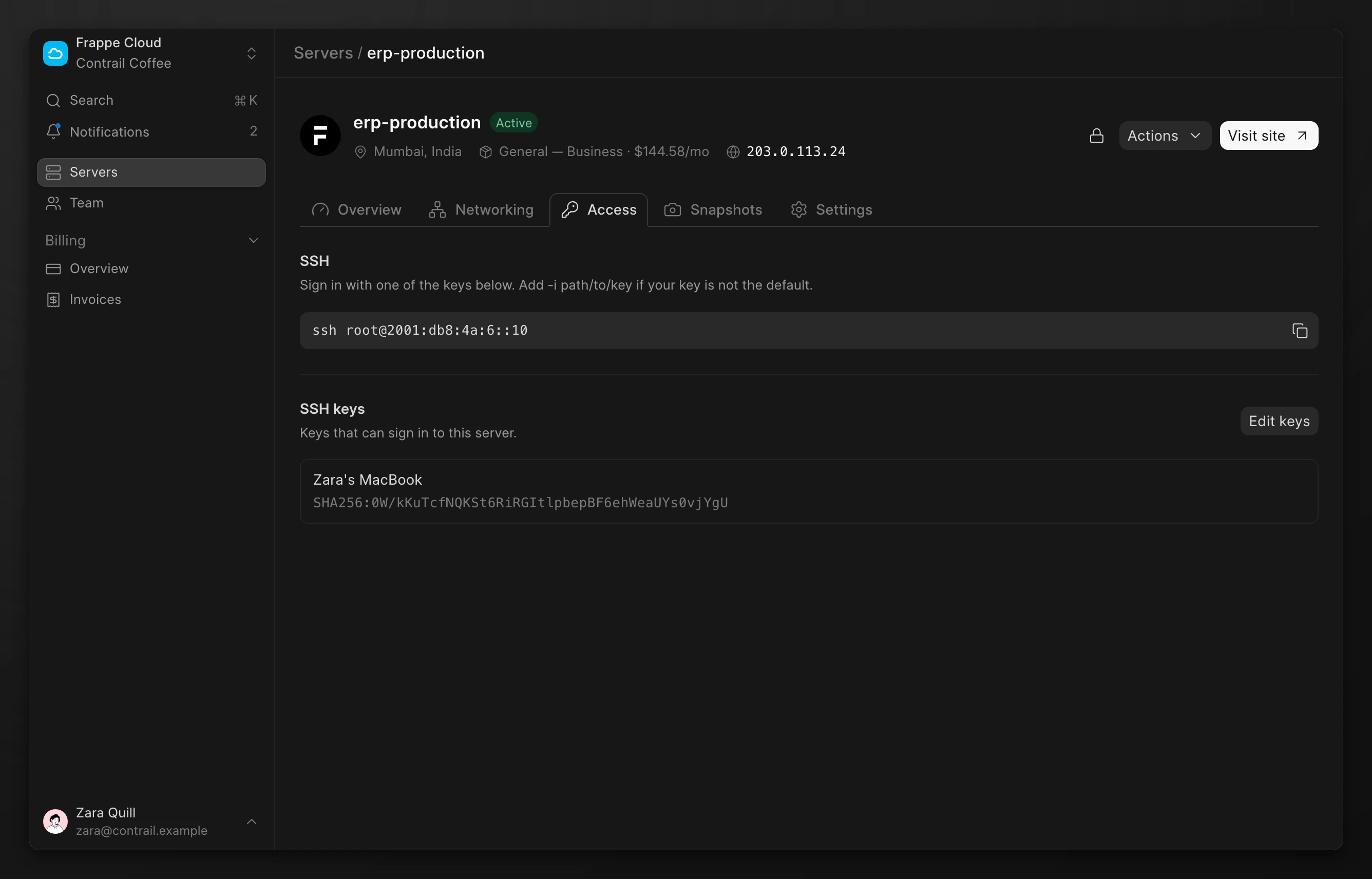
ssh root@2001:db8:4a:6::10The command uses the public IPv6 address when the server has one. If your network has no IPv6, use the public IPv4 address instead. Add -i path/to/key if your key is not the default key.
The command shows only when the server has a public address. The firewall must allow SSH from your address.
Sign in without a key
Use the web console when the server has no key, or when SSH does not work:
- Open the server. Click Actions, then Web console.
- Select SSH session for a root shell. It needs no password.
Serial console (TTY) shows the boot output and a login prompt. It needs the password of a user on the server.
Note
SSH keys and the web console need the Owner, Admin, or Developer role. A free trial server has no SSH, web console, or snapshots until you upgrade.