SSH keys and code editor
Pilot has two tools for developers. SSH keys give shell access to the server. The code editor lets you change app code in the browser.
SSH keys in Pilot and in the console
You can add SSH keys in two places. Each place gives access as a different server user.
| Where | Signs in as | Use it for |
|---|---|---|
| Pilot: Settings > Security > SSH keys | frappe, the bench user | Work on the bench, such as pilot commands and app code. |
| Console: the server's SSH keys | root | Work on the whole server. Read Connect with SSH. |
Add an SSH key in Pilot
- Go to the Pilot menu. Click Settings.
- Click Security, then SSH keys.
- Click Add.
- Paste the Public key, such as
ssh-ed25519 AAAA… zara@laptop. - Click Add key.
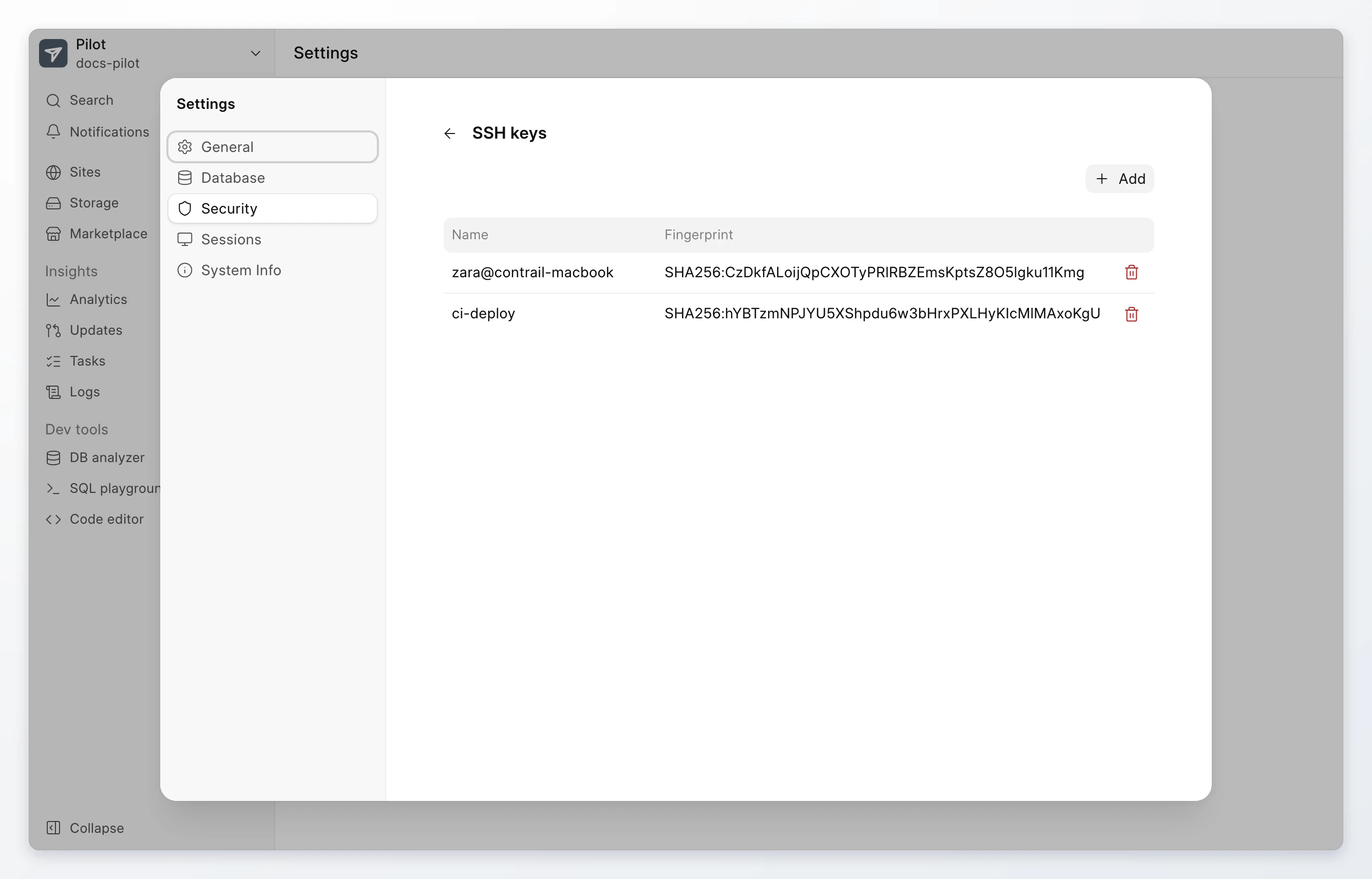
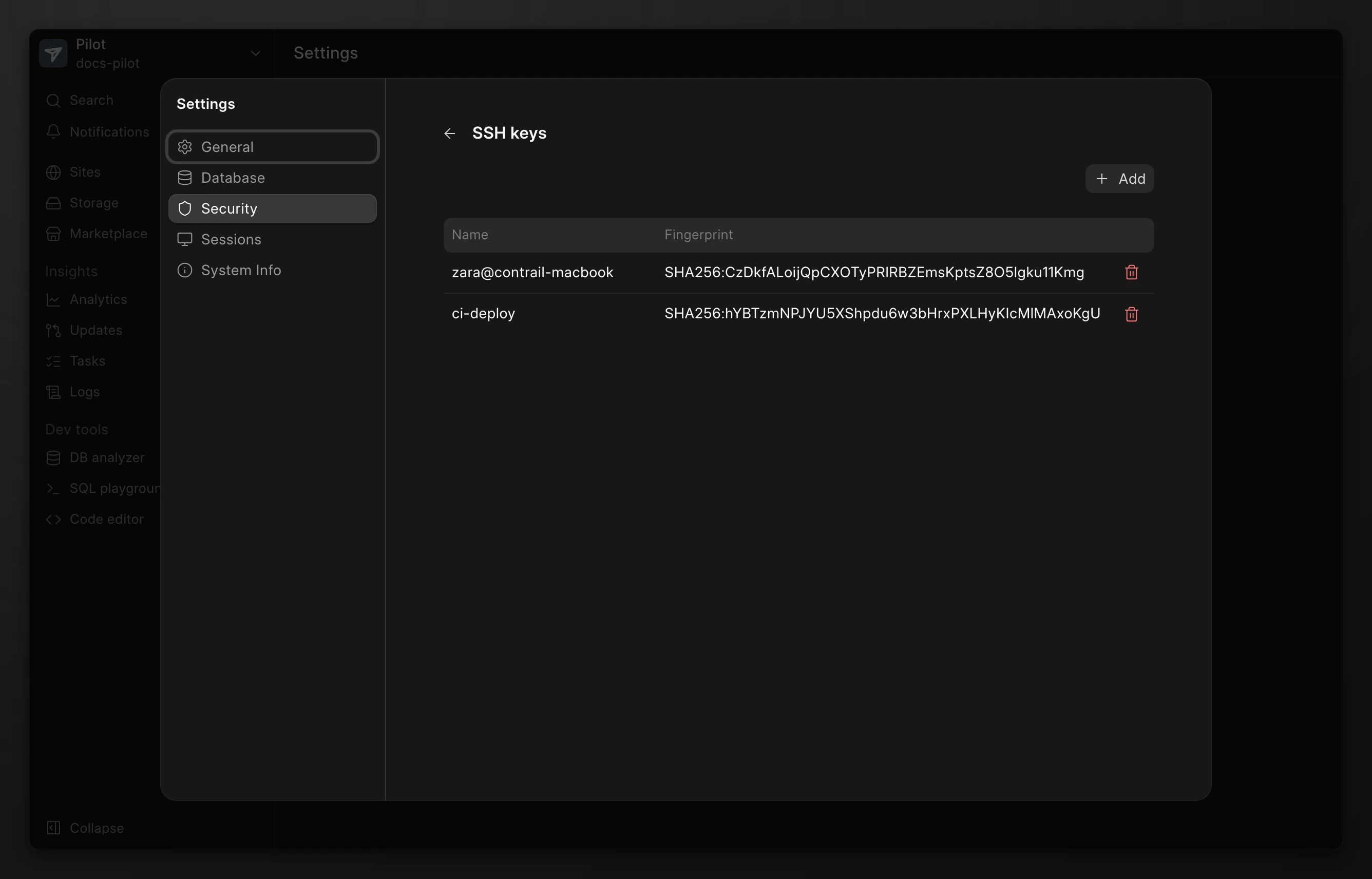
The holder of the matching private key can now sign in as the bench user. Use the public address of the server from the console:
ssh frappe@<server address>Remove an SSH key
The holder of the key loses SSH access as the bench user.
- Go to Settings > Security > SSH keys.
- Click the remove icon on the key. Click Remove to confirm.
Pilot does not remove the last key. This keeps at least one way to sign in as the bench user.
Turn on the code editor
The code editor shows only when developer mode is allowed on the bench.
- Go to the Pilot menu. Click Settings.
- In General, turn on Allow developer mode.
Code editor then shows under Dev tools in the sidebar. Allow developer mode also lets you turn on Developer mode on each site. Read Sites.
Edit app code
- Go to Code editor. The page lists the apps on the bench.
- Click an app. The editor opens in a new tab.
You can also open an app from the site page. On the Apps tab, click the actions menu on the app card. Click Open in editor.
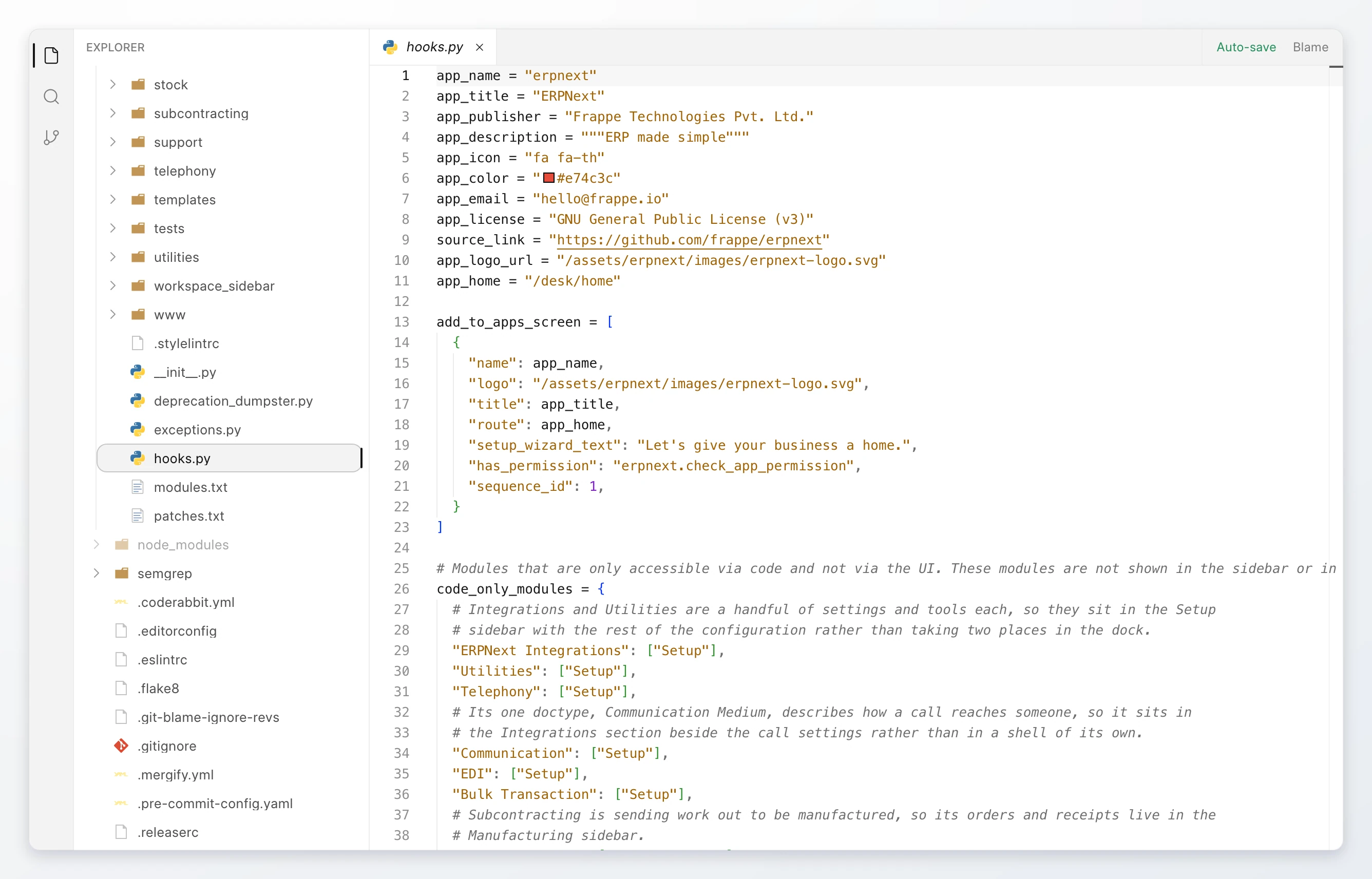
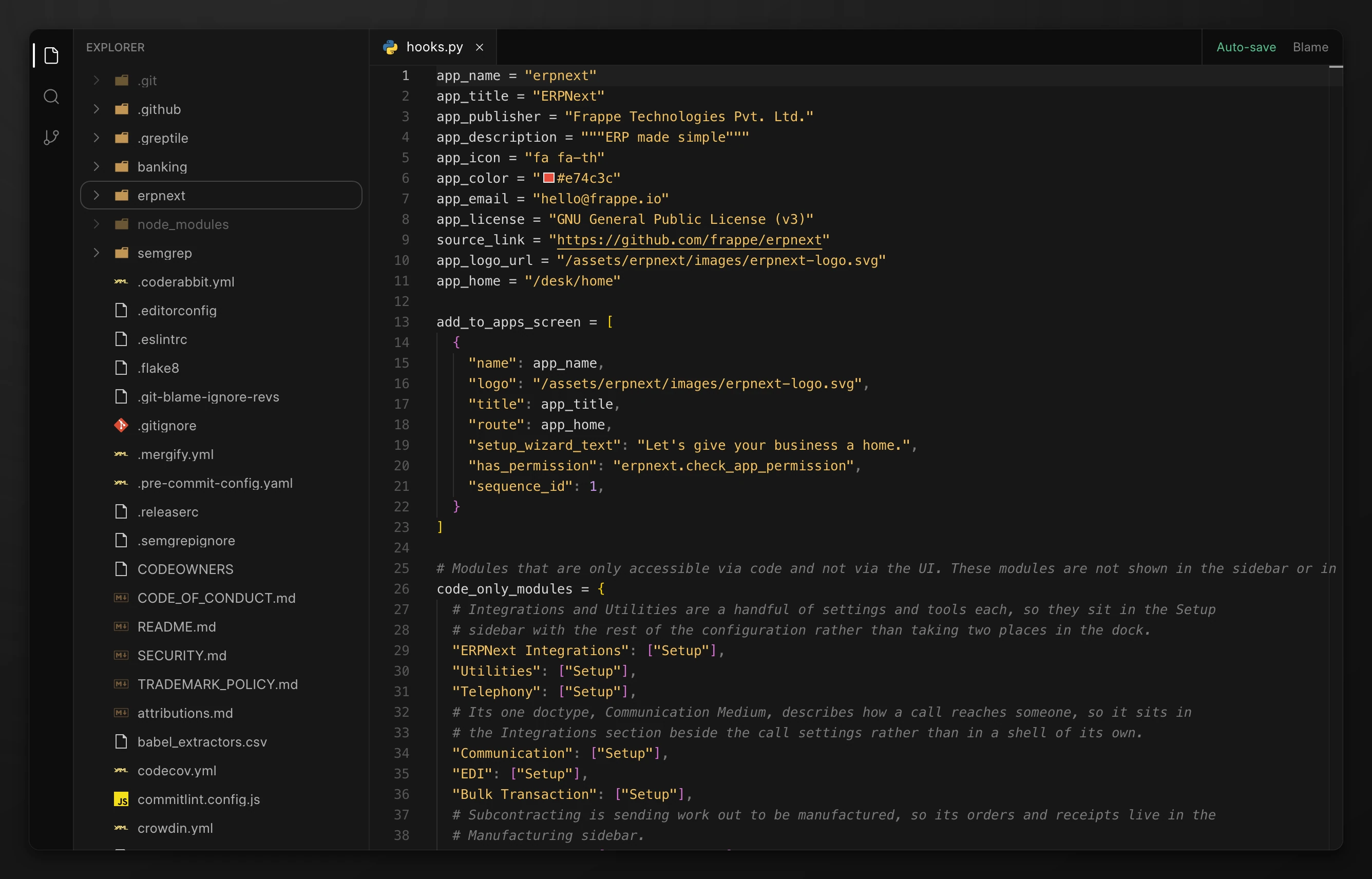
The editor has three panels in the activity bar:
| Panel | Use it to |
|---|---|
| Files | Browse, open, and edit the files of the app. |
| Search | Find text in the files of the app. |
| Git | Stage and commit changes, create a branch, and pull or push to the app repository. |
Warning
The bench holds one copy of each app. A change to the app code affects every site that uses the app. An app update can conflict with your local changes, so commit and push them to the app repository.