Sites
A site is one Frappe installation with its own database, files, and domain. A bench can run many sites, and each site uses some of the apps on the bench.
For example, the Contrail Coffee bench runs two sites:
| Site | Apps |
|---|---|
erp.bom.frappe.cloud | Frappe, ERPNext |
chat.bom.frappe.cloud | Frappe, Raven |
Sites on a server share its CPU, memory, and disk. A new site has no extra cost. When a site needs its own resources, its own update schedule, or its own snapshots, create a server for it.
Site states
| State | Meaning |
|---|---|
| Active | The site is ready. Pilot does not show a state on an active site card. |
| Creating | Pilot is creating or reinstalling the site. |
| Paused | The site directory or its config file is missing. |
| Broken | The site exists, but Pilot cannot read it correctly. |
Create a site
- Go to Sites. Click New site.
- Type a name in Site name, such as
erp. Pilot adds the region domain, such as.bom.frappe.cloud. Web address shows the full address. - Under Choose apps, select the apps to install, such as ERPNext. The list shows the apps on the bench.
- Click Create Site.
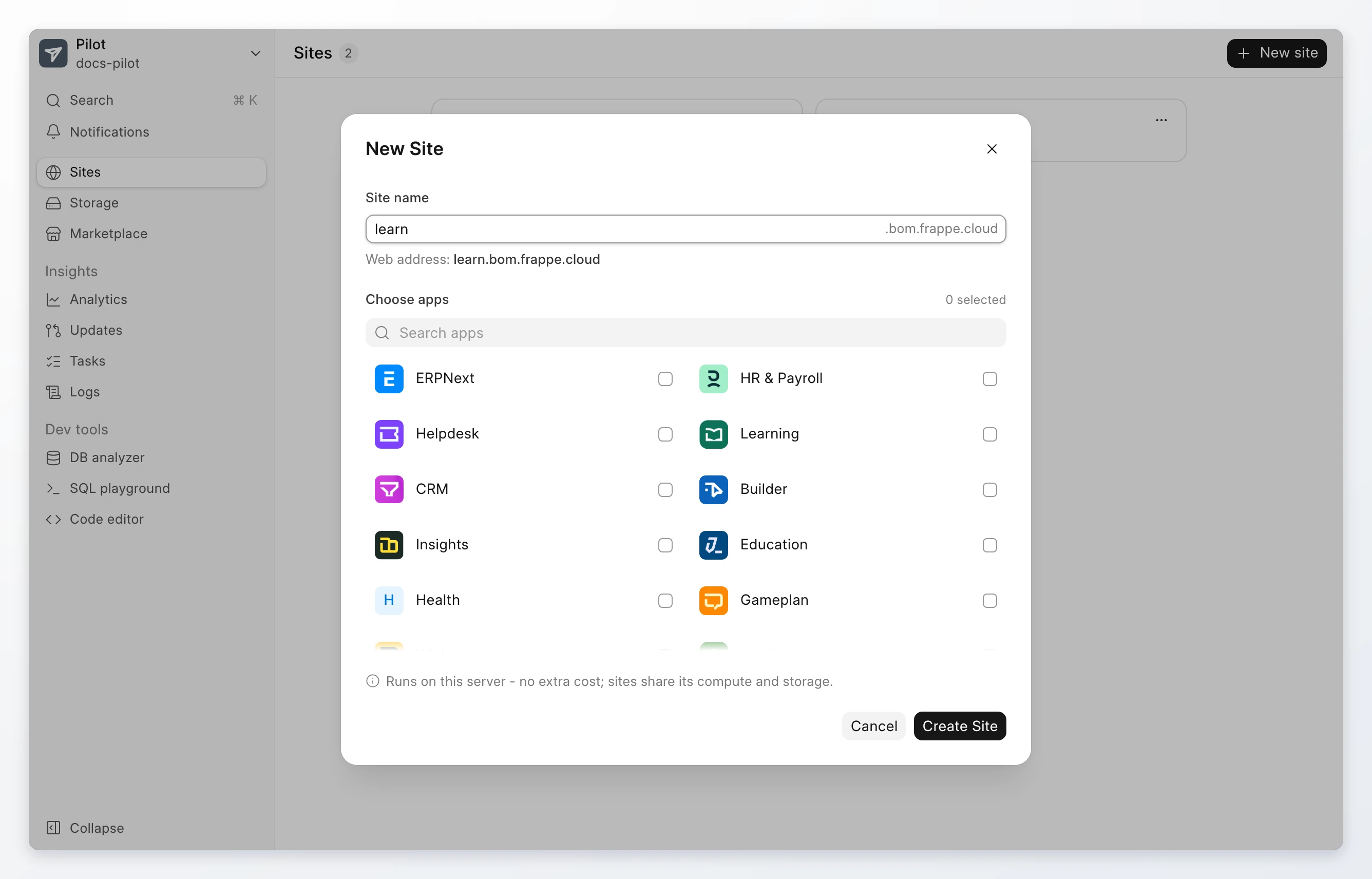
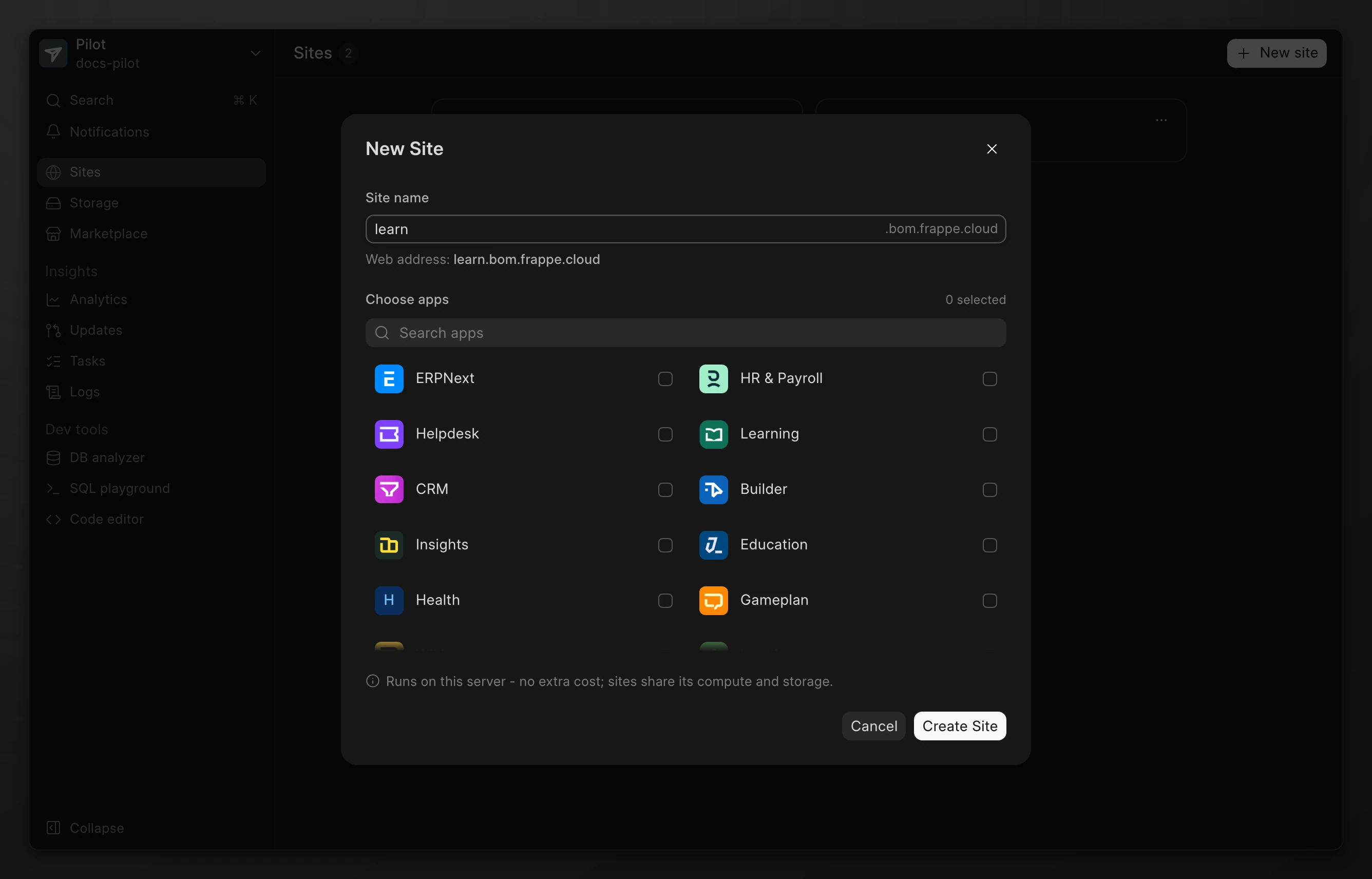
Pilot opens the task page and shows each step. The site shows Creating until the task finishes. Read Logs and tasks.
To install an app that is not on the bench yet, add it from the Marketplace after you create the site. Read Apps.
Finish the setup wizard
A new site starts with the Frappe setup wizard. On the site page, the header button shows Setup site until you finish the wizard.
- Go to Sites. Click the site.
- Click Setup site. The setup wizard opens in a new tab.
- Complete the wizard.
Pilot shows Site setup is complete when the wizard finishes. The header button then shows Visit site.
Open a site
On the site page, click Visit site. The site Desk opens in a new tab with your current browser session on that site.
To sign in as the Administrator user, click the actions menu on the site page. Click Login as admin. This replaces any other session you have on that site.
The site actions menu on the Sites page has the same actions, plus Back up now, View analytics, and View jobs.
Site page
Click a site on the Sites page. The site page has five tabs.
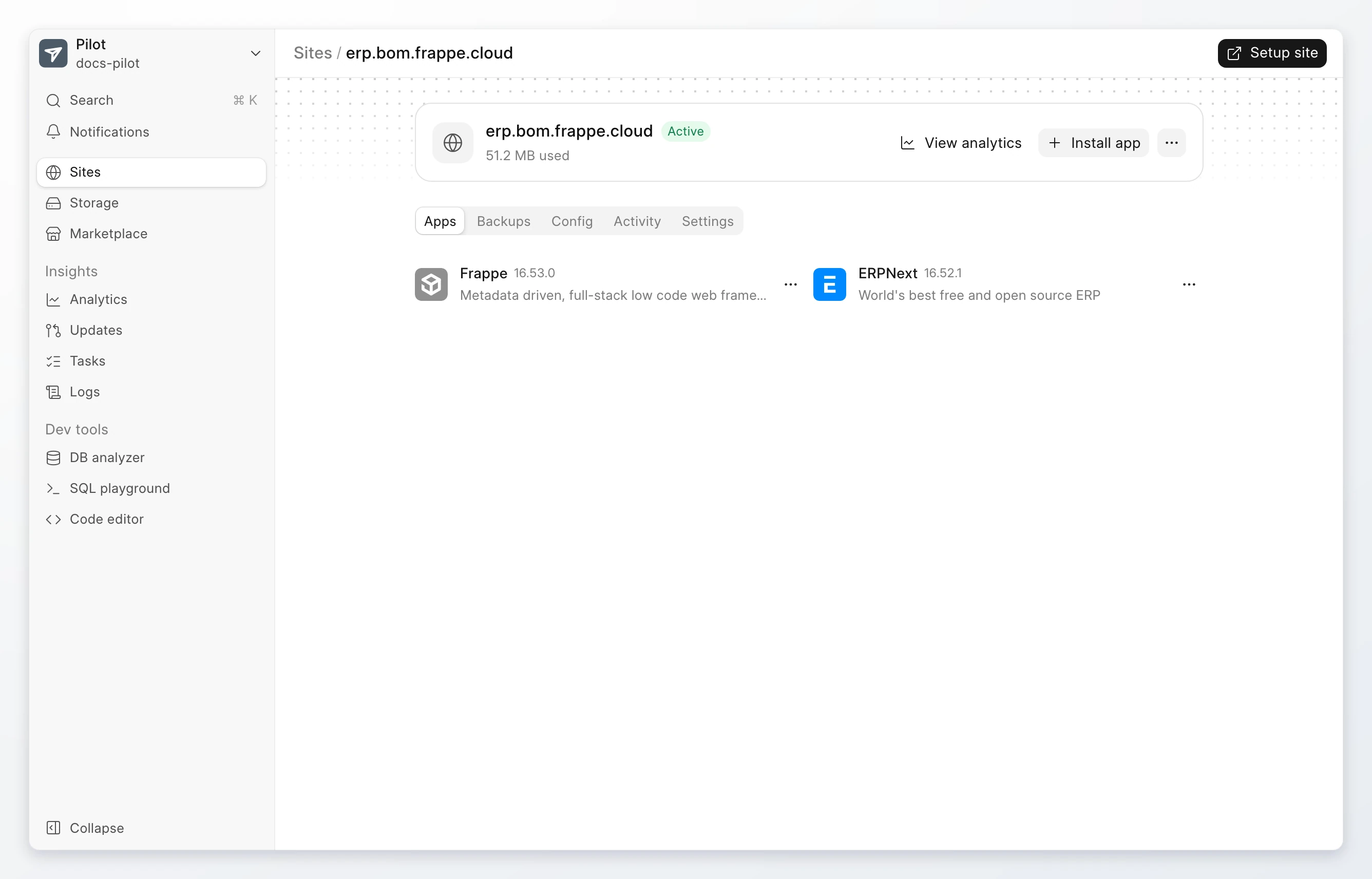
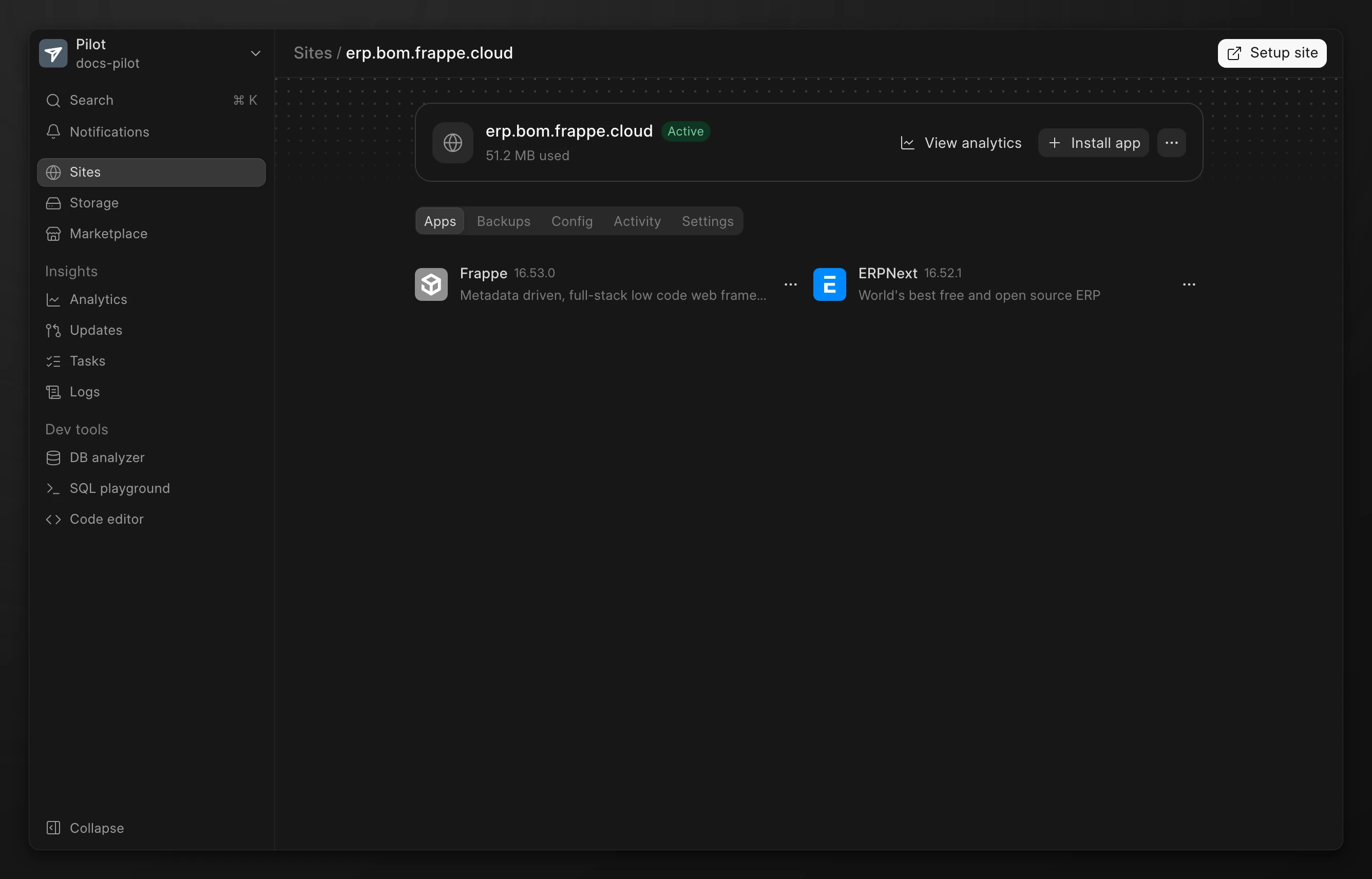
| Tab | What it shows |
|---|---|
| Apps | The apps on the site. Install, switch branch, or uninstall. Read Apps. |
| Backups | The backups of the site and the backup schedule. Read Backups and restore. |
| Config | The keys in the site config. Click Add config to add a key, or use the row menu to edit or remove one. |
| Activity | The actions that people and Pilot took on the site. |
| Settings | General switches, domains, actions, and the danger zone. |
Change site settings
Go to the site page. Click the Settings tab.
| Section | Item | What it does |
|---|---|---|
| General | Maintenance mode | Visitors see a "back soon" page while you work. |
| General | Background jobs | Runs scheduled emails, reports, and automations. Turn it off to pause the scheduler. |
| General | Developer mode | Lets developers customize doctypes on the site. It shows only when Allow developer mode is on in Settings > General. |
| Domains | The domains of the site. Read Domains and SSL. | |
| Actions | Clear cache | Clears the site cache. Use it when something looks out of date. |
| Actions | Build assets | Builds the JS and CSS for the apps of the site again. |
| Actions | Refresh usage | Measures the disk use of the sites again. Pilot also measures it every 6 hours. |
Rename a site
The site is offline for a moment while Pilot renames it.
- Go to the site page. Click Settings.
- Under Danger, click Rename.
- Type the New name.
- Keep Keep
<old name>working as well selected if visitors still use the old address. - Click Rename.
Migrate a site
A migration runs the pending database migrations on the site. The site can go down while it runs. An app update migrates sites for you, so use this action only to run a migration again.
- Go to the site page. Click Settings.
- Under Danger, click Migrate. Click Migrate again to confirm.
A migration from this action takes no recovery backup and you cannot revert it. Read Updates and migrations.
Reset a site
A reset deletes every record on the site. The database goes back to a fresh install. The installed apps stay. You cannot undo this.
- Go to the site page. Click Settings.
- Under Danger, click Reset.
- Type the site name to confirm. Click Reset site.
Drop a site
Warning
Dropping a site deletes its database and every file of the site. You cannot undo this. Pilot keeps the existing backups for 30 days.
- Go to the site page. Click Settings.
- Under Danger, click Drop.
- Type the site name to confirm.
- Keep Take a backup before dropping selected to take a last backup.
- Click Drop site.
Limits
- All sites on a server share its CPU, memory, and disk. To get more, resize the server.
- All sites on a bench use the same version of each app.