Members and invitations
Invite people to your team, change what they can do, and remove them when they leave. Go to Team in the sidebar to see every member and every pending invitation.
Note
You need the Owner or Admin role to invite, change, or remove members. Other roles can see the member list but not change it. See Roles and permissions.
The member list
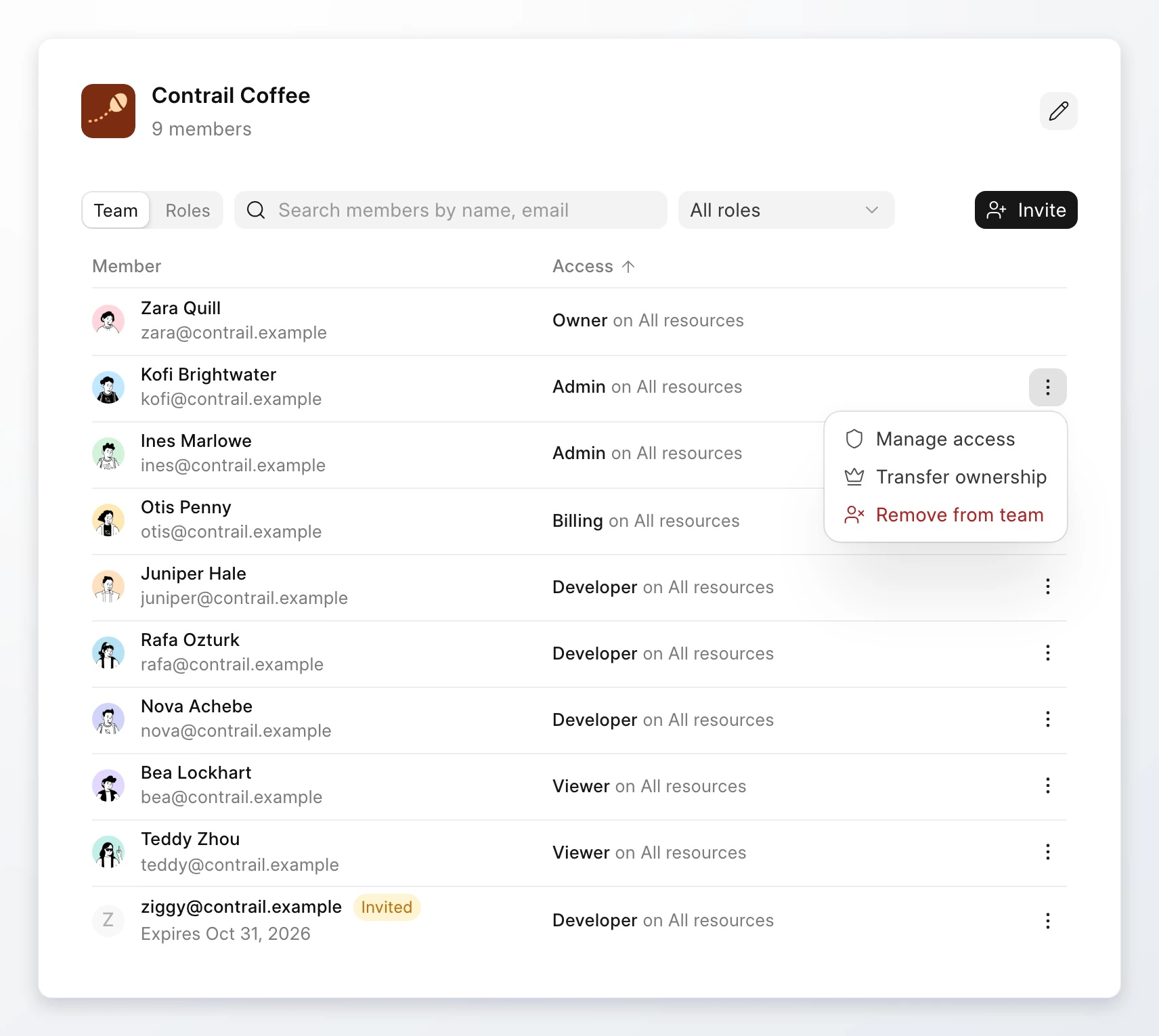
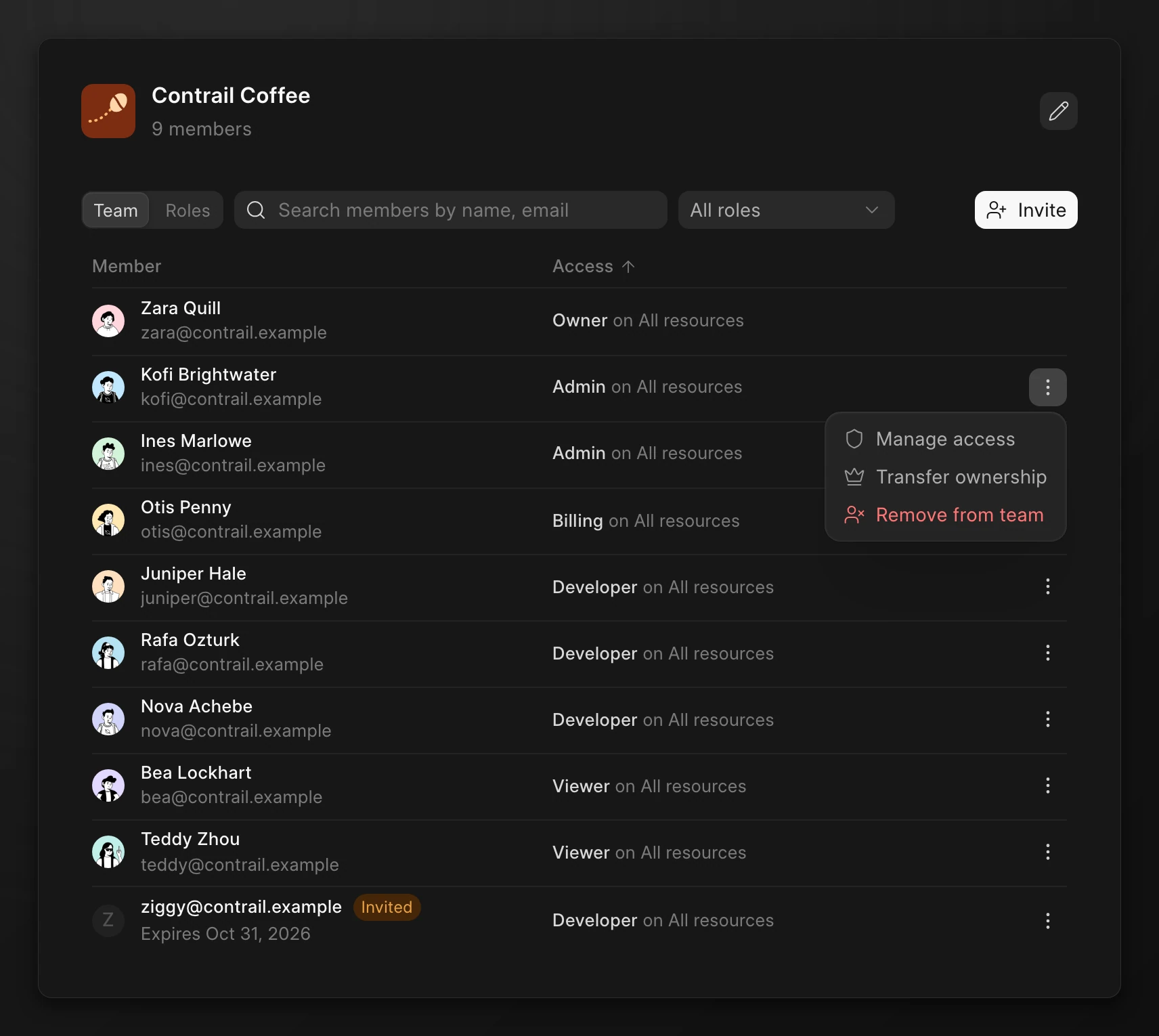
Each row shows the member's name, email, and access. The access column shows each role and where it applies, such as Developer on All resources. A pending invitation shows the email address, an Invited badge, and the date it expires.
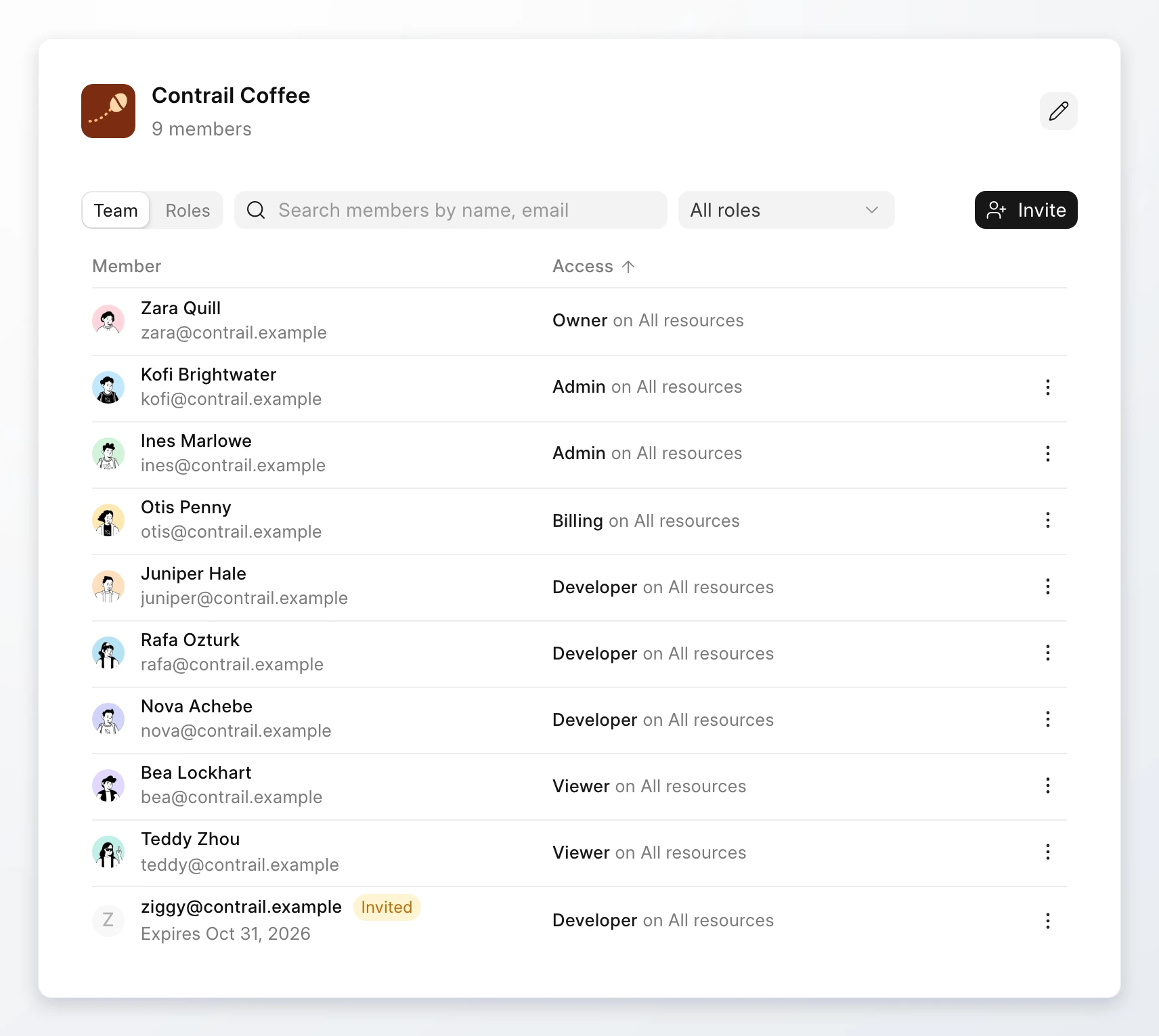
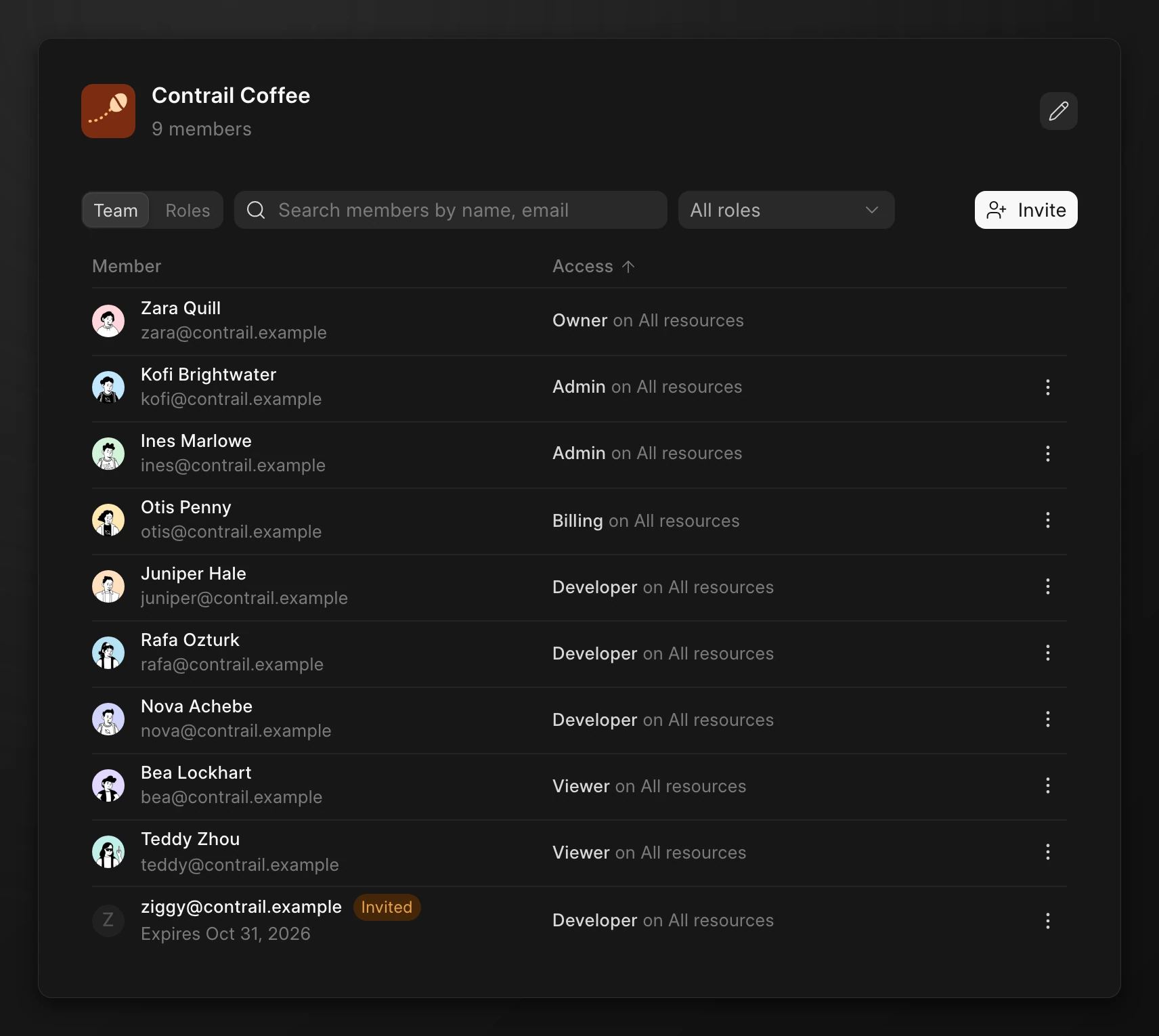
Use the search box to find a member by name or email. Use the All roles menu to show only the members who hold one role.
Invite members
You can invite up to 10 people in one step. Each person gets one email with a link to join.
- Go to Team. Click Invite.
- Type the email address of the person.
- Select a Role. The default role is Developer. You cannot invite a person as Owner.
- Select a Resource. Select All resources to give the role on the whole team, or select one server or site.
- To invite another person, click Add another and repeat steps 2 to 4.
- Click Send invitations. The button shows the number of invitations, such as Send 2 invitations.
If one address fails, the dialog stays open and shows the error below that row. The other invitations are sent. Fix the row and click the button again.
An invitation fails when:
- The person is already a member of the team.
- The person already has a pending invitation. Resend that invitation instead.
- You sent 50 invitations in the last hour. Try again later.
Resend or revoke an invitation
An invitation stays open for 14 days. Resend it when the person did not get the email or the invitation is close to its expiry date.
- Go to Team. Find the row with the Invited badge.
- Click the ⋮ menu on the row.
- Click Resend to send a new email, or Revoke to cancel the invitation.
Resend starts the 14 days again and sends a new link. The link in the earlier email stops working. You can resend an invitation once every 5 minutes.
Revoke cancels the invitation. The link in the email stops working. To give access again, send a new invitation.
Accept an invitation
The invitation email has a link to a Join page for the team. The page shows who invited you and the role you get.
- Open the link in the invitation email.
- Do one of these:
- If you are signed in with the invited email, click Accept and join.
- If you have an account but are not signed in, click Sign in to accept.
- If you do not have an account, type your Full name and click the join button, such as Join Contrail Coffee.
- If you are signed in with a different email, click Switch account and sign in with the invited email.
- The console opens on the new team.
You can only accept an invitation with the email address that it was sent to. Click Decline if you do not want to join. The page tells you when the invitation was already accepted, expired, revoked, or declined. Ask the team for a new invitation in those cases.
You can also see the invitations sent to you in the console. Go to Settings > Invitations. While an invitation waits, your user menu also shows Invitations with the count. Each invitation has Accept and Decline. Accepting joins the team and switches to it.
Change a member's access
A member can hold more than one role, and each role can apply to the whole team or to one server or site.
- Go to Team. Click the ⋮ menu on the member's row.
- Click Manage access.
- Change the role or the resource on a row. Click Add role to add a row. Click × to remove a row.
- Click Save.
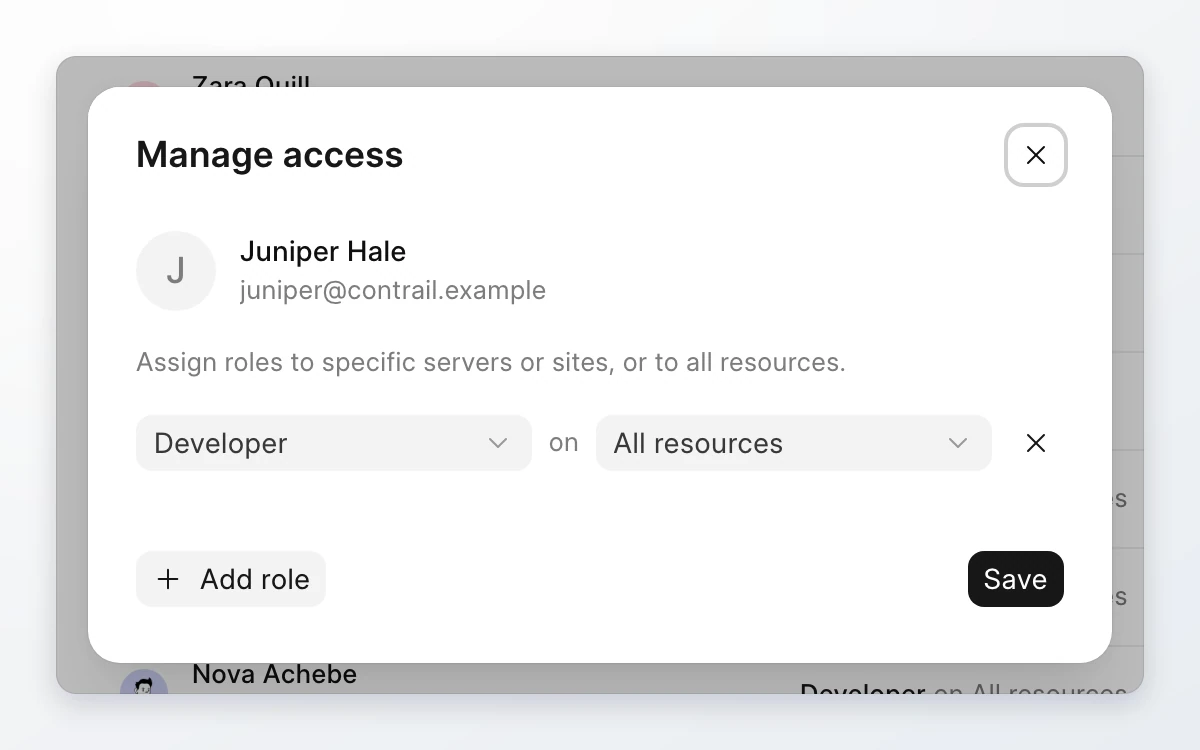
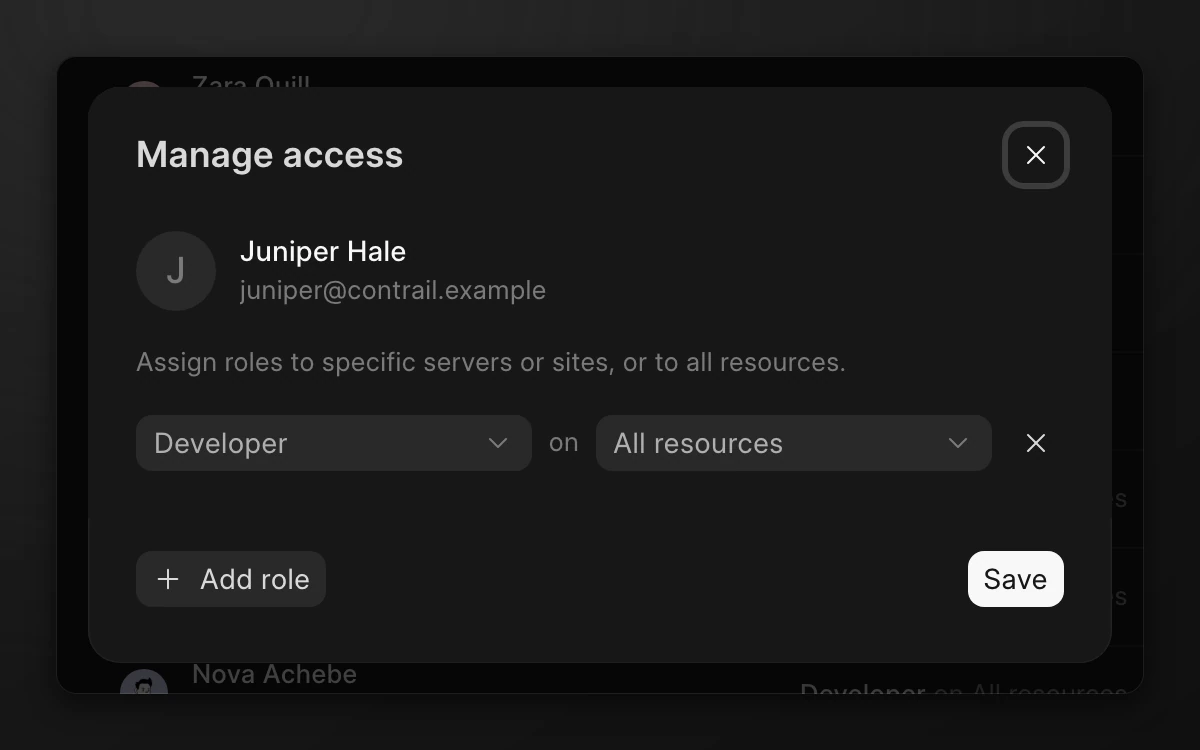
A member must hold at least one role. You cannot change your own access, and you cannot change the Owner's access. To make a member the Owner, transfer ownership.
The dialog tells you when a row has no effect. Admin already covers every other role. A role on All resources already covers the same role on one server or site, so Frappe Cloud does not save that row.
Remove a member
- Go to Team. Click the ⋮ menu on the member's row.
- Click Remove from team.
- Click Remove to confirm.
The member loses access to the team, its servers, and its sites immediately. You can invite them again later. You cannot remove yourself or the Owner.