How billing works
Frappe Cloud bills your team once a month, in arrears, for the servers and services it used in that calendar month. Go to Billing > Overview to see what you spend now, what you spent before, and how you pay.
Note
You need the Owner, Admin, or Billing role to see billing. Members with other roles do not see Billing in the sidebar.
The billing cycle
A billing cycle is one calendar month, from the 1st to the last day. Charges add up during the month. After the month ends, Frappe Cloud issues an invoice for it and collects the payment.
Each invoice is paid in this order:
- Prepaid credits in your wallet.
- Your payment methods, in the order shown under Methods on Billing > Payments. When one fails, the next one is tried.
You do not need to pay a normal invoice by hand. See Invoices for an invoice that stays open.
What you pay for
| Charge | How it is billed |
|---|---|
| Servers | A monthly rate set by the server's plan. The invoice shows each server, its plan, and the dates it was billed. |
| Metered services | Usage, such as AI tokens. The amount is final when the month ends. |
| Add-ons | Subscriptions such as storage buckets and paid snapshots. |
| Tax | Added on each invoice for the tax region in your billing details. |
The summary panel
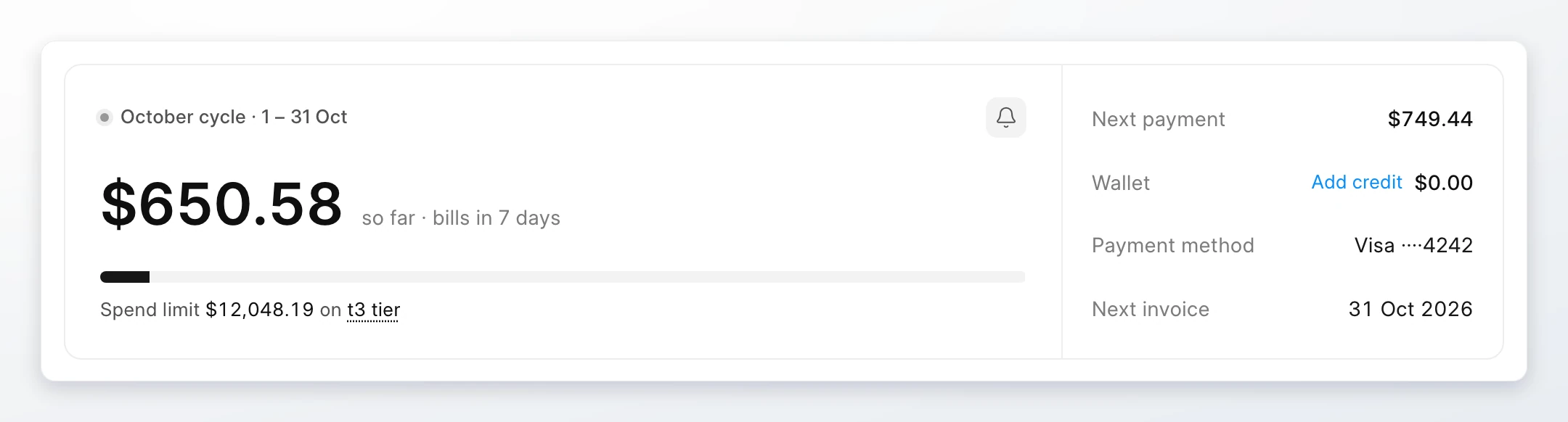
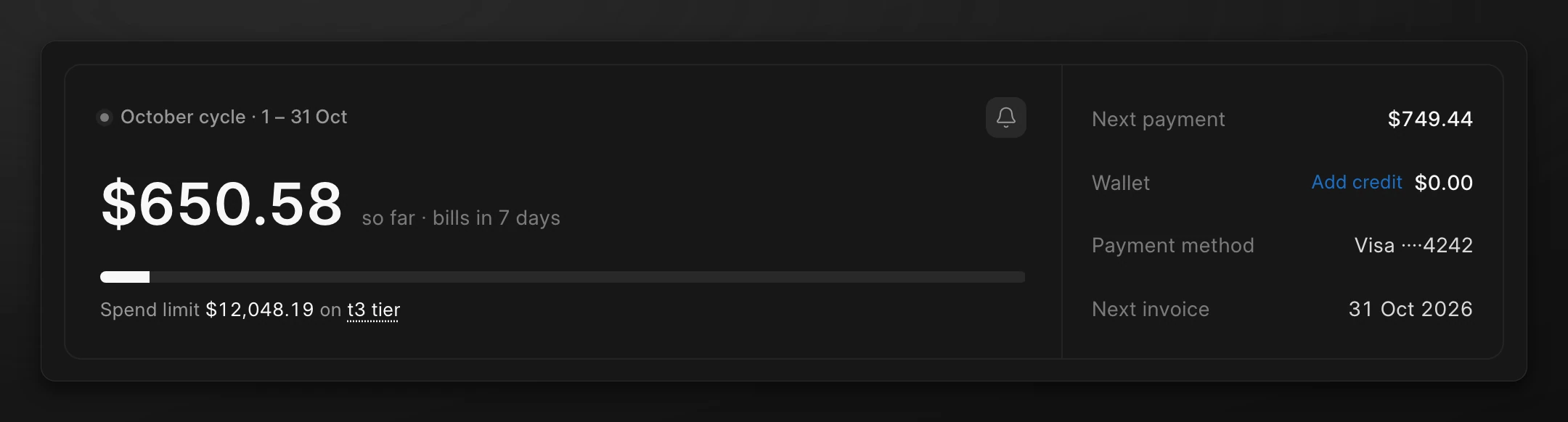
The panel at the top of Billing > Overview shows the current cycle.
| Item | Meaning |
|---|---|
| Cycle and amount | The charges so far in this cycle, and the days until it is billed. Click Breakdown to see each line and the Projected total. |
| Spend limit | The most your team can spend in one cycle on its current tier. Click the tier to see all tiers. See Credits and spend limits. |
| Next payment | The amount Frappe Cloud expects to collect next. It shows Due now when an invoice is unpaid. Click Schedule to see the payment schedule. |
| Wallet | Your prepaid credit balance. Click the history icon to see its history. Click Add credit to top up. |
| Payment method | The payment method that is charged first. |
| Next invoice | The date of the next invoice. |
Budget alerts
Click the bell icon on the summary panel to set a budget alert. Type an amount and click Set alert. The team gets a notification when the projected spend for the cycle goes above that amount. Set 0 to turn the alert off.
The spend chart
The Spend card shows what your team was invoiced in the last 3, 6, or 12 months. Click 3M, 6M, or 12M to change the period.
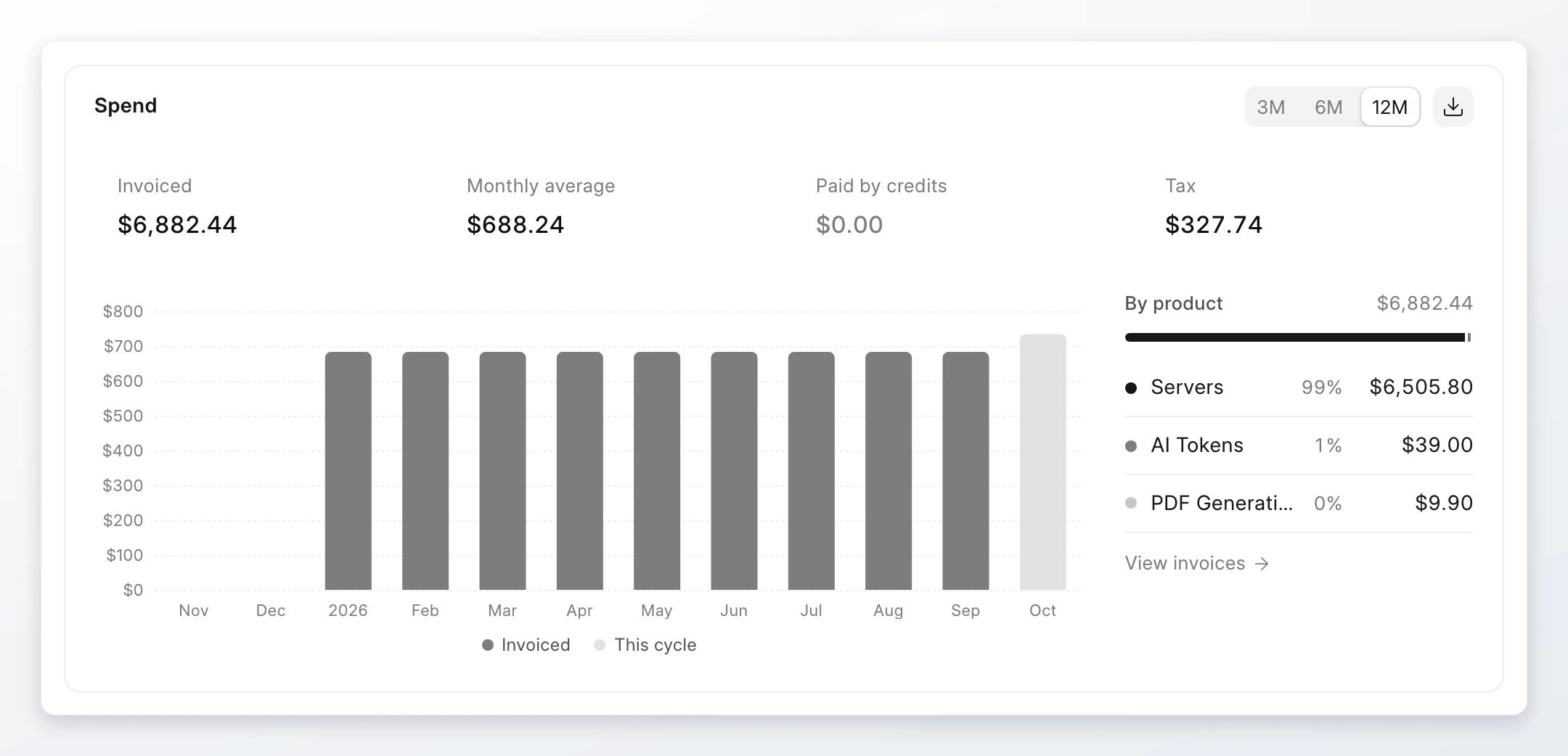
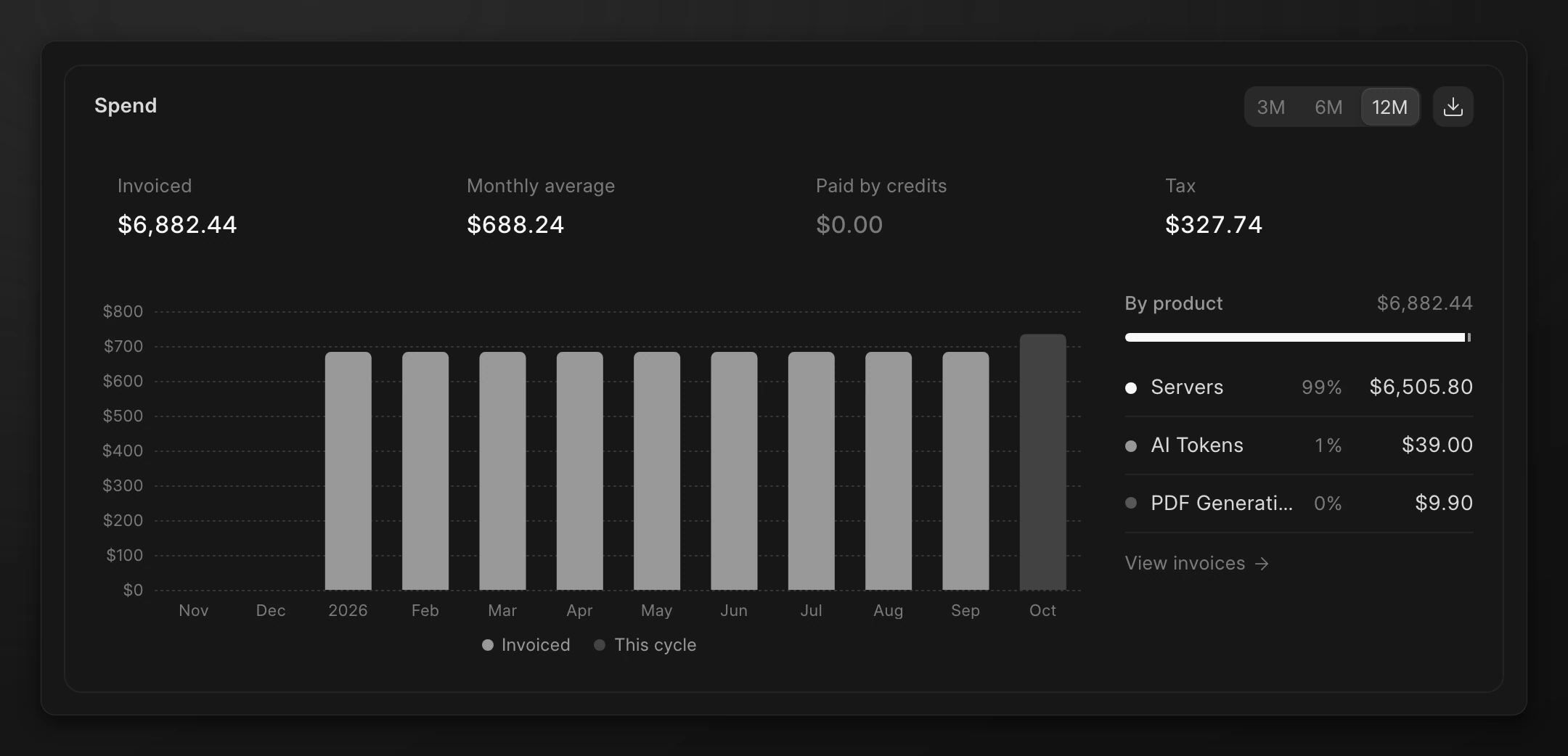
- The top row shows the total invoiced, the monthly average, the amount paid by credits, and the tax.
- The dark bars are invoiced months. The light bar is the current cycle.
- By product splits the total, such as servers and AI tokens.
- Click the download icon to export the data as a CSV file.
Other cards on the overview
| Card | Use it to |
|---|---|
| Limits | See your tier, your spend this cycle against the limit, and your resource count. |
| Subscriptions | See each server and service you pay for and its cost this cycle. |
| Breakdown | See what the team was invoiced by product and by region for the chosen period. |
Other billing pages
| Page | Use it to |
|---|---|
| Billing > Payments | Add, order, and remove payment methods on the Payment methods card. See Payment methods. See and edit who invoices are billed to, the billing email, phone, currency, and GSTIN on the Billing details card. |
| Billing > Invoices | See each invoice. Open the Statement tab to see the invoices and payments for a period, to reconcile with your own records. Tax invoices are issued separately. |
| Servers | Click Stop all to stop every running server in the team. Sites are unavailable while the servers are stopped. Data is kept, and you can start the servers again. |
What next
Add a payment method: add a card so that Frappe Cloud can collect each invoice.