Backups and restore
A backup is a copy of a site at one point in time. Pilot stores each backup on the server. You can also keep a copy in object storage.
A backup has up to four files:
| File | Holds |
|---|---|
| Database | All the records of the site. |
| Public files | Files that anyone with the link can open. |
| Private files | Files that only signed-in users can open. |
| Config | The site config. |
A Pilot backup covers one site. To copy the whole server, take a snapshot in the console.
Back up a site now
- Go to Sites. Click the site.
- Click the Backups tab. Click Back up now.
Pilot opens the task page and shows each step. The backup shows in the Backups tab when the task finishes.
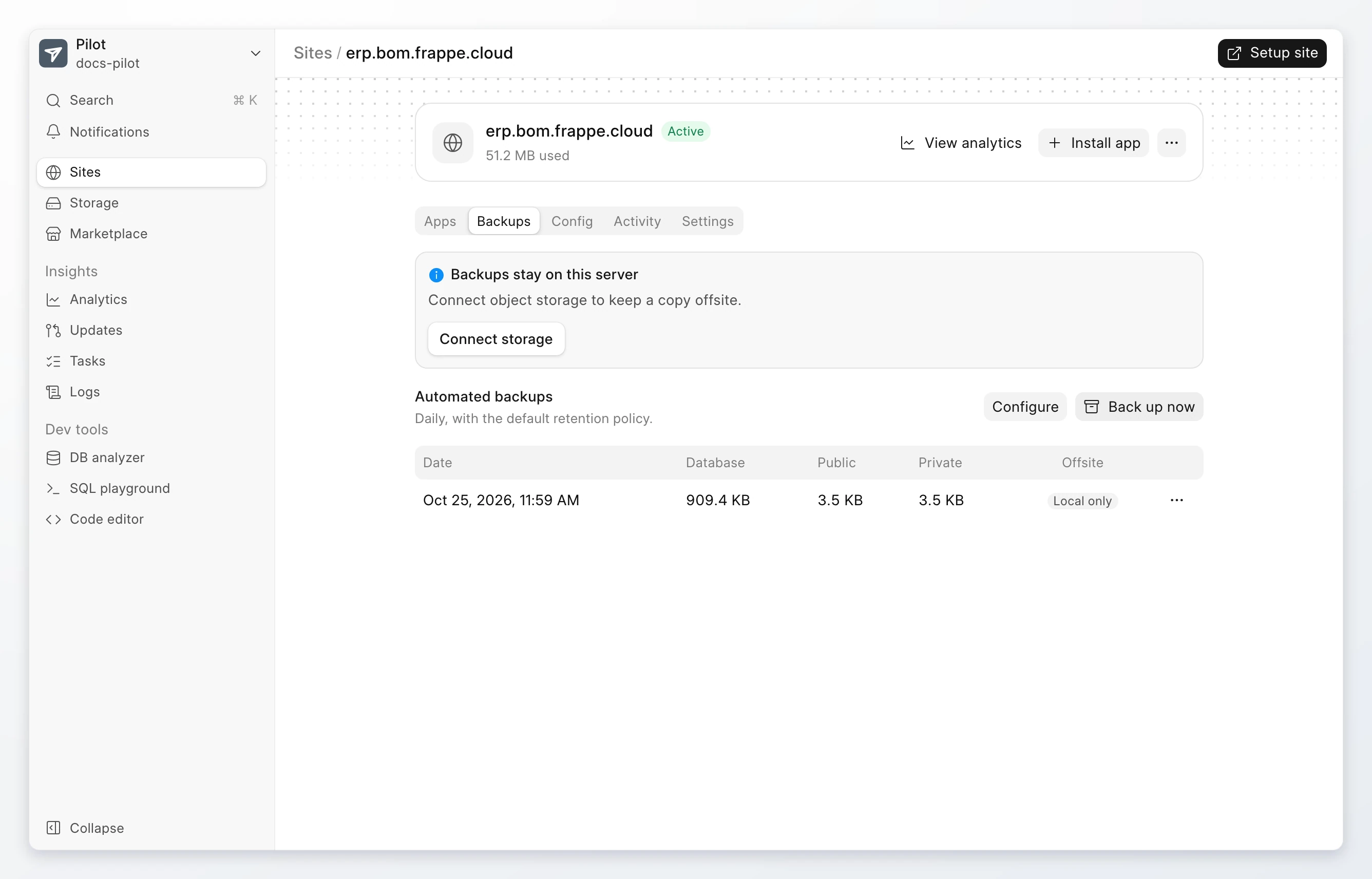
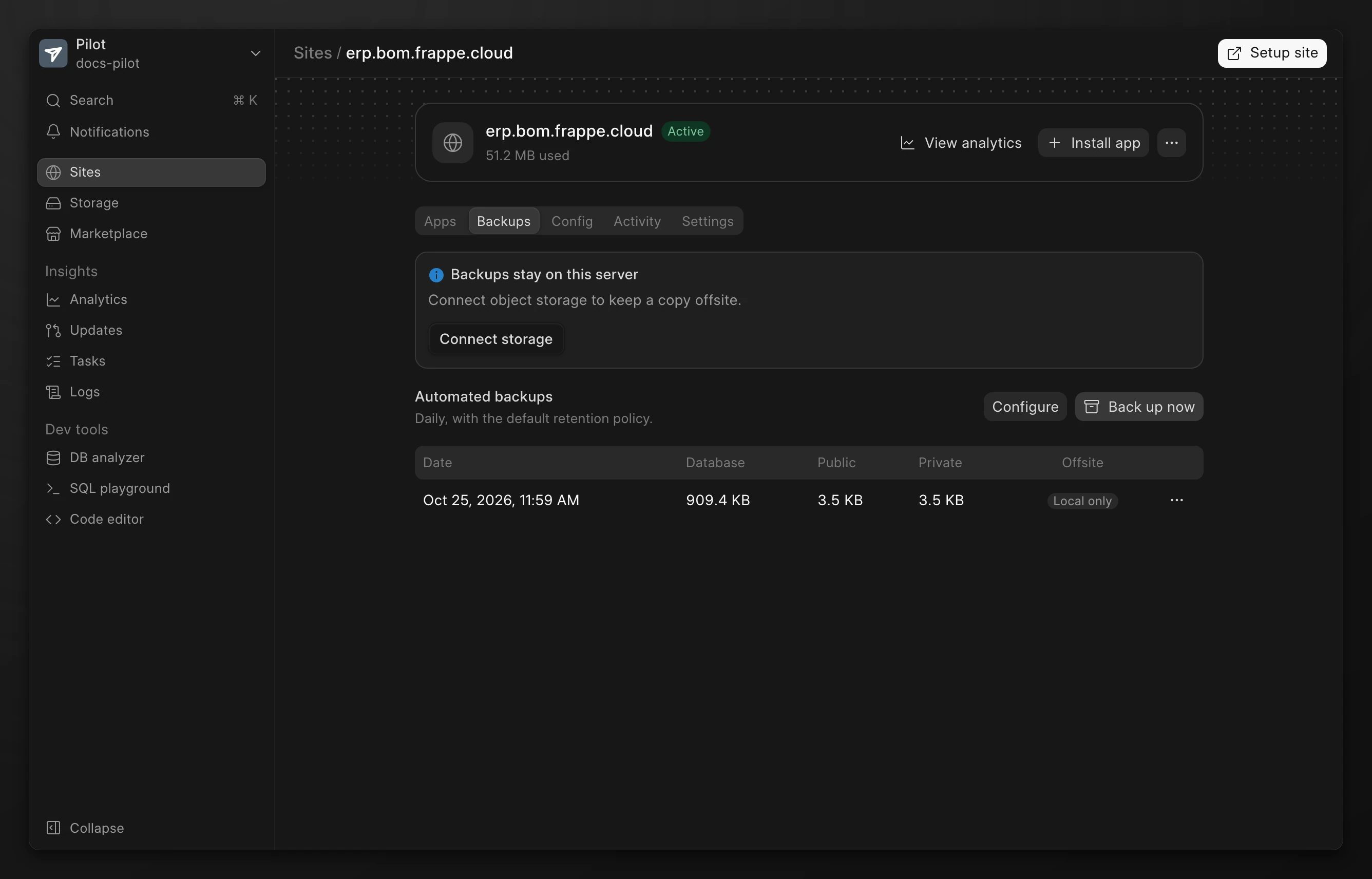
You can also click Back up now in the site actions menu on the Sites page.
Schedule automated backups
- Go to the site page. Click the Backups tab.
- Click Enable. If a schedule is already set, the button is Configure.
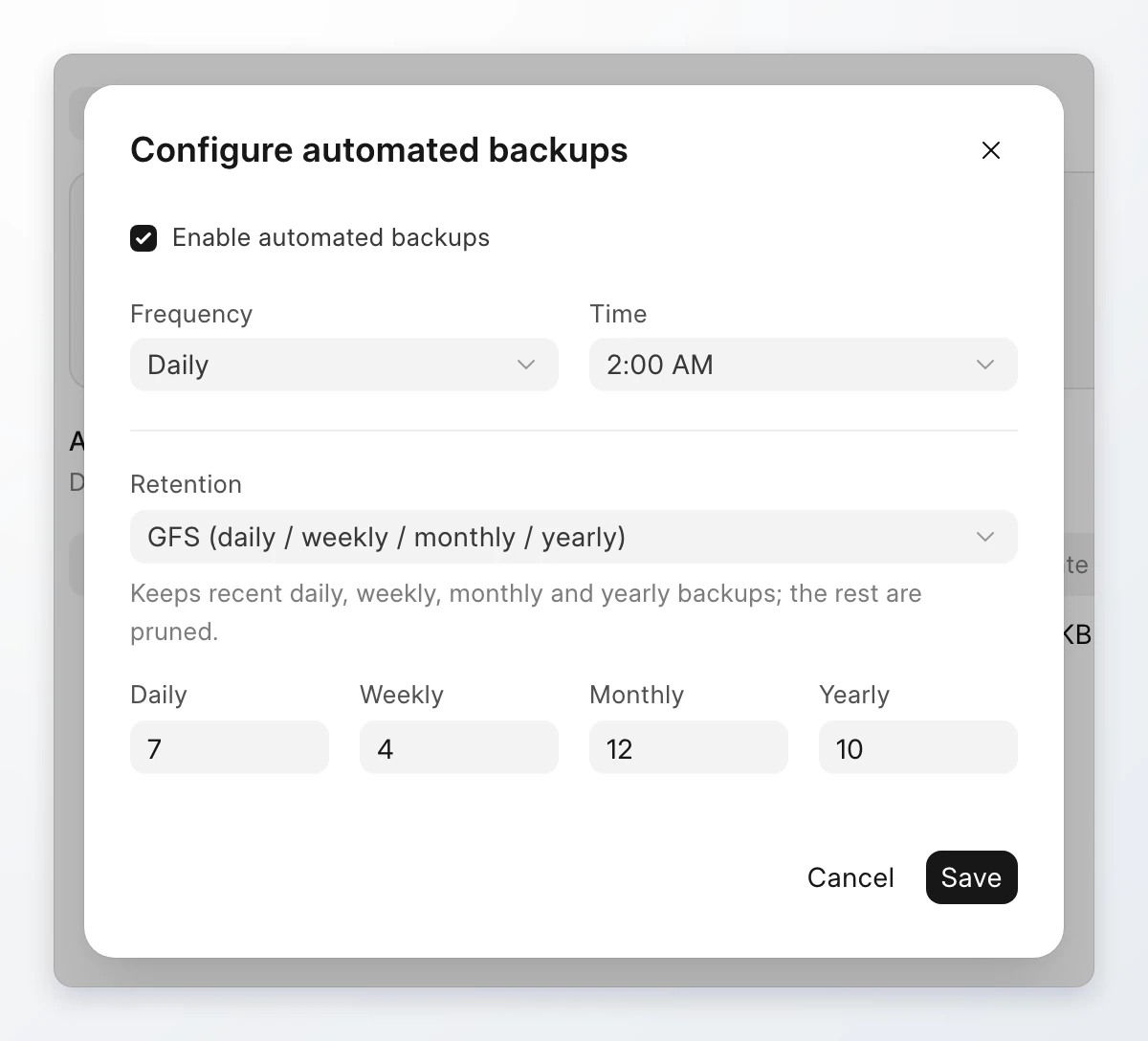
- Select Enable automated backups.
- Select the Frequency: Daily, Weekly, or Monthly. For a weekly or monthly backup, select the day.
- Select the Time.
- Select the Retention and the number of backups to keep.
- Click Save.
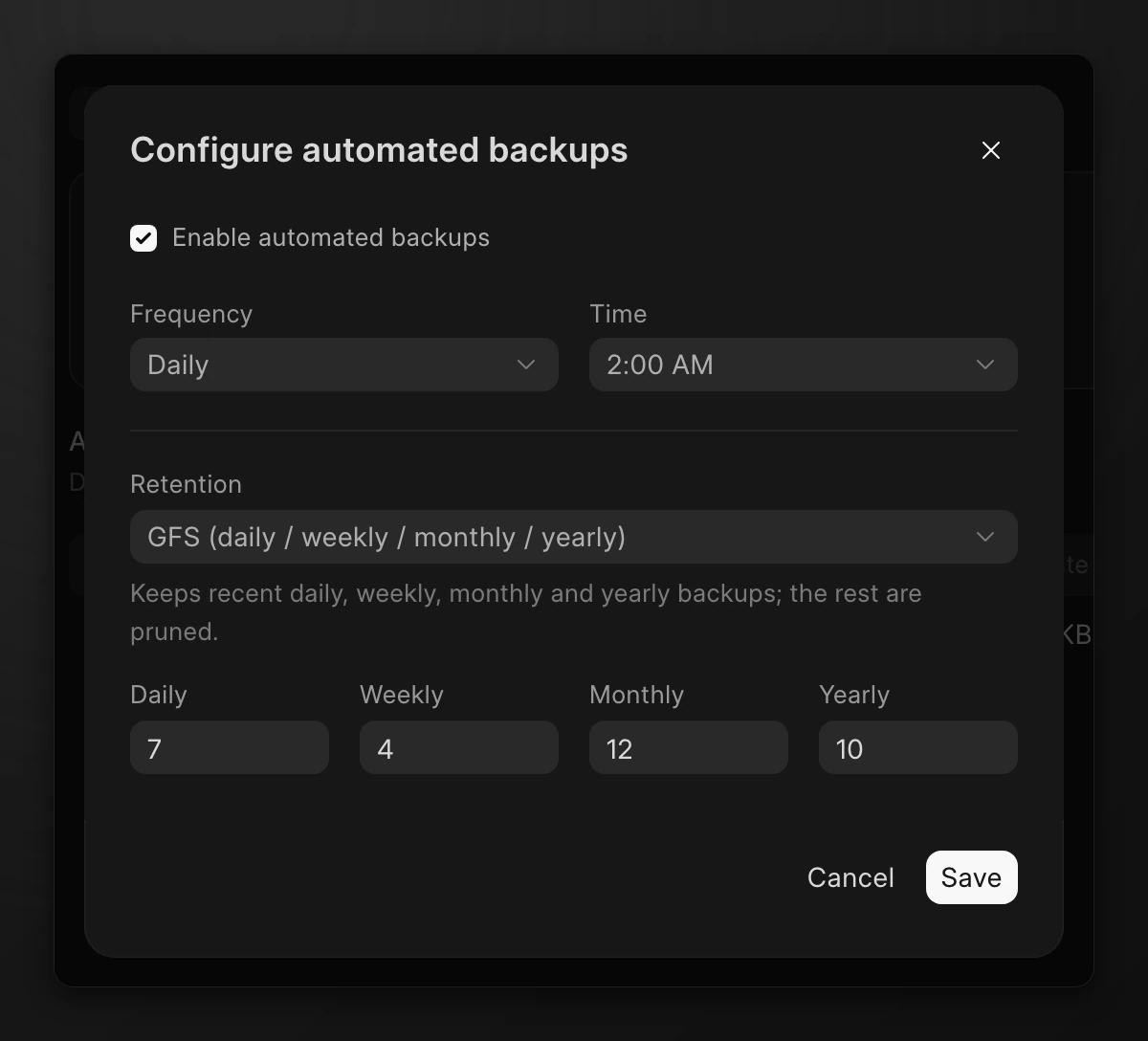
| Retention | What it keeps |
|---|---|
| GFS (daily / weekly / monthly / yearly) | The newest backup of each day, week, month, and year, up to the number you set for each. |
| FIFO (keep newest N) | The newest backups, up to the number in Backups to keep. |
Pilot keeps manual backups until you delete them.
Keep a copy offsite
Backups stay on the server until you connect object storage. If the server is lost, its local backups are lost with it.
- Go to the site page. Click the Backups tab.
- Click Connect storage. Pilot opens Settings > General > Object storage settings.
- Select the Provider and the Region. Type the Bucket, the Access Key, and the Secret Key. Type the Endpoint URL if your provider needs one.
- Click Connect.
The Offsite column shows Uploaded for a backup with a copy in object storage, and Local only for a backup on the server only.
Download a backup
- Go to the site page. Click the Backups tab.
- Click the actions menu on the backup.
- Click Download Database, Download Public, Download Private, or Download Config.
Restore a backup
Warning
A restore replaces the data of the target site with the data in the backup. Pilot does not take a backup before it restores. Click Back up now first if you need the current data.
- Go to the site page. Click the Backups tab.
- Click the actions menu on the backup. Click Restore….
- Under Restore into, select the site. You can restore into a different site on the same bench.
- Select the parts to restore: Database, Public files, or Private files.
- Click Restore.
Restore a site from another source
Use this to move a site to Frappe Cloud, or to copy data between sites.
- Go to the site page. Click Settings.
- Under Danger, click Restore.
- Select the source and the parts to restore. Click Restore.
| Source | What you give |
|---|---|
| Upload files | The backup files from your computer. The database file usually ends in .sql.gz. The files archives end in -files.tar and -private-files.tar. |
| Other site | A site on the same bench. |
| Remote site | The address and Administrator password of a Frappe site on another host. Click Get backups, then select a Backup. |
| Frappe Cloud v1 | The address of a site on Frappe Cloud v1. Click Connect. Click Open Frappe Cloud and type the pass code there to allow access. Then select a backup, or click Take new backup. |
Select Skip failing patches if the backup comes from an older version and a database patch fails during the restore.
Delete a backup
- Go to the site page. Click the Backups tab.
- Click the actions menu on the backup. Click Delete backup.
- Click Delete to confirm. You cannot undo this.