Roles and permissions
A role is a named set of permissions that you give to a team member. Every team has 5 system roles. You can also create custom roles for your team.
System roles
The system roles are the same in every team. You cannot change or delete them.
| Role | What the member can do |
|---|---|
| Owner | Everything, including archive the team. A team has exactly one Owner. |
| Admin | Everything except archive the team: manage members and roles, edit the team, manage billing, and operate servers and services. |
| Developer | Create and operate servers, manage Team SSH keys, open the server web console, and manage add-on services. No billing and no member management. |
| Billing | View and manage billing. View servers and manage add-on services. |
| Viewer | View servers, regions, and add-on services. No changes. |
Permissions by role
| Permission | Owner | Admin | Developer | Billing | Viewer |
|---|---|---|---|---|---|
| Archive the team | ✓ | ||||
| Rename the team and change its logo | ✓ | ✓ | |||
| Invite, change, and remove members | ✓ | ✓ | |||
| View invoices, usage, and billing details | ✓ | ✓ | ✓ | ||
| Add credit, change payment methods, and update billing details | ✓ | ✓ | ✓ | ||
| View servers, their status, and their metrics | ✓ | ✓ | ✓ | ✓ | ✓ |
| Create servers | ✓ | ✓ | ✓ | ||
| Start, stop, and restart servers | ✓ | ✓ | ✓ | ||
| Resize, rebuild, or rename servers | ✓ | ✓ | ✓ | ||
| Change the firewall, public addresses, and WireGuard access | ✓ | ✓ | ✓ | ||
| Create and restore snapshots | ✓ | ✓ | ✓ | ||
| Terminate servers | ✓ | ✓ | ✓ | ||
| Manage Team SSH keys | ✓ | ✓ | ✓ | ||
| See, add, and delete your own WireGuard devices | ✓ | ✓ | ✓ | ||
| Delete the WireGuard device of another member | ✓ | ✓ | |||
| Open the server web console | ✓ | ✓ | ✓ | ||
| View add-on services | ✓ | ✓ | ✓ | ✓ | ✓ |
| Subscribe to and manage add-on services | ✓ | ✓ | ✓ | ✓ |
To see the exact permissions of a role, go to Team, click Roles, and click the role.
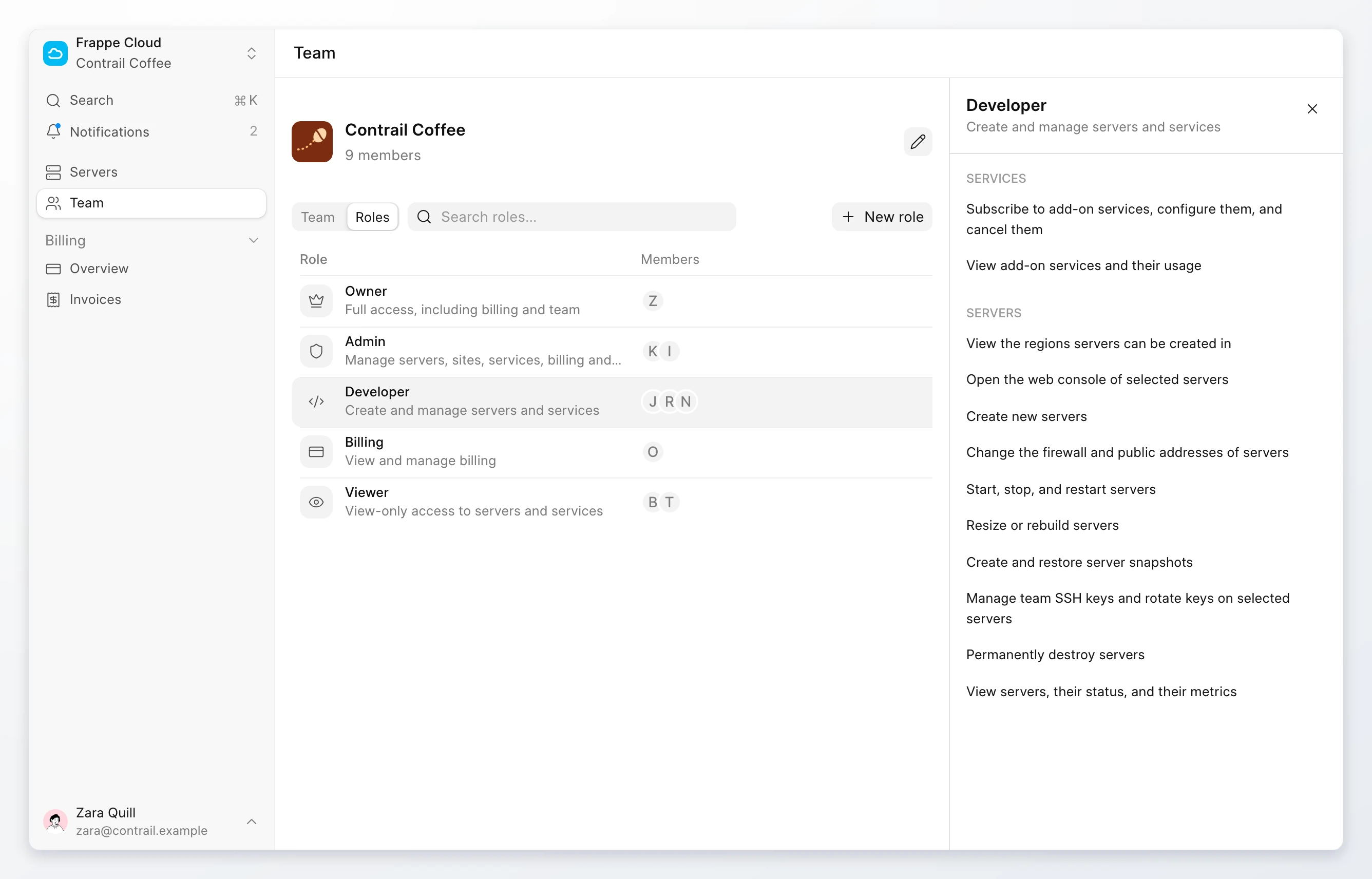
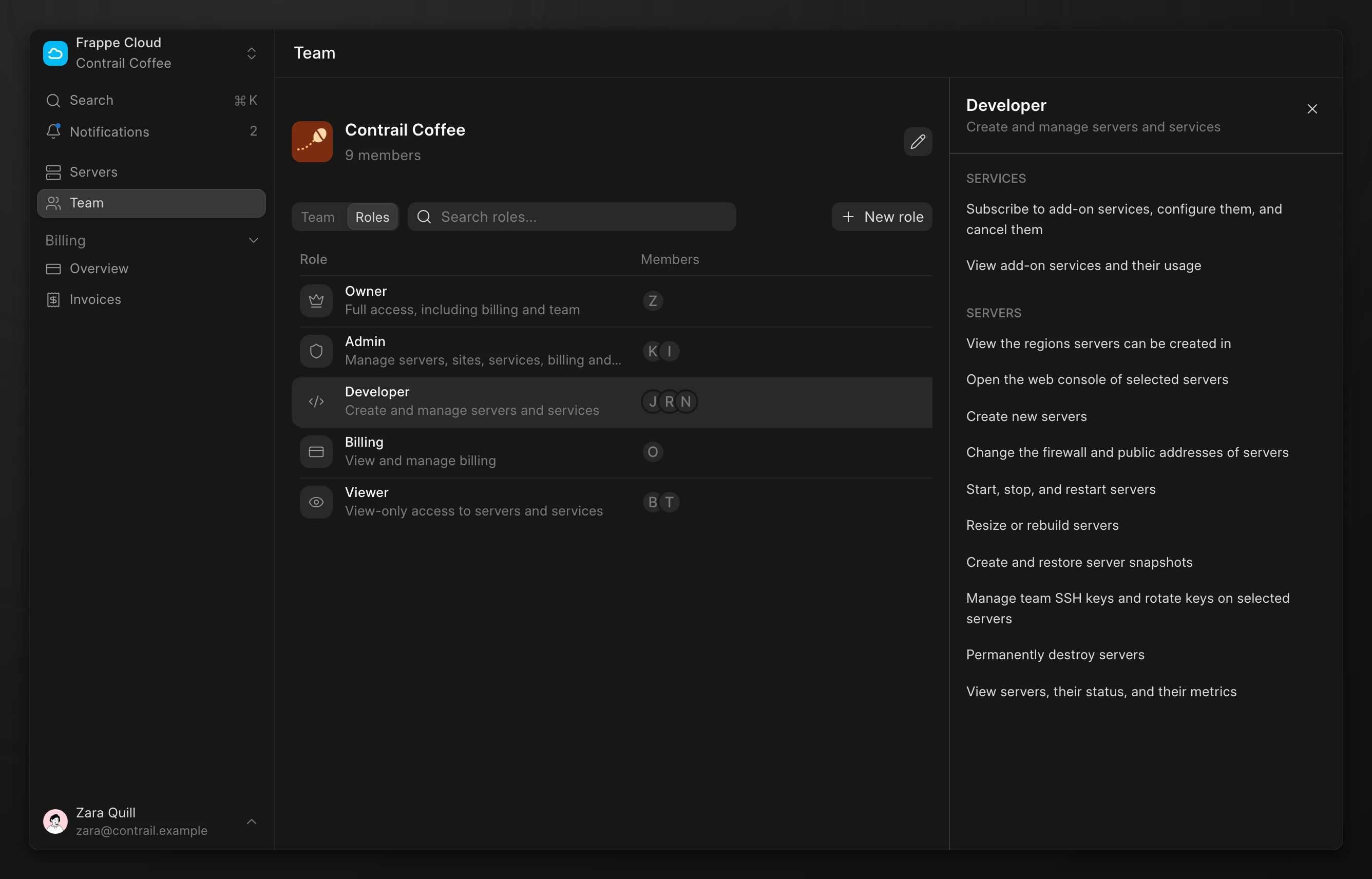
Roles on one server or site
You can give a role on All resources or on one server or site. Select the resource when you invite a member or in Manage access.
A role on one server gives only the permissions that act on that server: view, start and stop, firewall, resize, snapshot, terminate, and web console. All other permissions come only from a role on All resources. For example, a Developer on one server can stop that server, but cannot create a server or change the Team SSH keys.
Create a custom role
Create a custom role when no system role fits, such as server operations without terminate.
- Go to Team. Click Roles.
- Click New role.
- Type a Role name.
- Select the permissions. Frappe Cloud adds the view permissions that a selected permission needs.
- Click Create role.
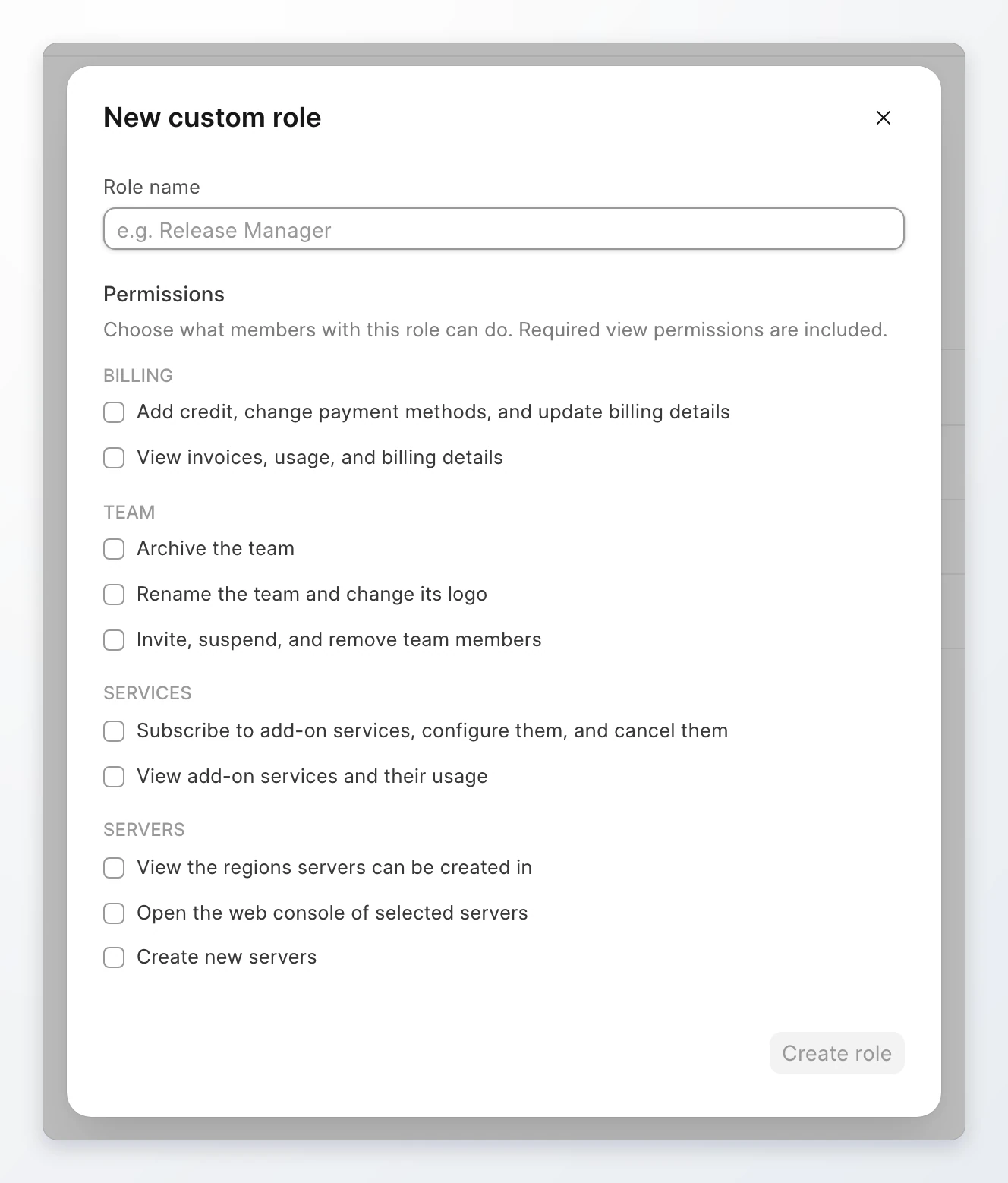
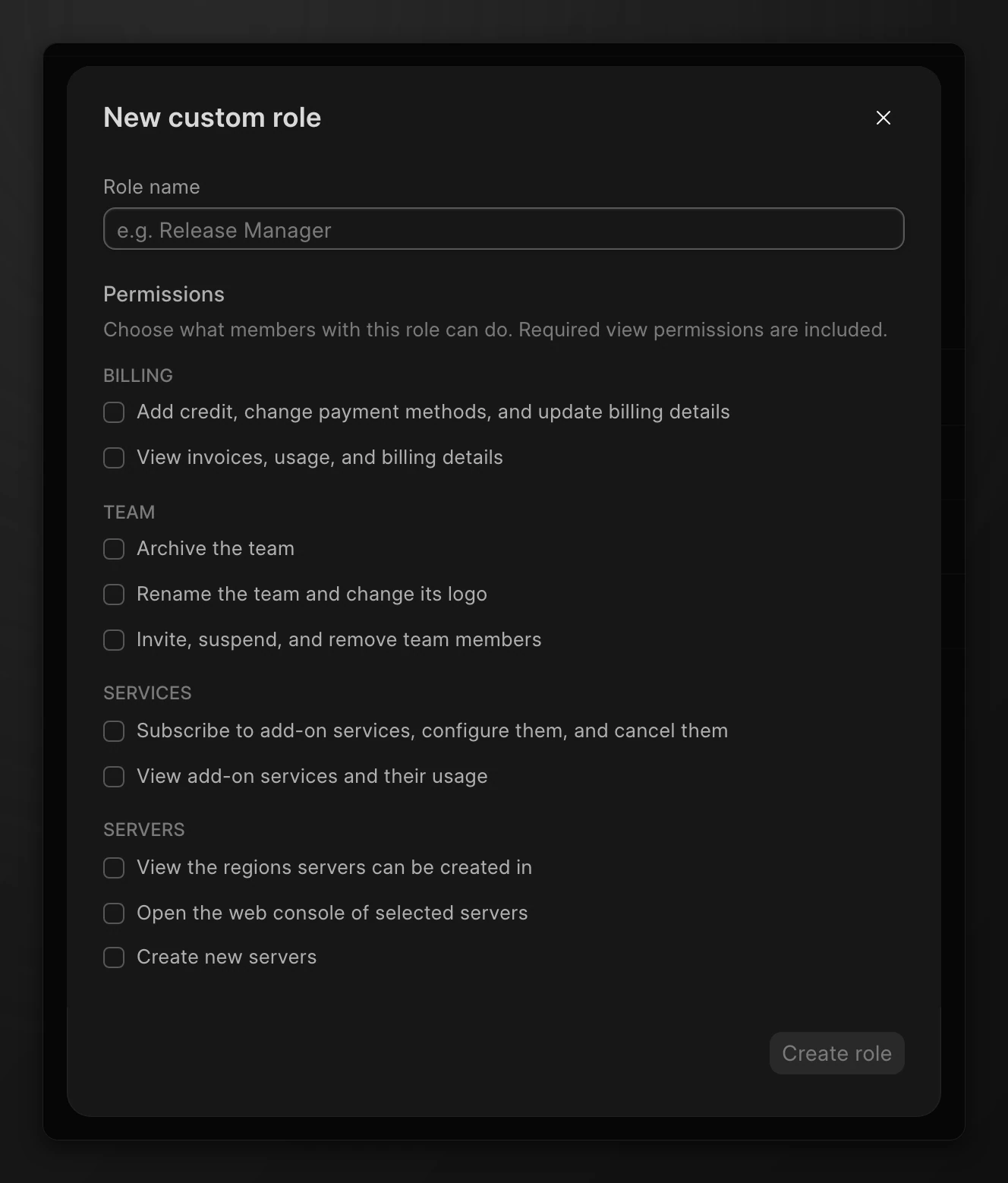
You can only give permissions that you hold yourself. You cannot edit a custom role after you create it. To change it, create a new role, move the members to it, and delete the old one.
Delete a custom role
- Go to Team. Click Roles.
- Click the ⋮ menu on the custom role. Click Delete.
You cannot delete a role that a member holds or that a pending invitation uses. Change those members' access and revoke those invitations first. You cannot delete a system role.
Transfer ownership
Only the Owner can transfer ownership. The new Owner must be an active member of the team.
- Go to Team. Click the ⋮ menu on the new Owner's row.
- Click Transfer ownership.
- Type the member's name to confirm.
- Click Transfer ownership.
The member becomes the Owner, and their other roles are removed. You become an Admin. Only the new Owner can transfer ownership back.
You cannot remove the Owner from the team. To remove the current Owner, transfer ownership to another member first.