Payment methods
Add a card so that Frappe Cloud can collect each invoice automatically. You can add more than one payment method and set the order in which they are charged.
Note
You need the Owner, Admin, or Billing role to add, order, or remove payment methods.
Before you begin
Add your billing details first. Frappe Cloud needs your currency, legal name, and address before you can add a payment method or credit. When they are missing, Billing > Payments shows Add your billing details. Click Add billing details, complete the form, and click Save. The Add payment method dialog then opens, so you can add a card at once.
How payment methods are used
The Payment methods card on Billing > Payments lists your prepaid credits and your payment methods in the order they are used.
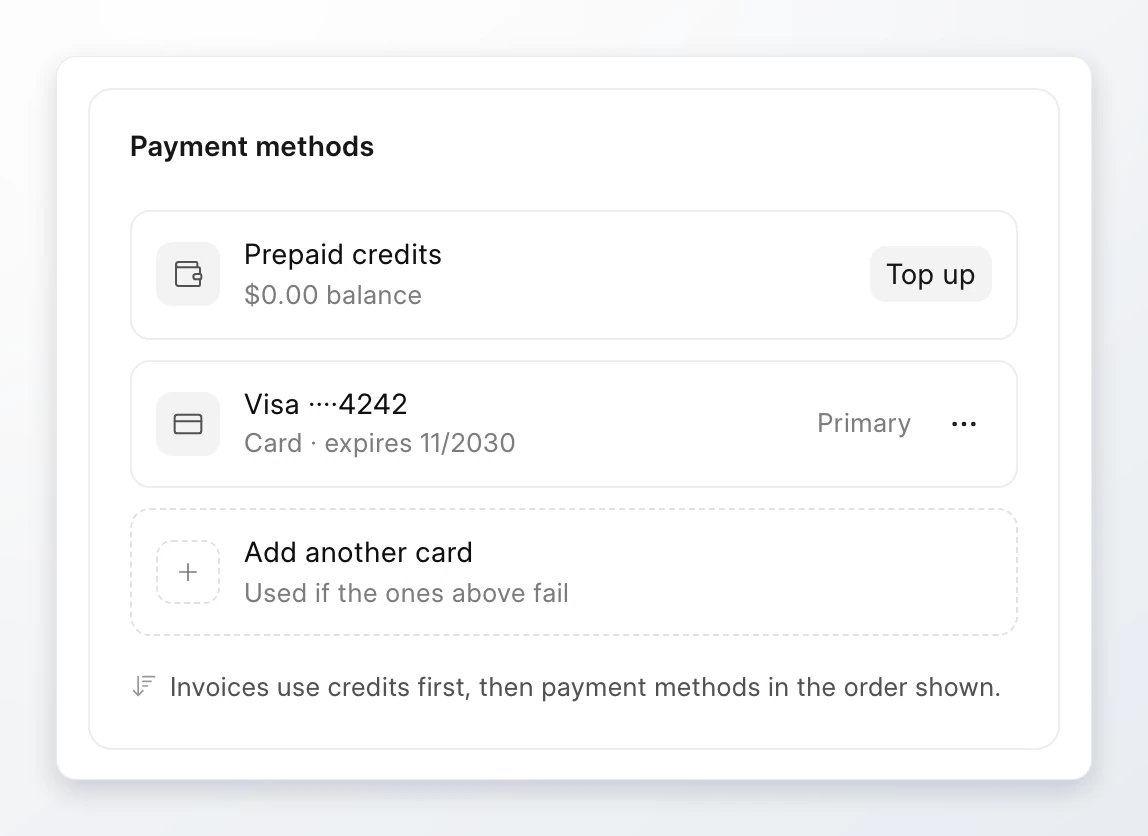
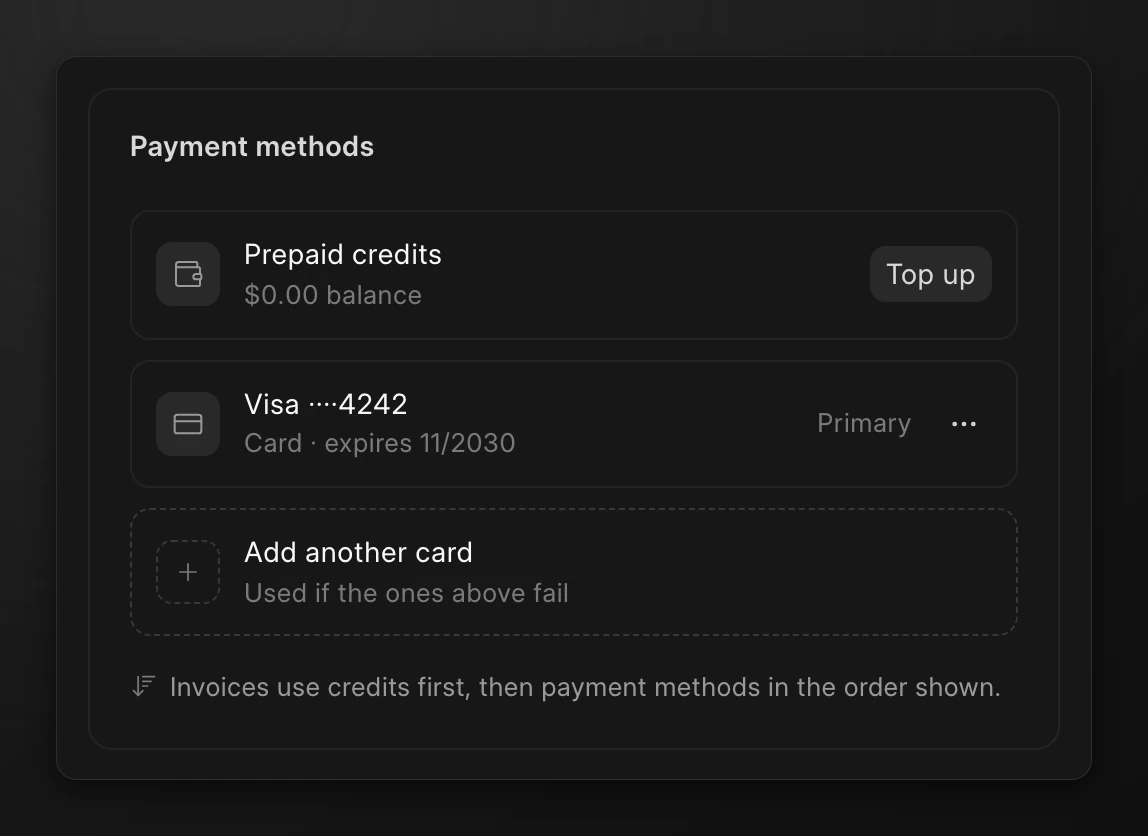
- An invoice uses your prepaid credits first.
- Then Frappe Cloud charges the payment method marked Primary.
- When a charge fails, the next method, marked Fallback 1, Fallback 2, and so on, is charged.
While your wallet has a balance, the wallet is the primary and every card is a fallback.
Add a card
- Go to Billing > Payments.
- On the Methods card, click Add another card. When you have no payment method, click Add card in the summary panel.
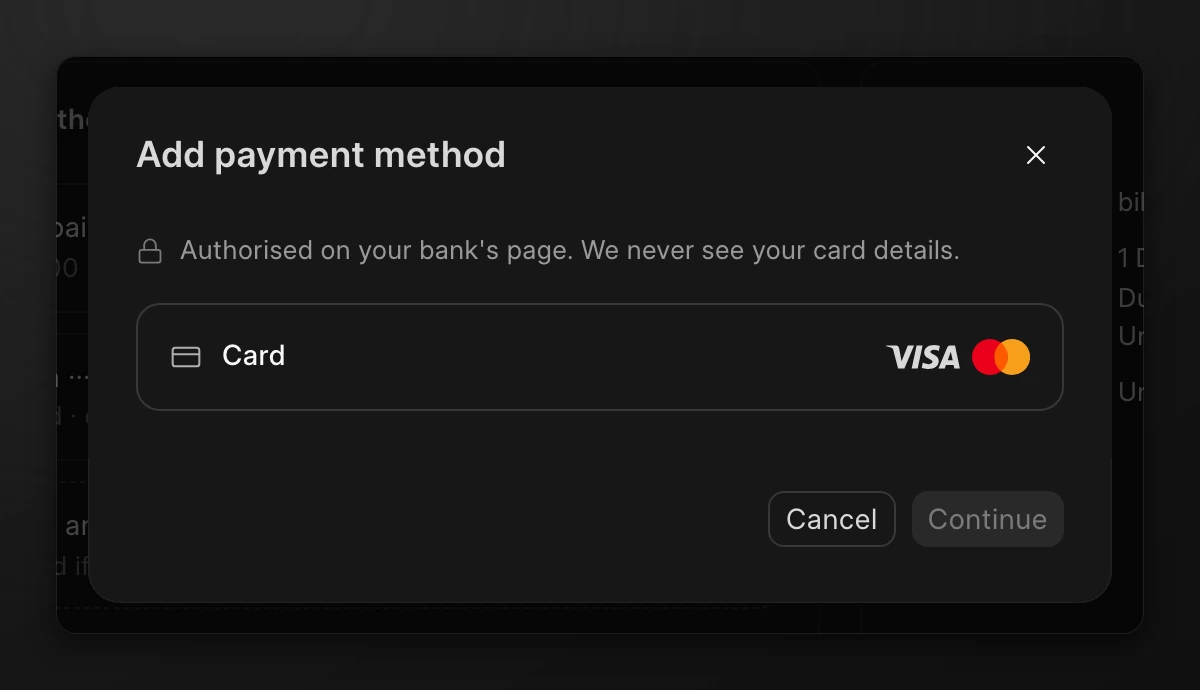
- Select Card. Click Continue.
- Type the card details in the secure card field.
- Click Add card.
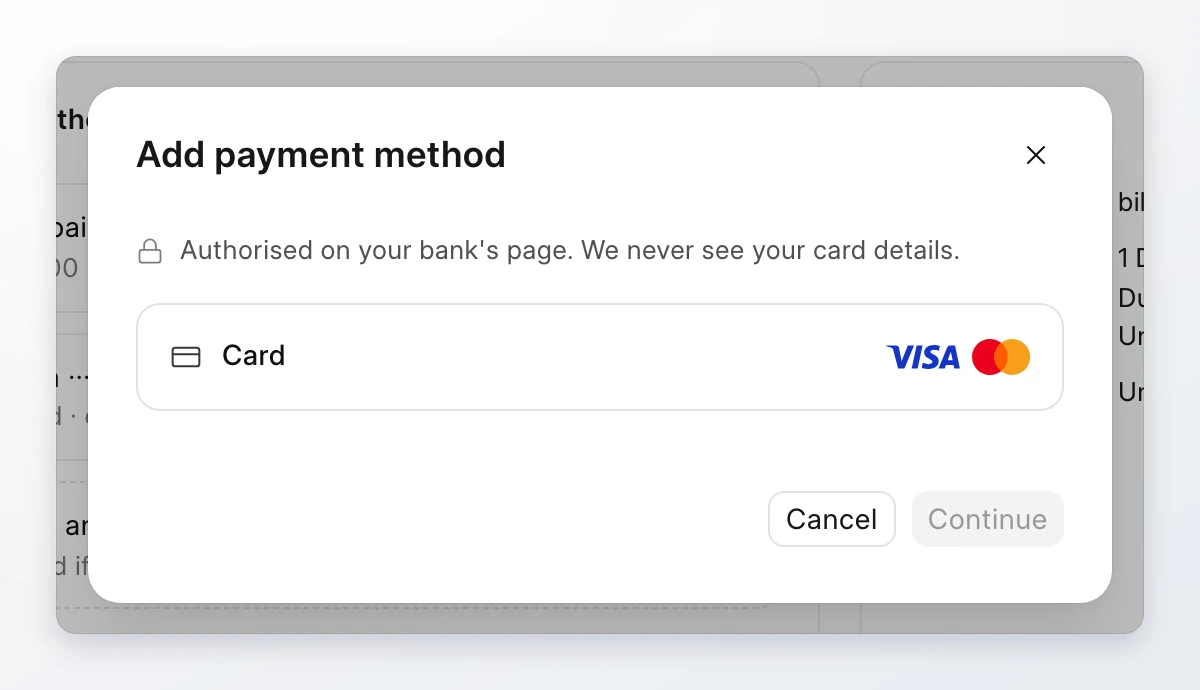
Frappe Cloud validates the card with a small temporary charge, and refunds it at once. Do not close the dialog while it shows Validating…. Frappe Cloud never sees your full card number.
The dialog can ask for a phone number. A phone number is required to set up automatic card payments, and it is saved to your billing profile.
The options in the dialog depend on your billing currency. Teams billed in INR can also see RuPay Card and UPI Autopay, which you authorise on your bank's page. To authorise automatic payments, Razorpay charges ₹1. Frappe Cloud refunds it after the authorisation succeeds. Amex and Diners cards cannot be charged automatically. Add credit instead.
Change the order
- On the Methods card, click the ⋯ menu on a payment method.
- Click Move up or Move down.
To charge a method first, click Primary payment method in the same menu. This option is not available while your wallet has a balance, because credits pay first.
Remove a payment method
- On the Methods card, click the ⋯ menu on the payment method.
- Click Remove.
- Click Remove to confirm.
Invoices then use your other methods, if any. With no payment method and no credit, you cannot create a server.
Payment method states
| Label | Meaning |
|---|---|
| Primary | Charged first after credits. |
| Fallback 1, Fallback 2 | Charged in this order when the methods above fail. |
| Re-auth needed | The method must be authorised again before it can be charged. |
| Any other status | The method is not active and is not charged. |