Migrate a site from Frappe Cloud Classic
This guide shows how to move a site from Frappe Cloud Classic to a server on Frappe Cloud. Frappe Cloud Classic is the earlier Frappe Cloud at cloud.frappe.io. Pilot calls it Frappe Cloud v1.
Pilot reads a backup of the Classic site and restores it into a site on your server. The Classic site keeps running and does not change. You can do a test migration first, and do the final one when you are ready.
Before you begin
- The Classic site runs Frappe version 16. Update an older site on Frappe Cloud Classic first.
- You can sign in to Frappe Cloud Classic as a member of the team that owns the site.
- You have a server with the Frappe image, version 16. Read Create a server.
- You know which apps the Classic site has. Open the site on Frappe Cloud Classic to see the list.
1. Prepare the new site
The restore replaces the data of a site that exists on your server. Create that site first.
- Open Pilot. In the console, open the server and click Open Pilot.
- Use the site that came with the server, or create a site.
- Install each app that the Classic site has. Read Apps.
Warning
Install the same apps before you restore. The restore runs a migration, and the migration fails when the database needs an app that the server does not have.
For a private app, connect GitHub first.
2. Connect to the Classic site
- In Pilot, go to Sites. Click the site.
- Click the Settings tab. Under Danger, click Restore.
- Click Frappe Cloud v1.
- In Site on Frappe Cloud, type the address of the Classic site, such as
erp.example.com. Click Connect.
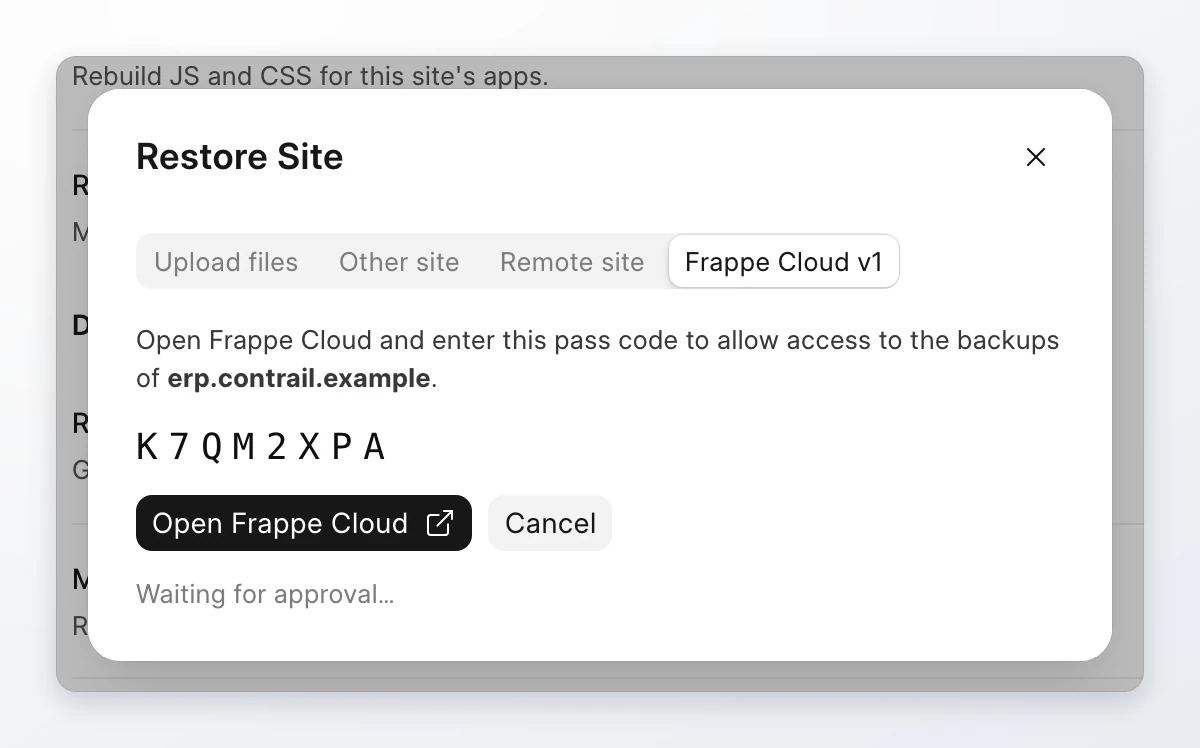
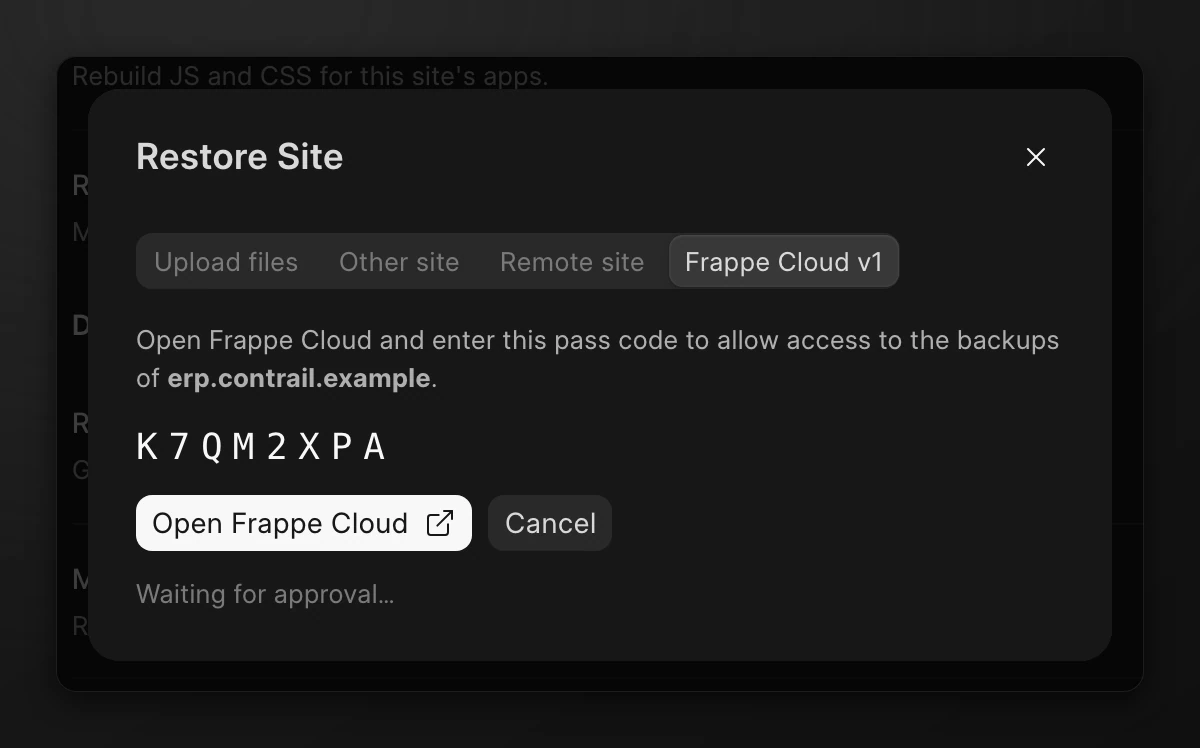
Pilot shows a pass code of 8 characters.
- Click Open Frappe Cloud. Frappe Cloud Classic opens in a new tab. Sign in if it asks.
- In the Authorize backup access dialog, check the Site. Type the code in Pass code shown in Pilot.
- Click Approve request.
Go back to Pilot. The dialog changes to the list of backups in a few seconds.
| Limit | Value |
|---|---|
| Time to approve a request | 10 minutes |
| Wrong pass codes before the request is rejected | 5 |
| Access to the backups after approval | 12 hours |
Pilot gets access only to the backups of this one site. It cannot change the Classic site. To stop the access early, click Change site in the dialog.
If Frappe Cloud Classic shows You don't have access to allow this request, ask the owner of the Classic site to open the link and approve.
3. Select a backup
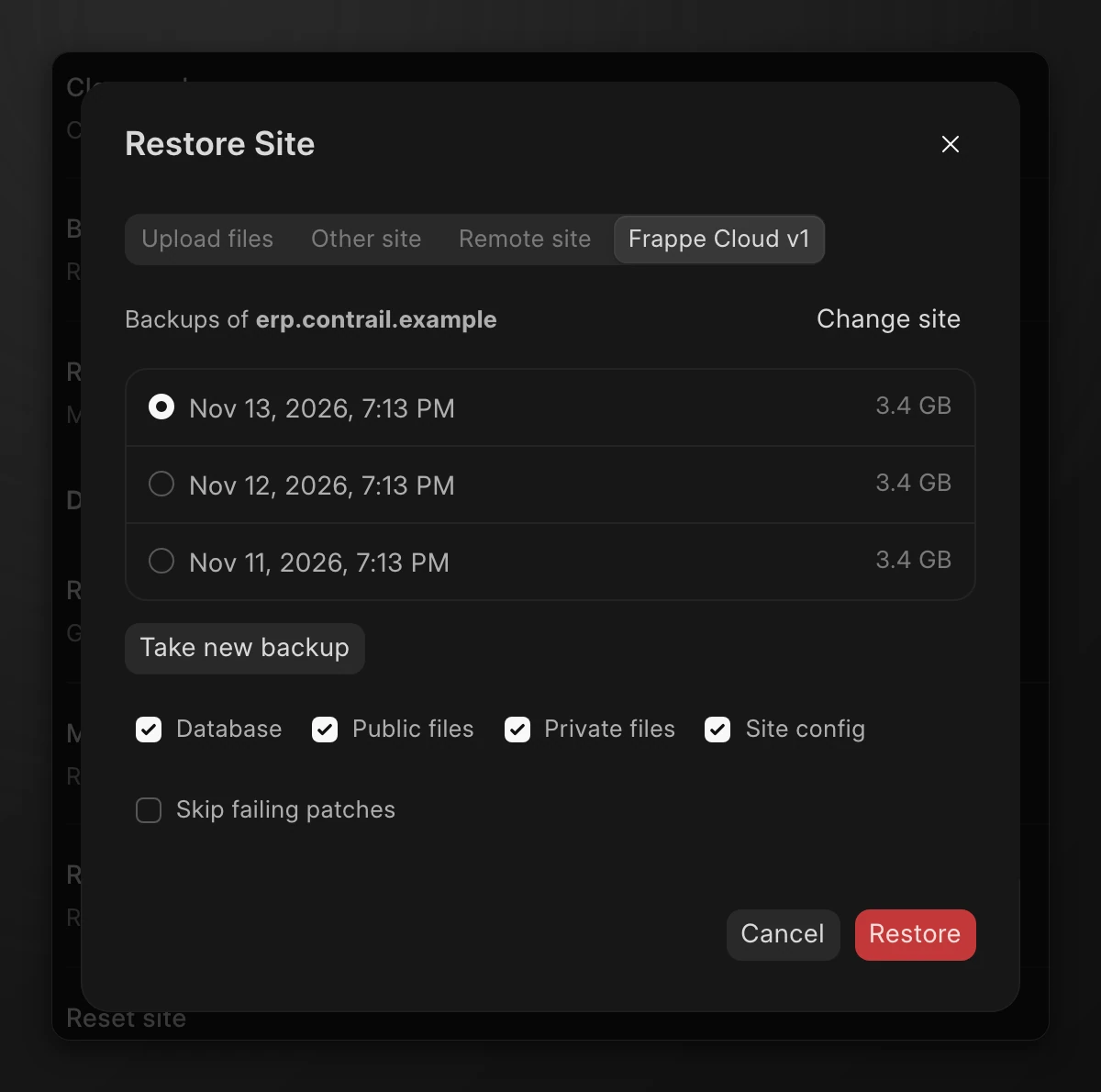
The dialog lists the backups of the Classic site that include files and are stored offsite. Each row shows the date and the total size. The newest backup is selected.
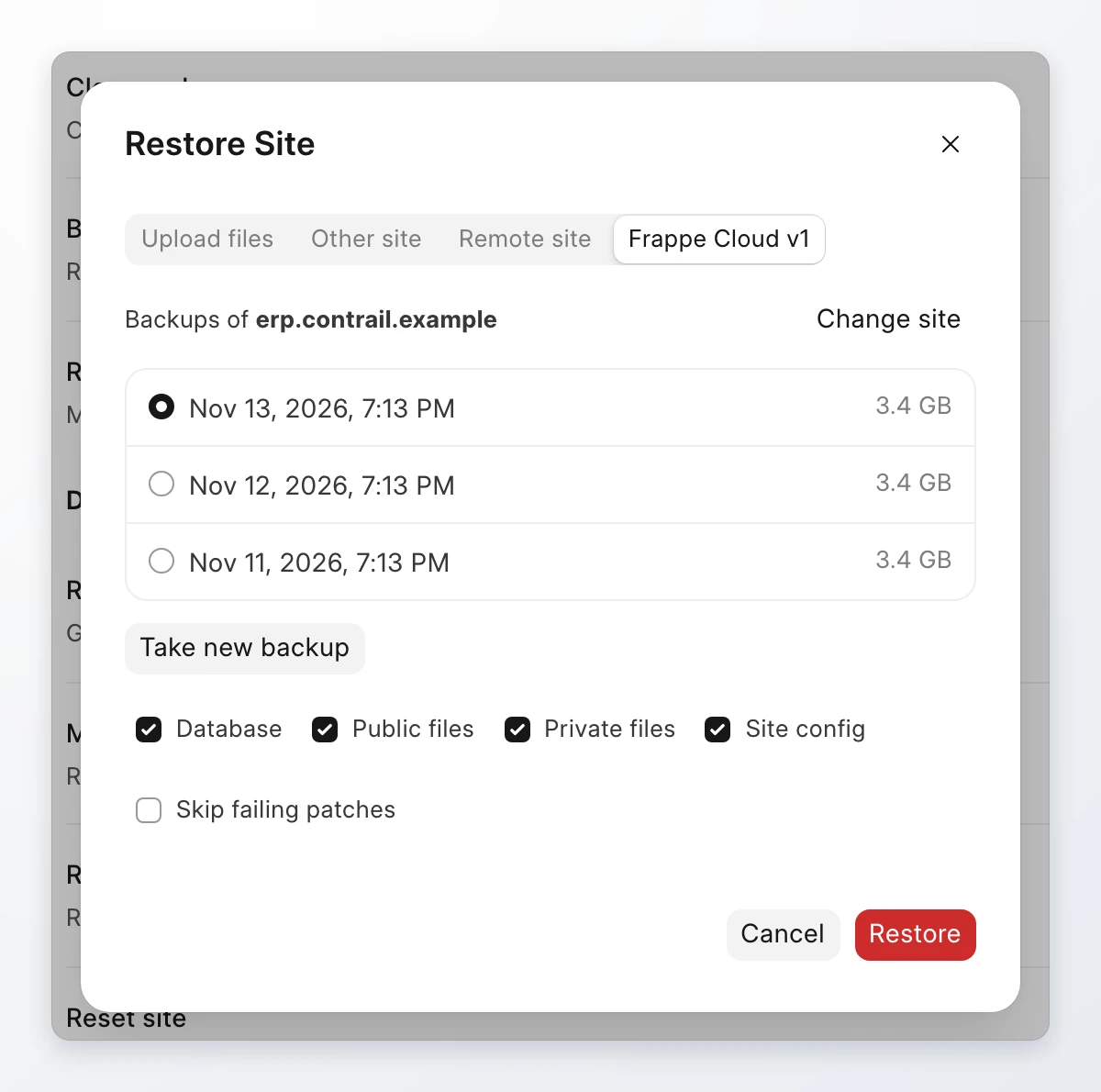
- For a test migration, keep the selected backup.
- For the final migration, click Take new backup. Pilot asks Frappe Cloud Classic for a fresh backup and shows Backing up until it is ready. Click View job to follow the backup on Frappe Cloud Classic.
Note
Data that users add to the Classic site after the backup does not move. For the final migration, ask your users to stop work on the Classic site before you click Take new backup.
4. Restore
Warning
The restore deletes the database of the new site and replaces it with the backup. Pilot does not take a backup of the new site first. You cannot undo this.
- Keep Database, Public files, Private files, and Site config selected.
- Click Restore.
Pilot opens the task page and shows each step. The new site is in maintenance mode until the task finishes.
The restore brings these with it:
- All records, users, and passwords. Your users sign in as they did on the Classic site.
- Public and private files.
- The encryption key, so saved passwords and API secrets on the site still work.
- The settings in the site config, except the settings that belong to the server, such as the database, the domains, and the scheduler state.
Pilot ends its access to the Classic site when the restore starts. To restore again, connect again.
If the task fails, the site stays in maintenance mode. Read the error on the task page, fix the cause, and restore again. Select Skip failing patches only when a database patch fails and you know that the site can work without it.
5. Check the new site
Open the new site at its Frappe Cloud address, such as erp.bom.frappe.cloud. Sign in with a user of the Classic site.
Check what your team uses each day:
- Recent documents and the files attached to them.
- Print formats and reports.
- Email accounts, and one outgoing email.
- Integrations that call the site or that the site calls. Update each one that uses the address of the site.
- Scheduled jobs. Read Logs and tasks.
Set up automated backups on the new site. The backup schedule of the Classic site does not move.
6. Move the domain
The domains of the Classic site do not move with the restore. Add each one to the new site.
Follow Domains and SSL for each domain. At your DNS provider, change the record that points the domain to Frappe Cloud Classic. Visitors reach the Classic site until the DNS change spreads, so keep it in place during that time.
After the migration
The Classic site still runs, and Frappe Cloud Classic still bills you for it. Data does not sync between the two sites, so let users work only on the new one. Archive the Classic site when you no longer need it as a fallback.
Fix a problem
| What you see | What to do |
|---|---|
| The pass code shows, but Frappe Cloud Classic has no request to approve. | Check the address that you typed. Click Cancel, then connect with the correct address. |
| The request for … is expired. Connect again. | The 10 minutes to approve are over. Click Connect again. |
| The request for … is rejected. Connect again. | The pass code was wrong 5 times. Click Connect to get a new code. |
| No backups yet. Take a new backup. | The Classic site has no offsite backup with files. Click Take new backup. |
| Could not reach Frappe Cloud. | Try again in a few minutes. |
| The task fails at Migrating the site... | An app is missing or has a different version. Install the apps of the Classic site, then restore again. |
If the problem remains, contact support.
What next
- Backups and restore: schedule backups and keep a copy offsite.
- Domains and SSL: add more domains to the site.
- Members and invitations: give your team access to the server.
- Snapshots: copy the whole server before a risky change.