Tour the console
The console is where you manage your team's servers, members, and bill. The sidebar on the left opens each part of it.
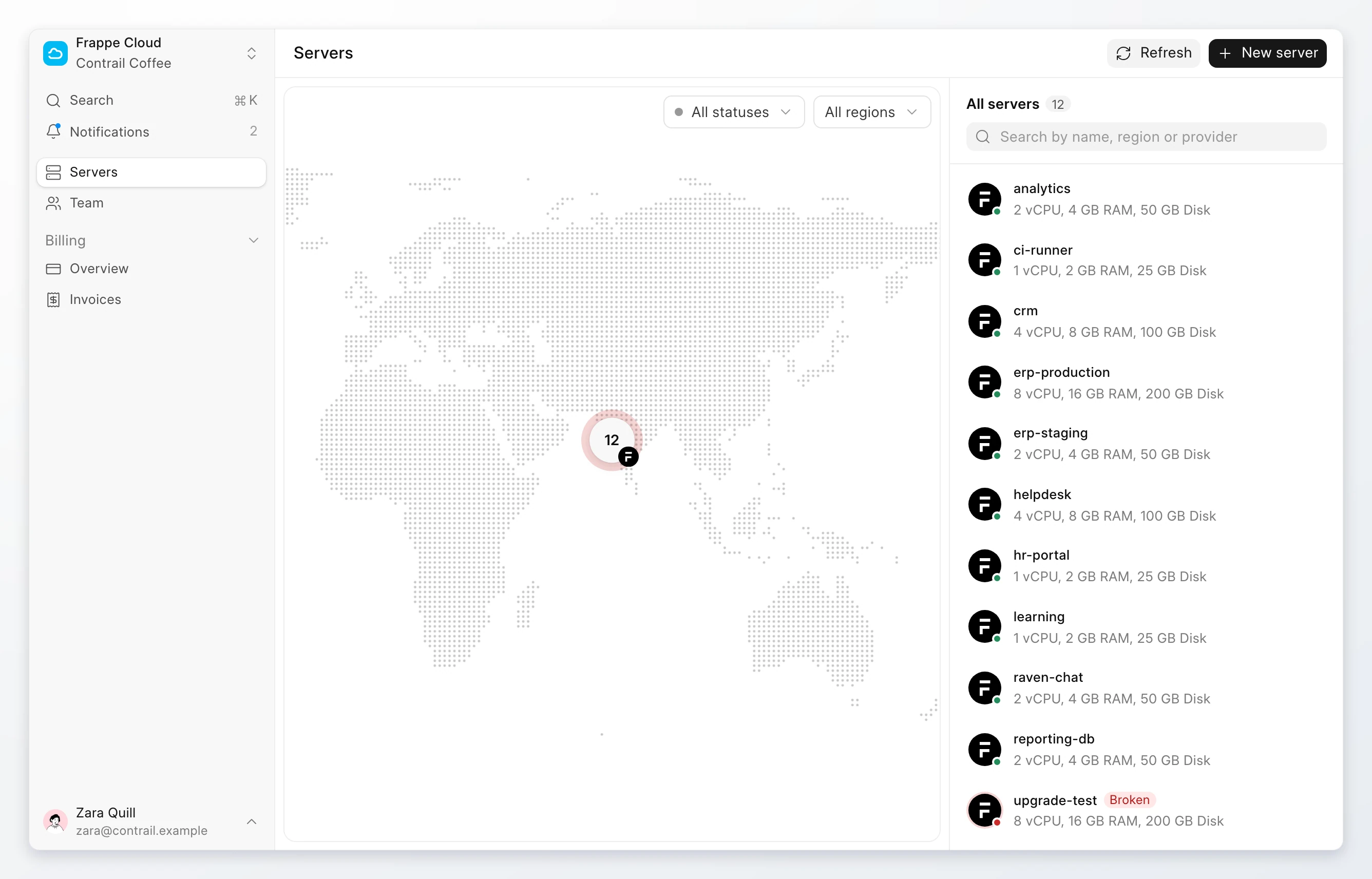
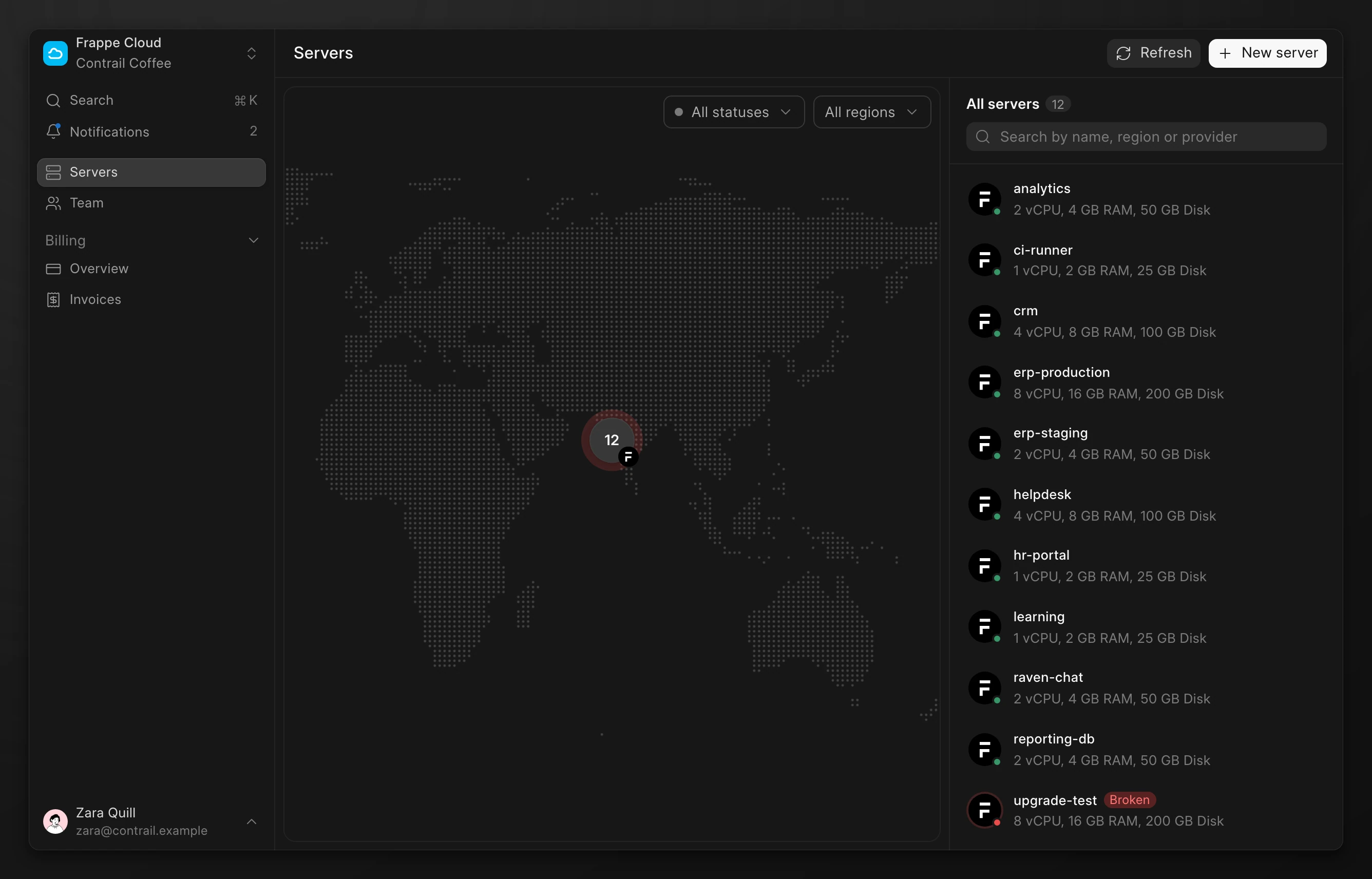
| Sidebar item | Opens |
|---|---|
| Team name, at the top | The team switcher |
| Search | The command menu |
| Notifications | Recent events for the active team |
| Servers | The map and list of servers, and new servers |
| Team | Members and roles |
| Billing > Overview | Spend, the payment method, and limits |
| Billing > Invoices | Monthly invoices |
| Your name, at the bottom | Your profile, the theme, and sign out |
The sidebar shows only what your role lets you use. For example, a member without billing access does not see Billing.
Switch teams
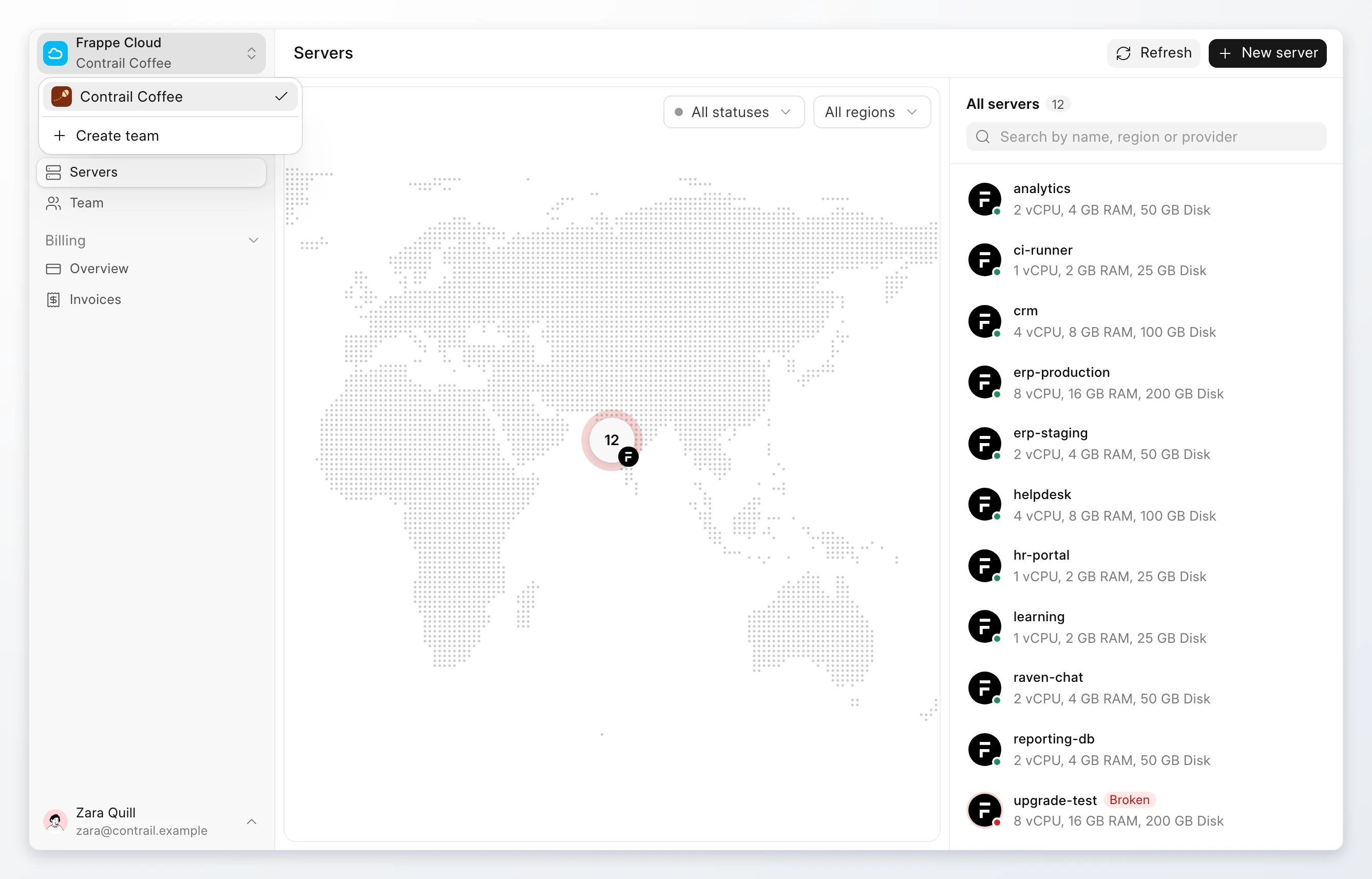
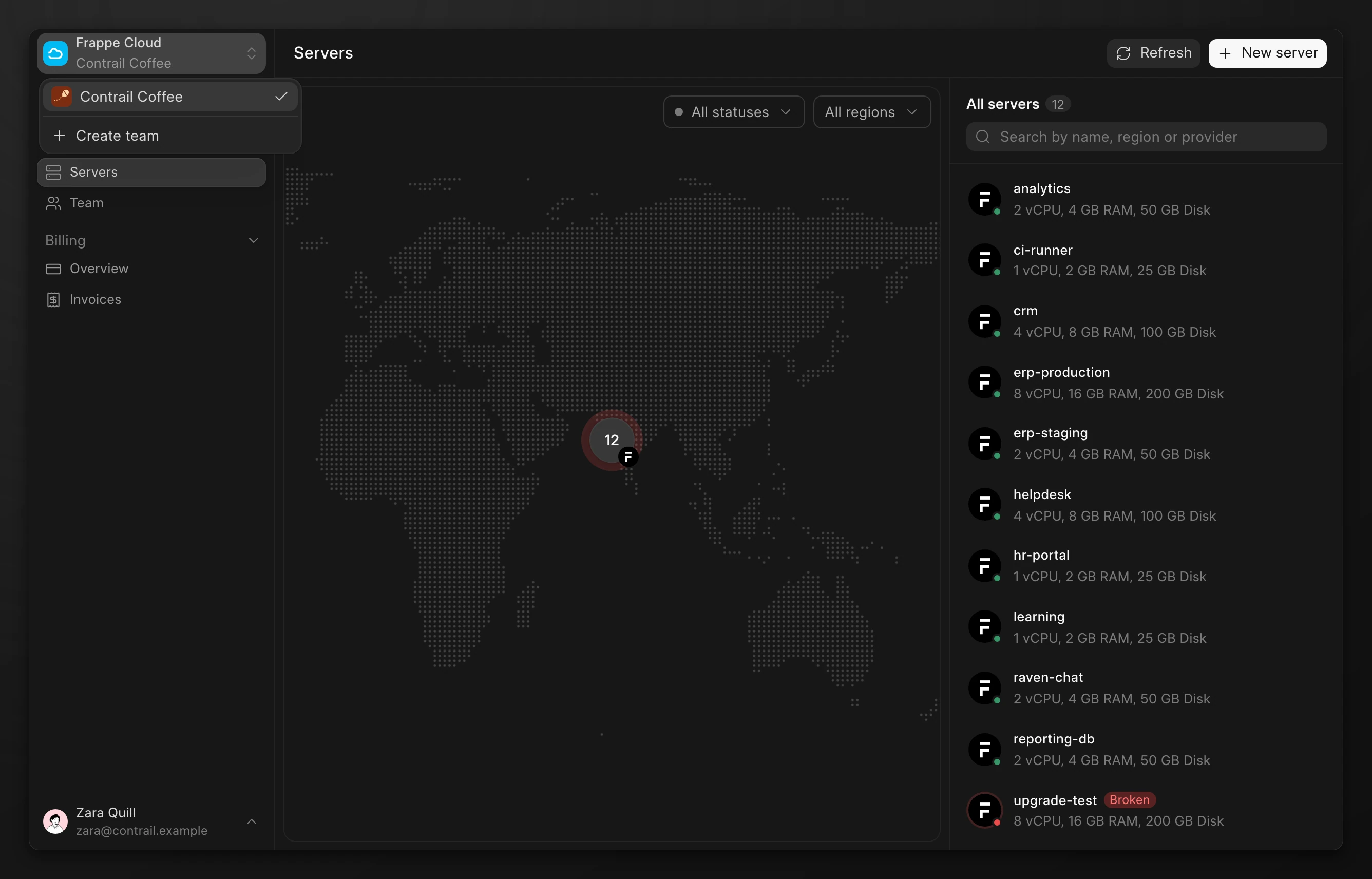
You can belong to more than one team. The console shows one team at a time.
- Click the team name at the top of the sidebar.
- Select a team, or click Create team.
Search and run commands
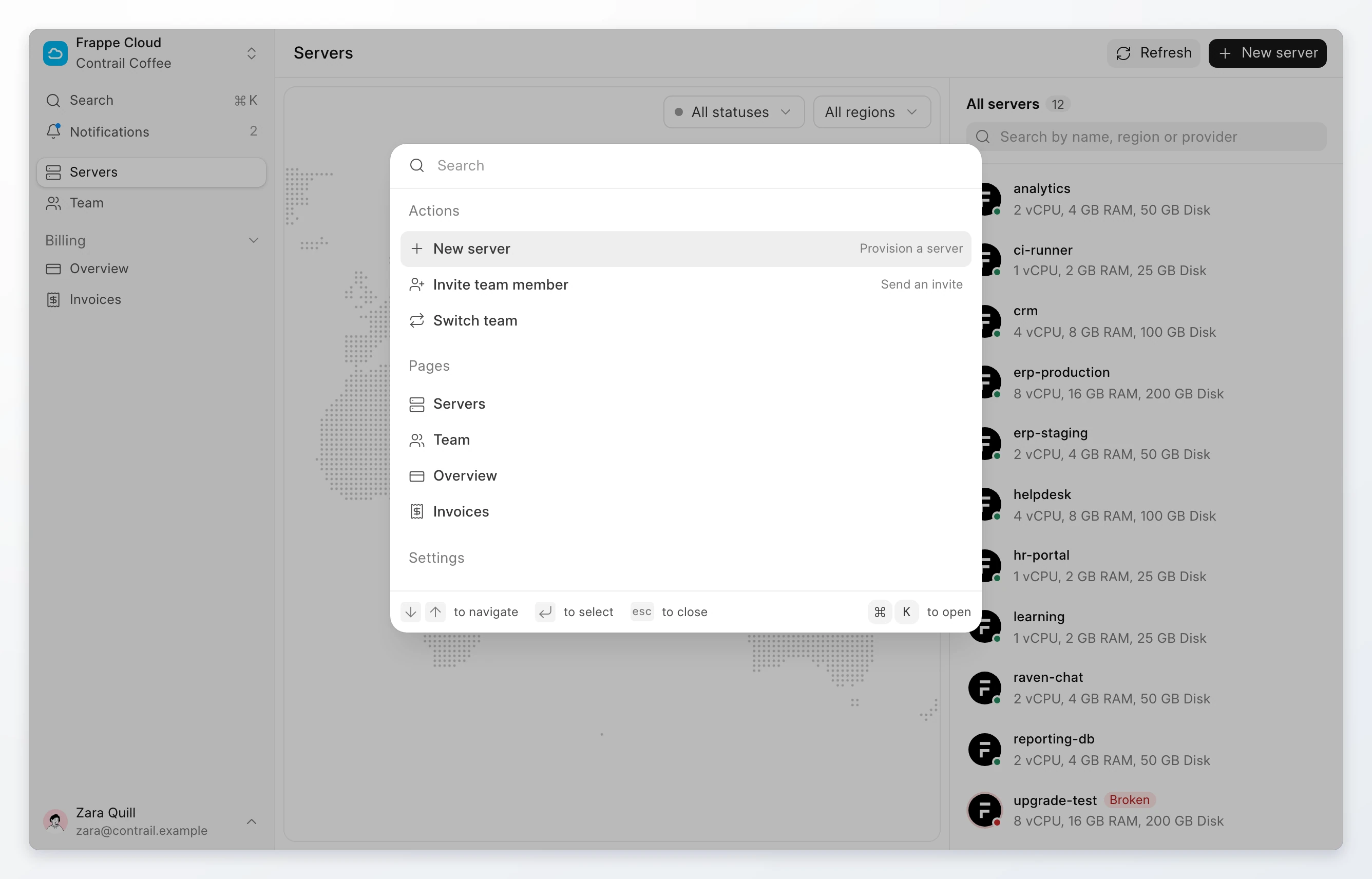
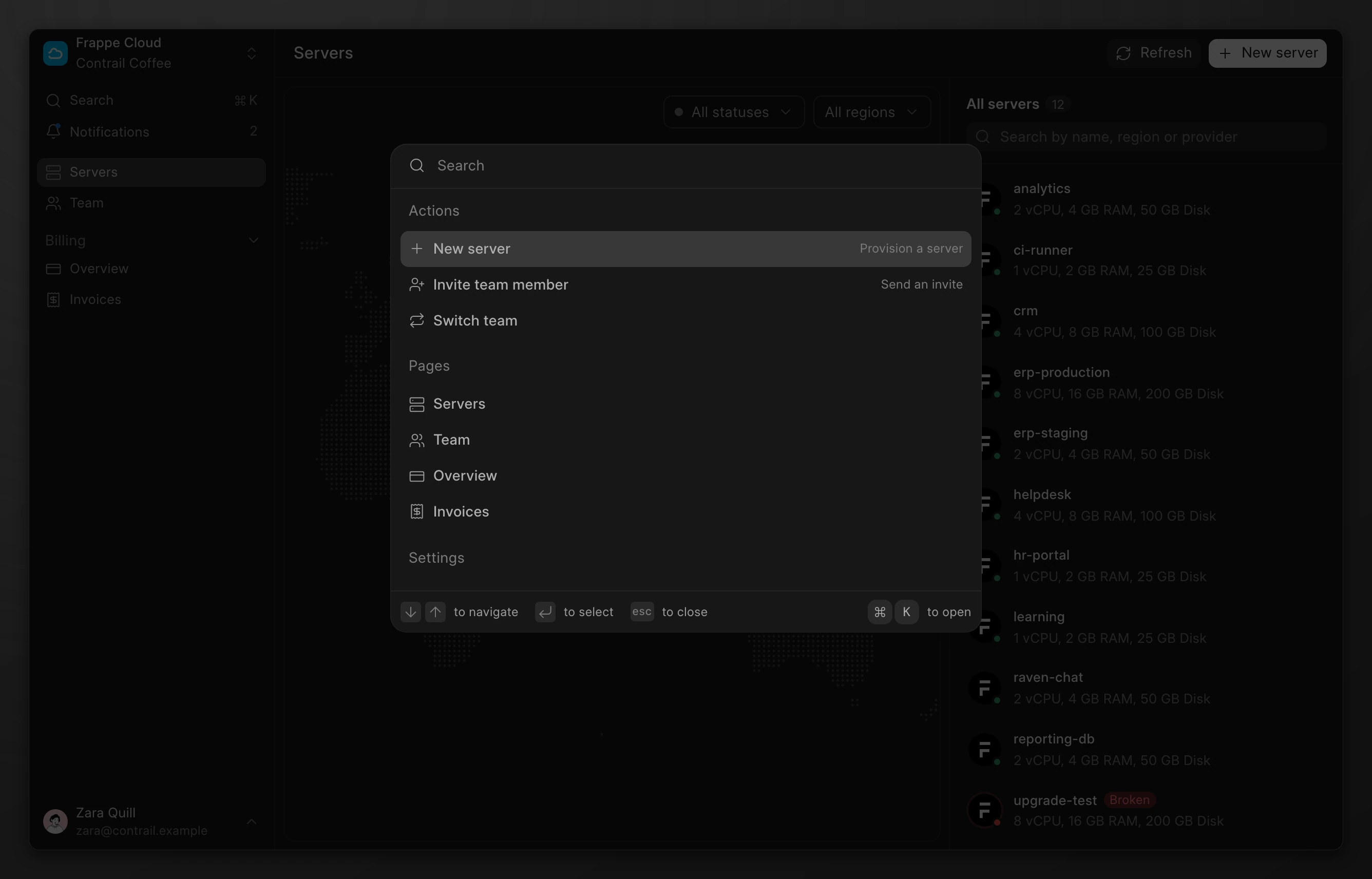
Press ⌘ K on macOS or Ctrl K on Windows and Linux. You can also click Search.
The command menu runs actions, such as New server and Invite team member, and opens any page. Type to filter the list. Use the arrow keys and press Enter.
Read notifications
Click Notifications to open the panel. It shows events for the active team, such as a failed server or an upcoming payment. The number next to Notifications is the count of unread events.
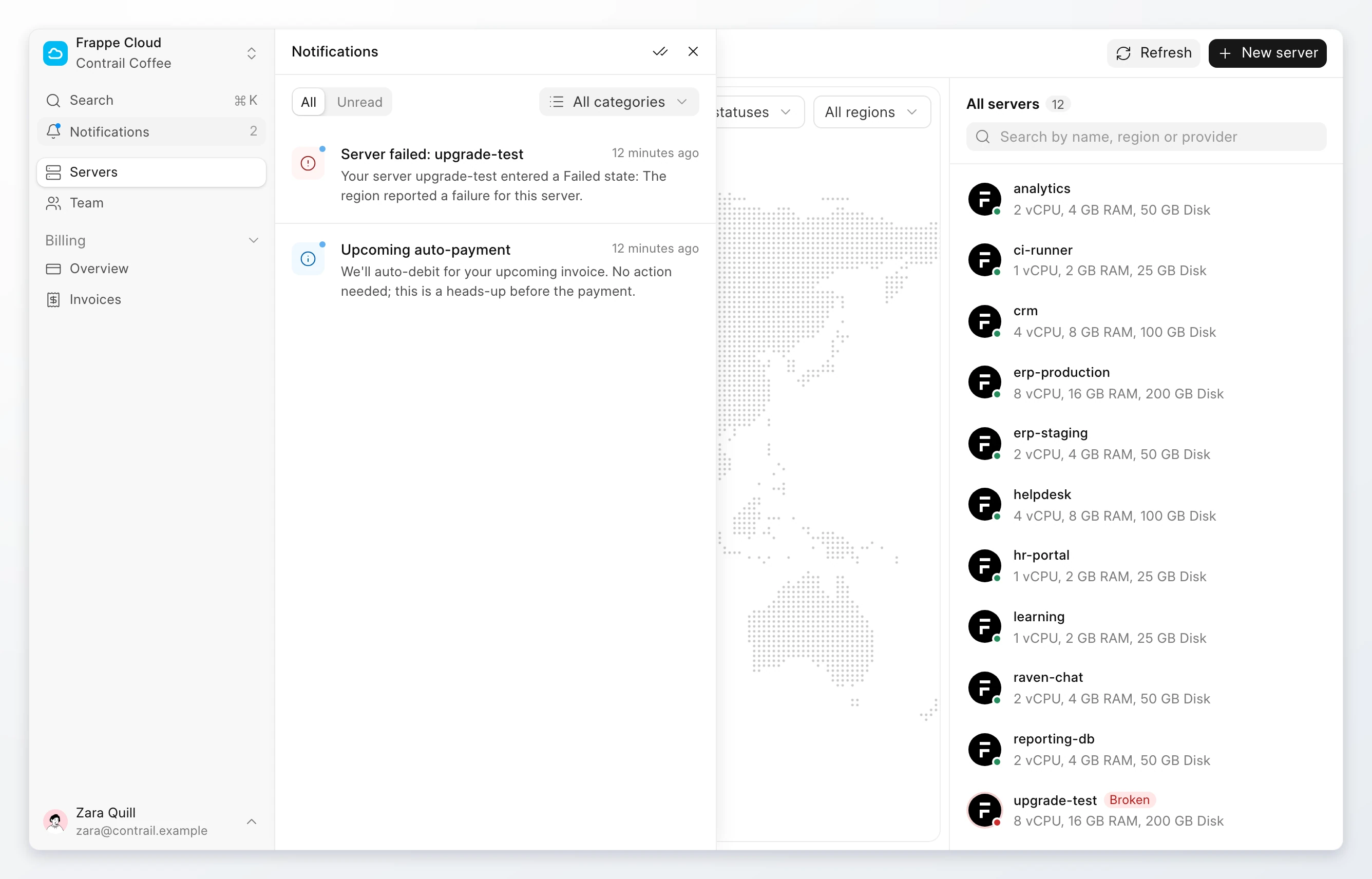
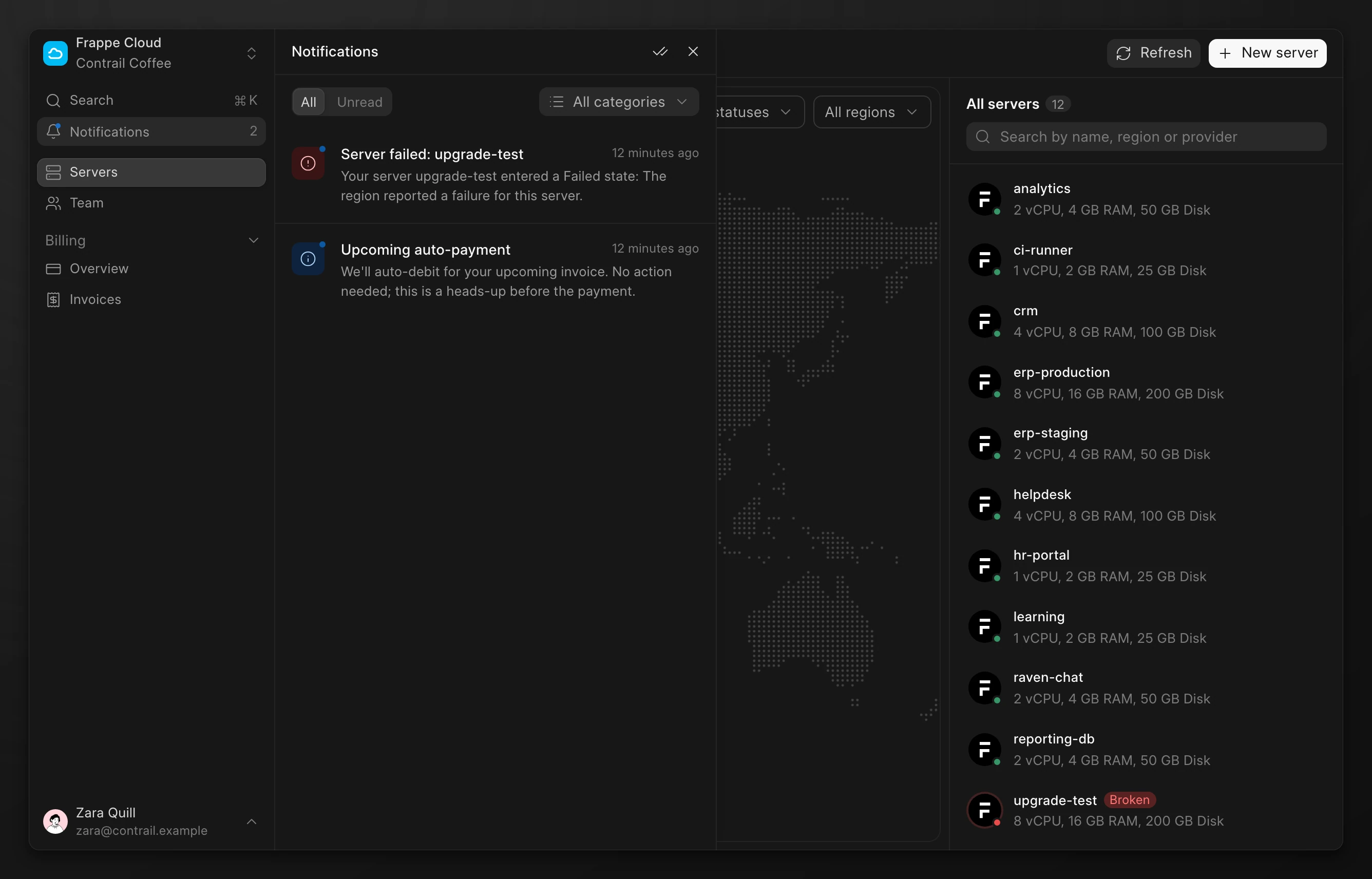
- Click Unread to hide events that you have read.
- Use All categories to show one category, such as servers or billing.
To choose which events you get by email, see Notifications.
Change your profile and theme
Click your name at the bottom of the sidebar.
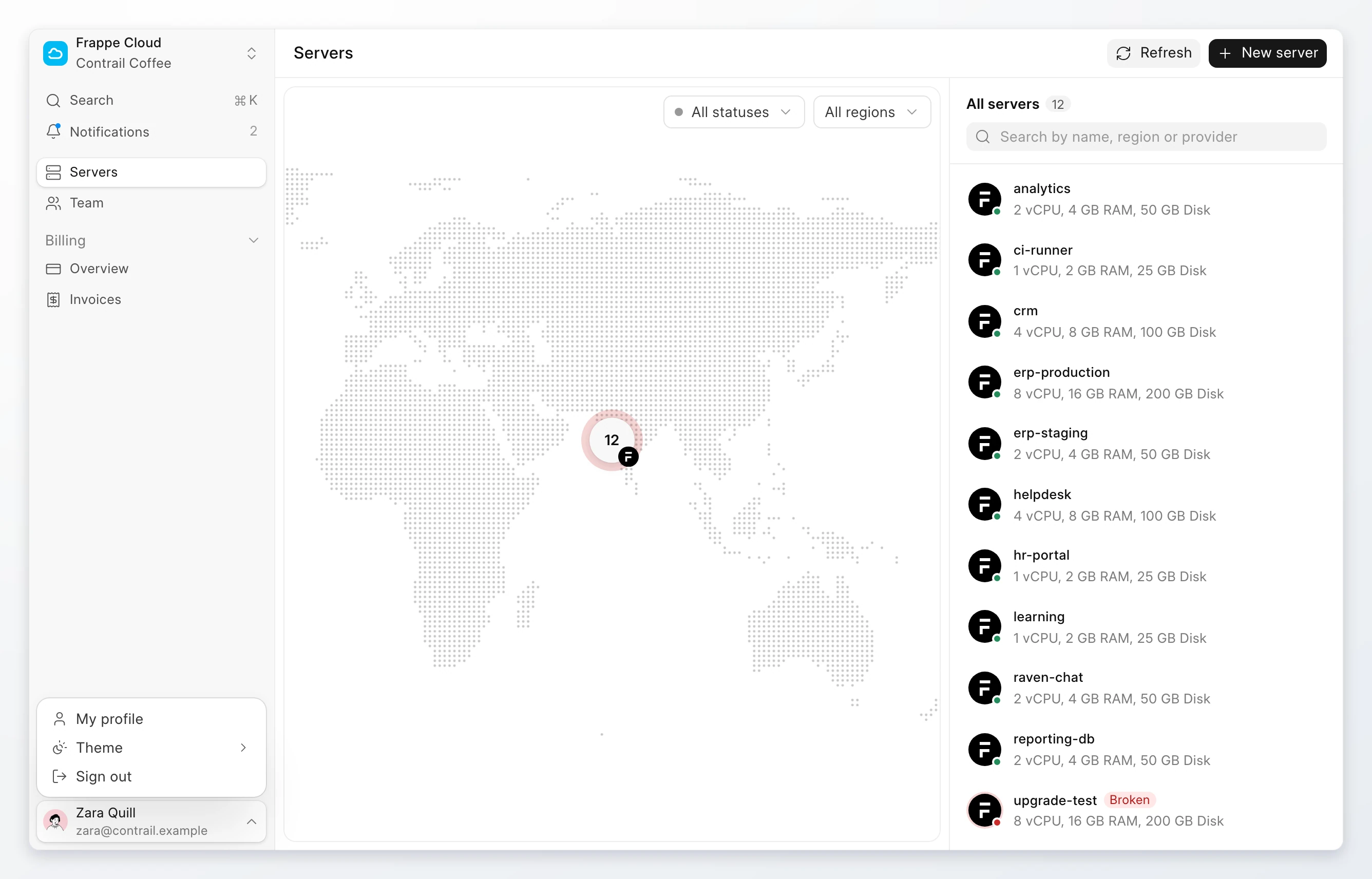
- Settings opens your profile and account settings.
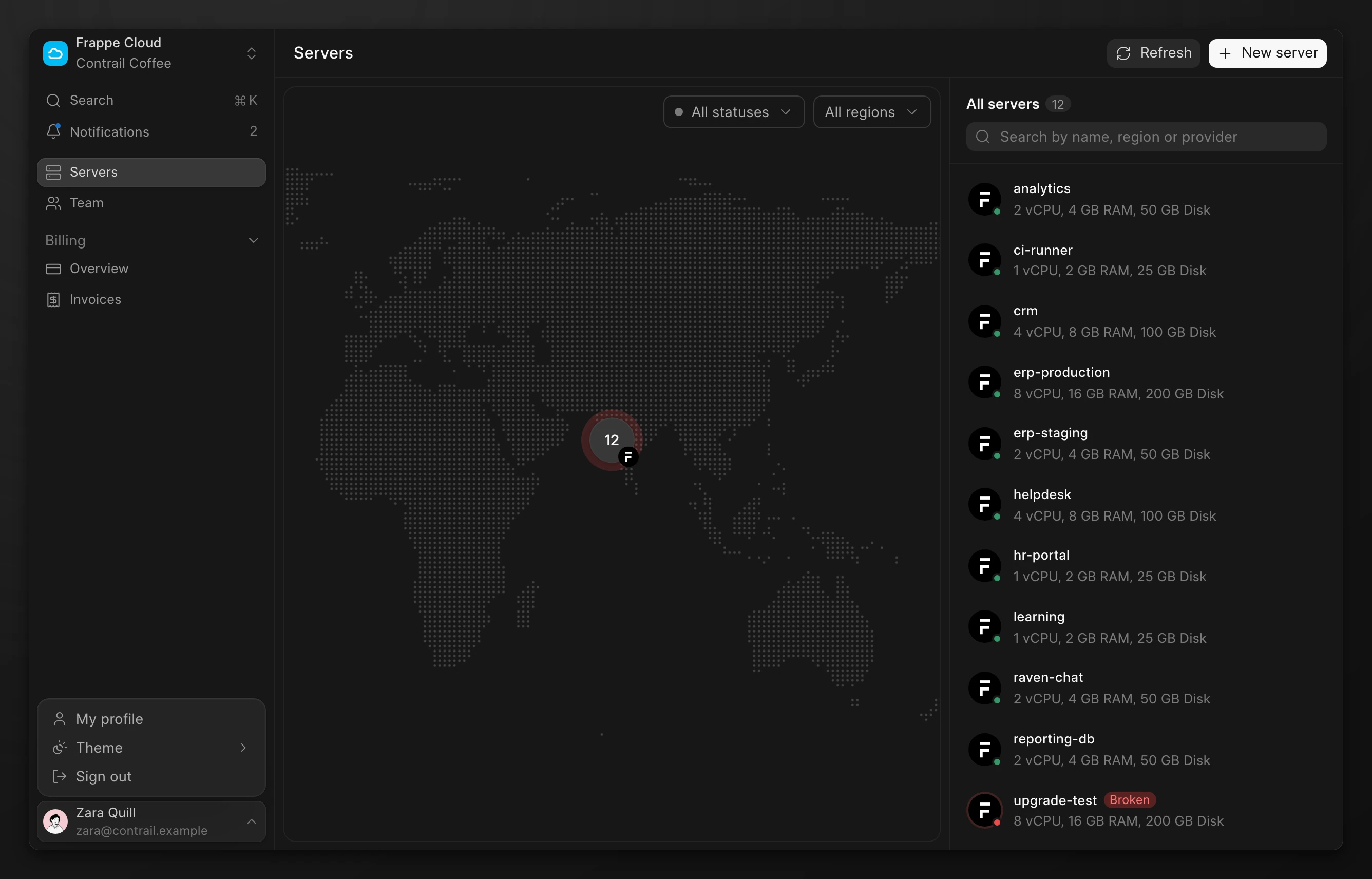
- Theme switches the console between light, dark, and your system setting.
- Sign out ends your session on this device.