Credits and spend limits
Credits are money you pay in advance into your team's wallet. A spend limit is the most your team can spend in one billing cycle. Your limit comes from your trust tier, and the tier rises as you pay invoices.
Note
You need the Owner, Admin, or Billing role to add credit. All billing roles can see the wallet and the limits.
Wallet credits
The wallet holds your prepaid credit. Each invoice uses credit first, before Frappe Cloud charges a payment method. The balance shows as Wallet in the summary panel and as Prepaid credits on the Methods card.
Credit that you add while an invoice is unpaid pays that invoice only when it covers the whole amount due, tax included. Otherwise the credit stays in the wallet, and Frappe Cloud does not split the invoice between credit and a payment method. If an automatic debit for the invoice was still pending at your bank and goes through after the credit paid the invoice, Frappe Cloud refunds that debit in full to its source.
Add credit
- Go to Billing > Overview.
- In the summary panel, click Add credit. You can also click Top up on the Methods card on Billing > Payments.
- Type an Amount, or click a preset amount.
- Click Continue to payment and complete the payment.
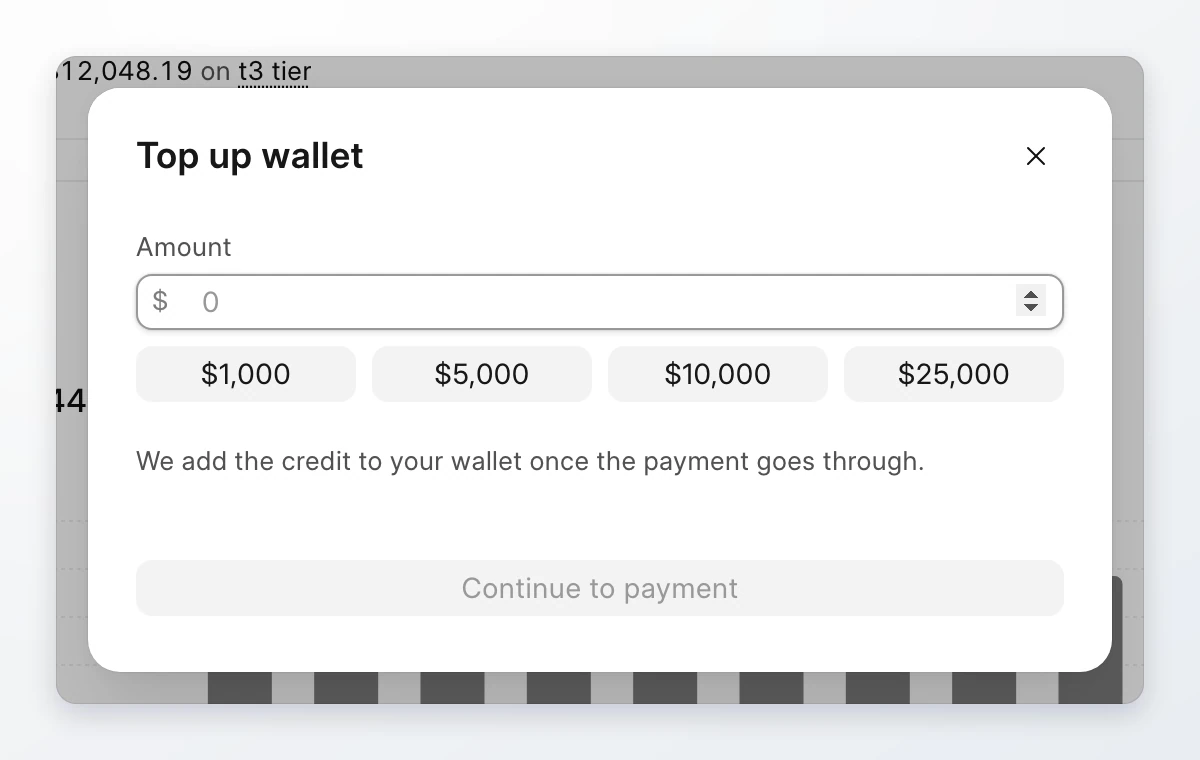
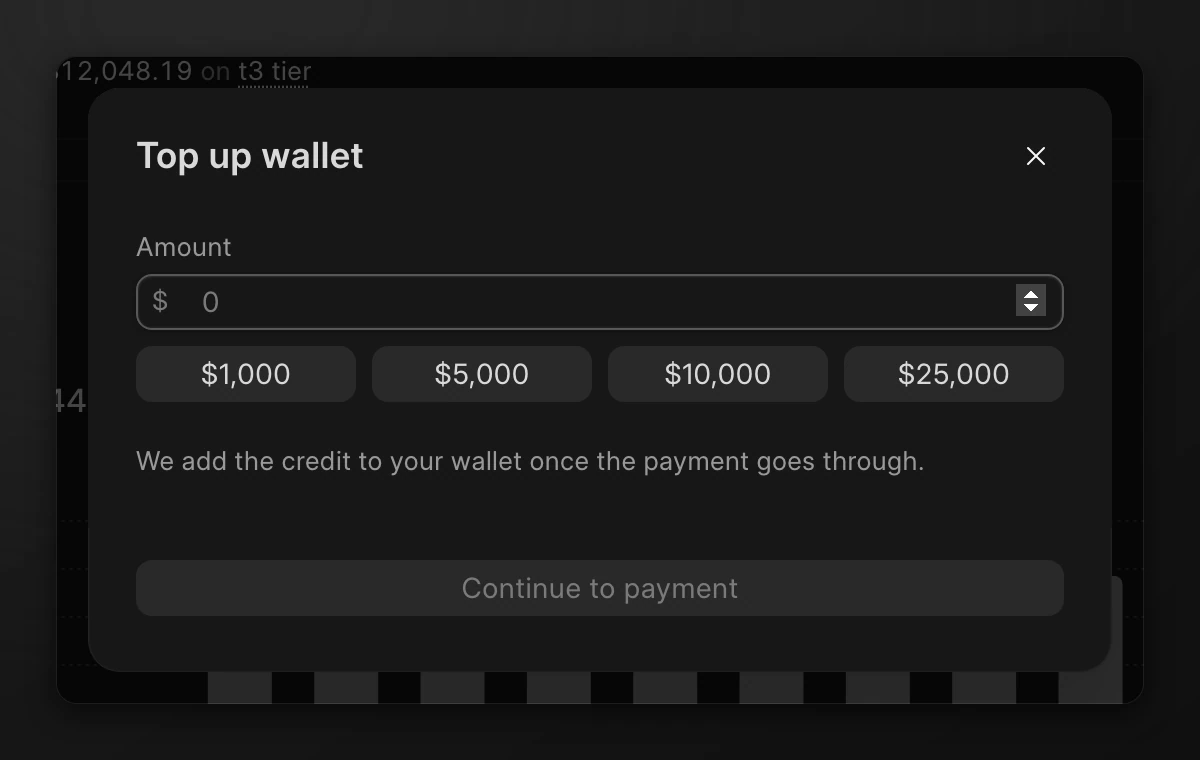
Frappe Cloud adds the credit to your wallet after the payment goes through. Add your billing details before you add credit.
Wallet history
Click Wallet in the summary panel to see each credit and debit and the balance. Click the download icon on a top-up to download its receipt.
Trust tiers
Each team is on a trust tier. The tier sets two limits:
| Limit | Meaning |
|---|---|
| Spend per cycle | The most your team can spend in one billing cycle. |
| Resources | The most servers and subscribed services your team can run at one time. |
The Limits card shows your tier, your projected spend for this cycle against the limit, and your resource count against the limit.


Move to a higher tier
Tiers rise automatically as you pay invoices. Each tier needs a number of paid invoices and a total amount paid. The first tier needs only a card or prepaid credit.
The Limits card shows what the next tier needs, such as Paid invoices and Paid to date, and how close you are. Click All tiers to see every tier, what it needs, and its limits.
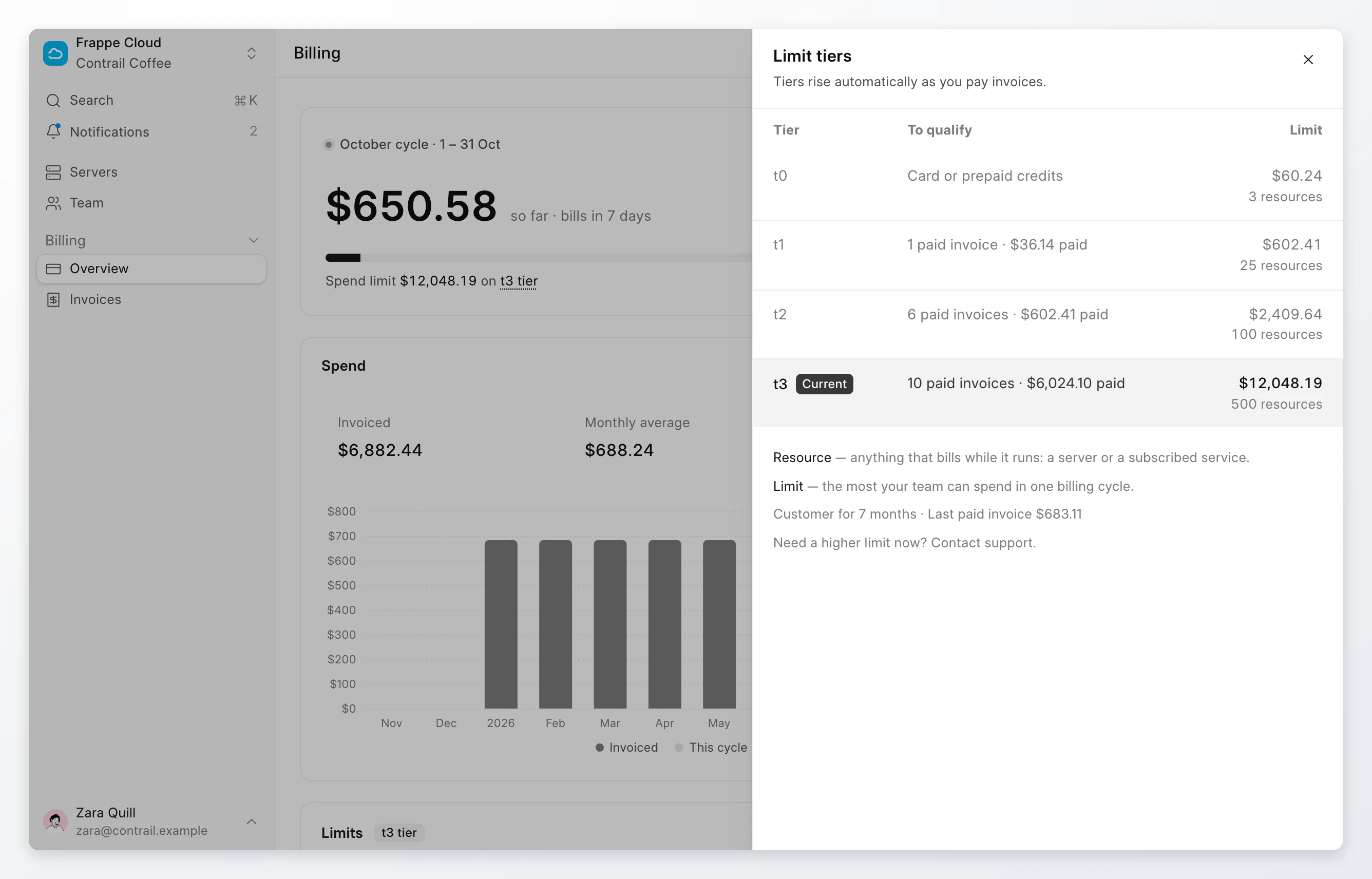
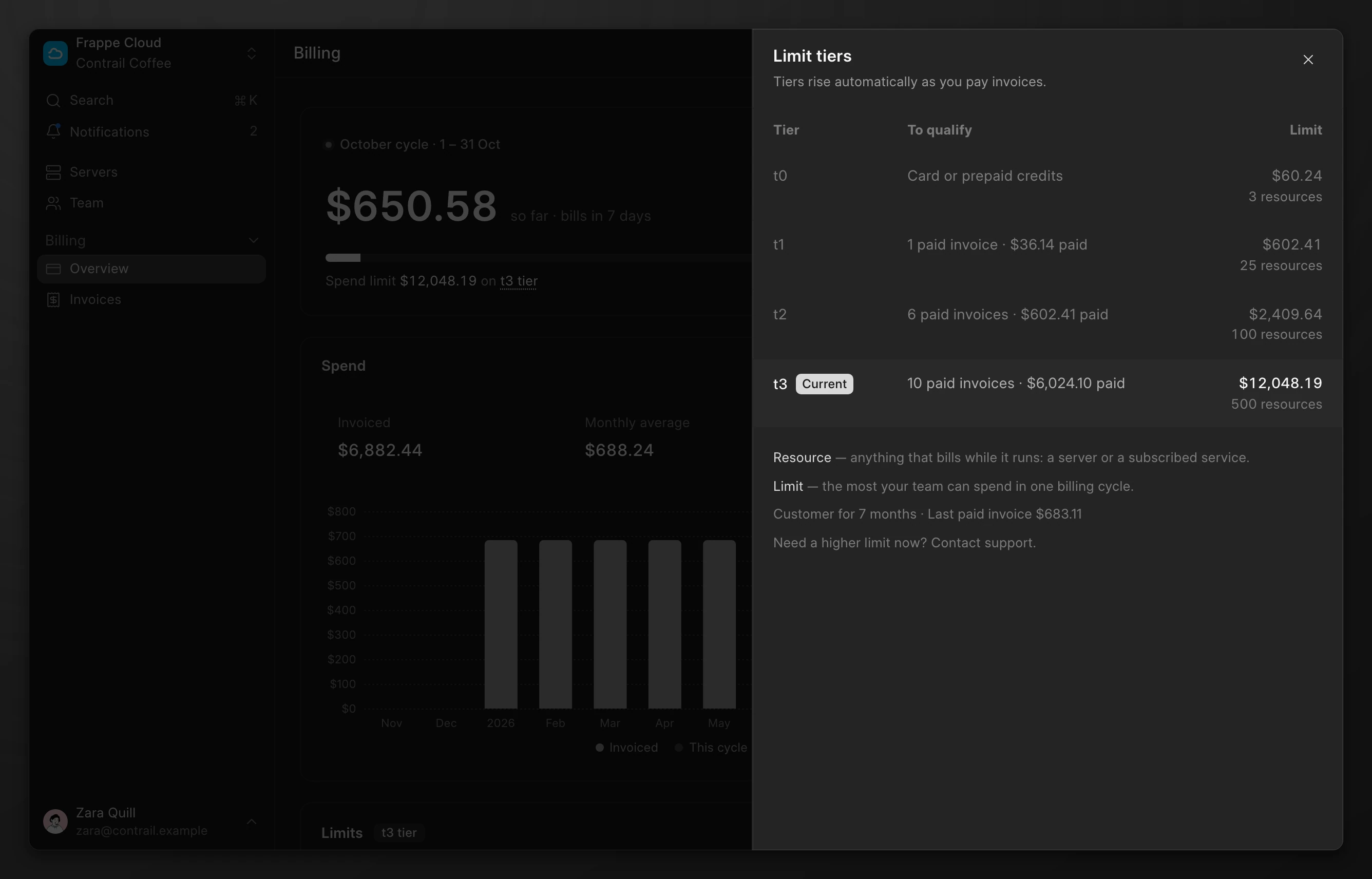
The tiers and amounts in your console depend on your billing currency. The console is the source of truth for your limits.
When you reach a limit
Frappe Cloud checks your limits when you create or resize a server. It refuses the change when:
- The new monthly cost and your current costs go above your spend limit. Choose a smaller plan.
- Your team already runs the most servers that your tier allows. Terminate a server you no longer need.
When your projected spend reaches 80% of the limit, the spend on the Limits card turns amber.
To ask for a higher limit, click All tiers, then click Contact support.