Profile and theme
Your profile is how you appear to every team you belong to. Change your name and photo in Settings > Profile, and the console theme in Settings > Preferences.
Open settings
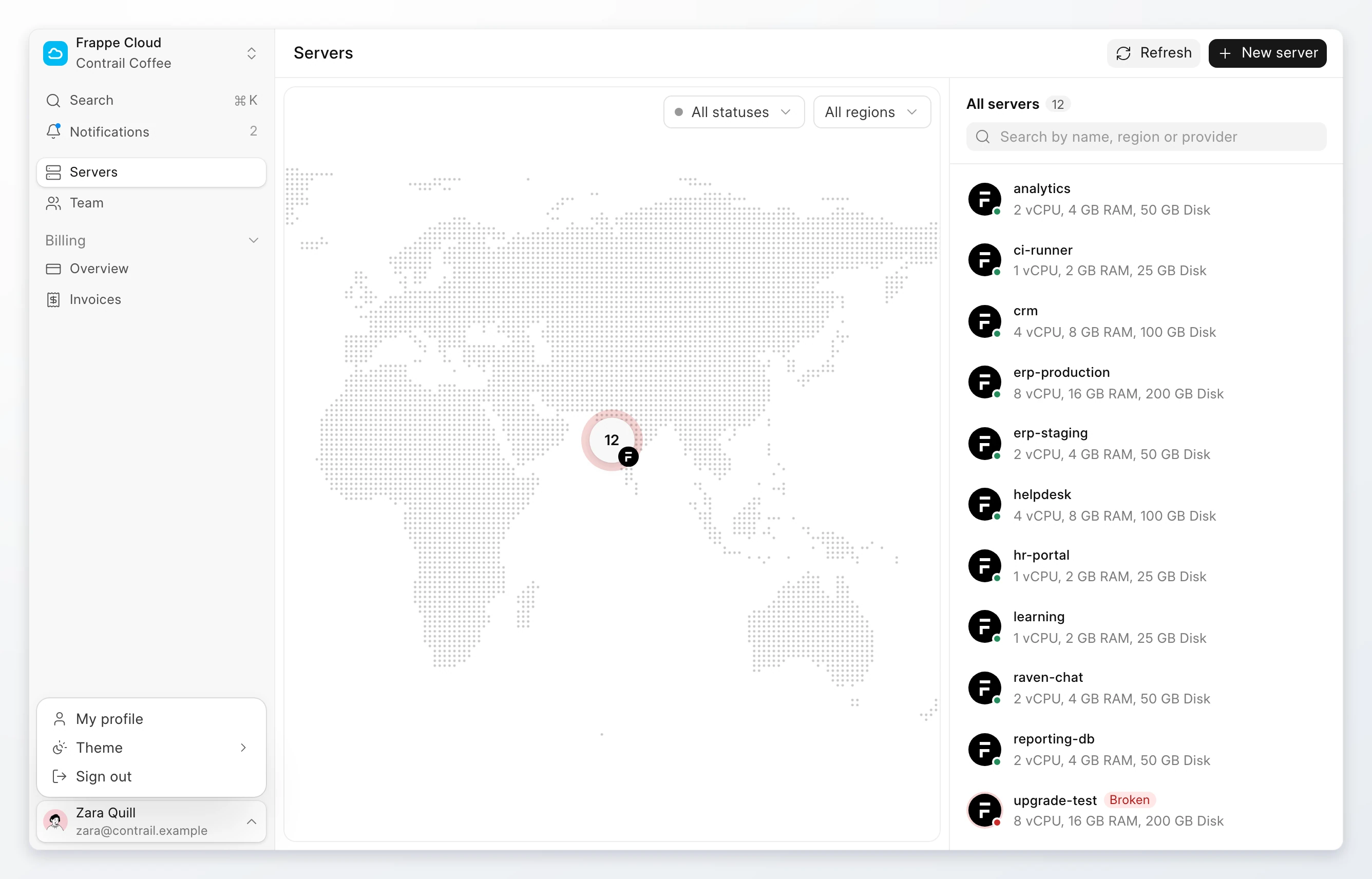
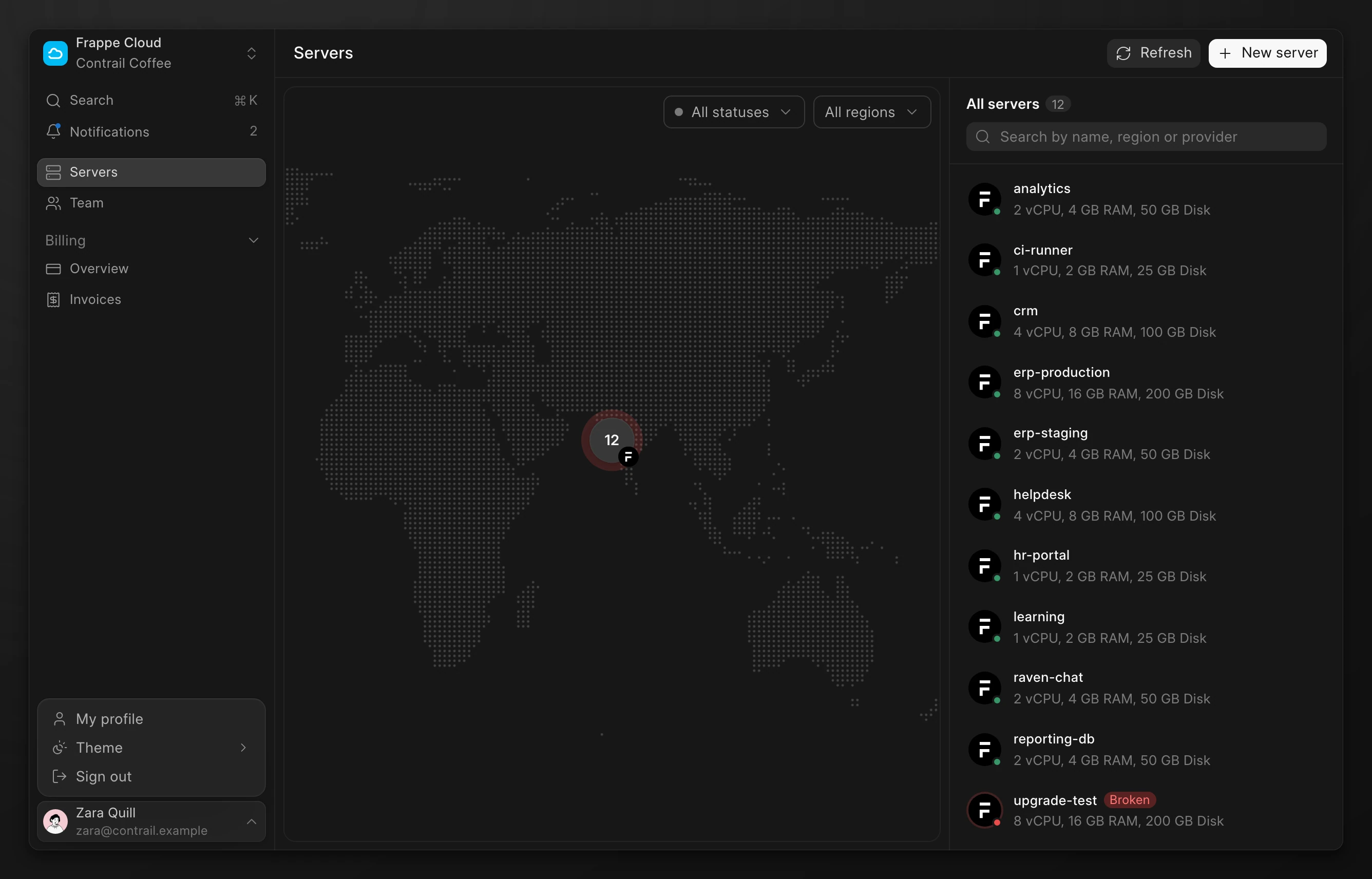
Click your name at the bottom of the sidebar, then click Settings. The settings dialog opens on Profile. You can also press ⌘ , on macOS or Ctrl , on Windows and Linux.
On a phone, settings open as pages instead of a dialog.
Change your name
- Open Settings > Profile.
- Change Full name.
- Click Save, or press Enter.
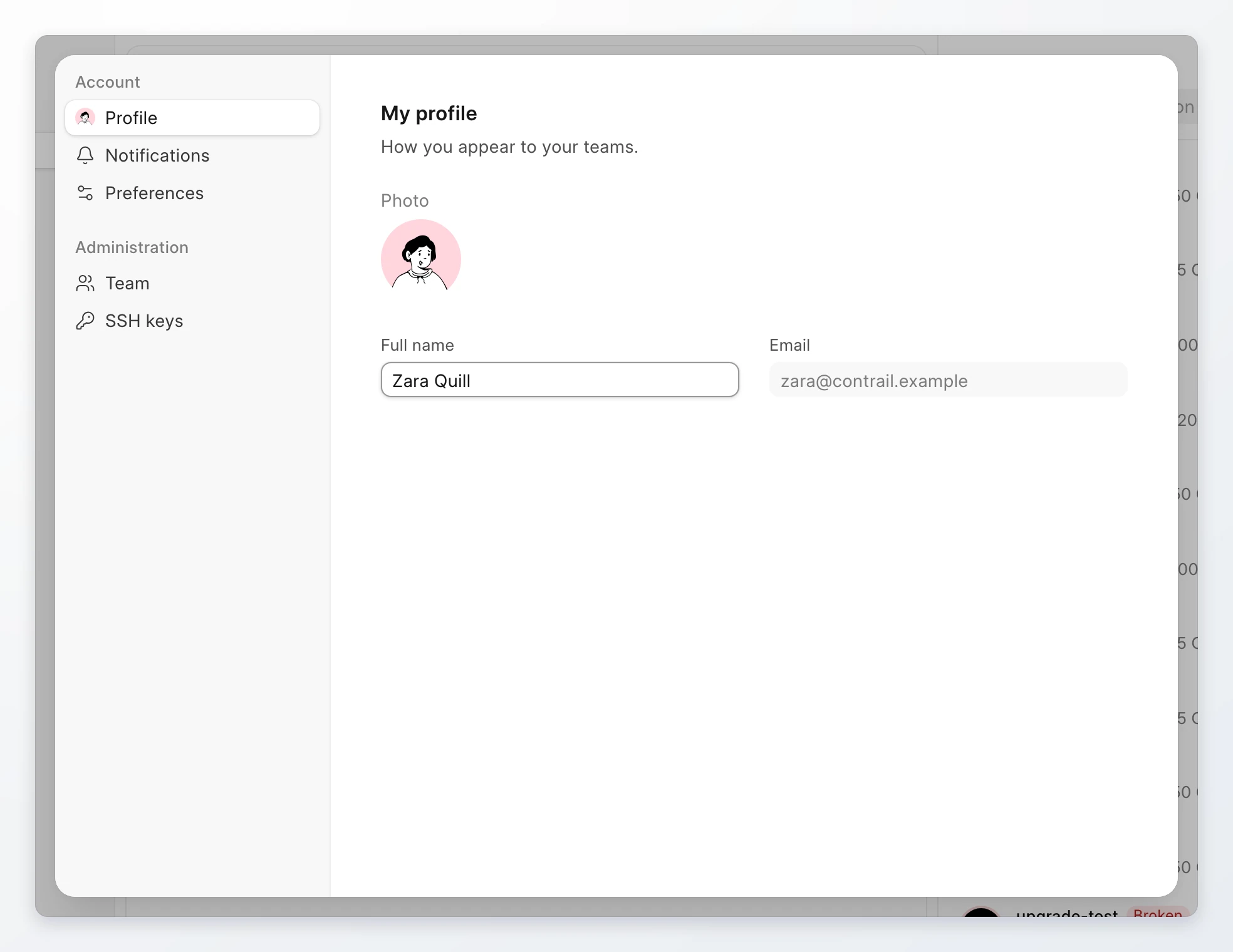
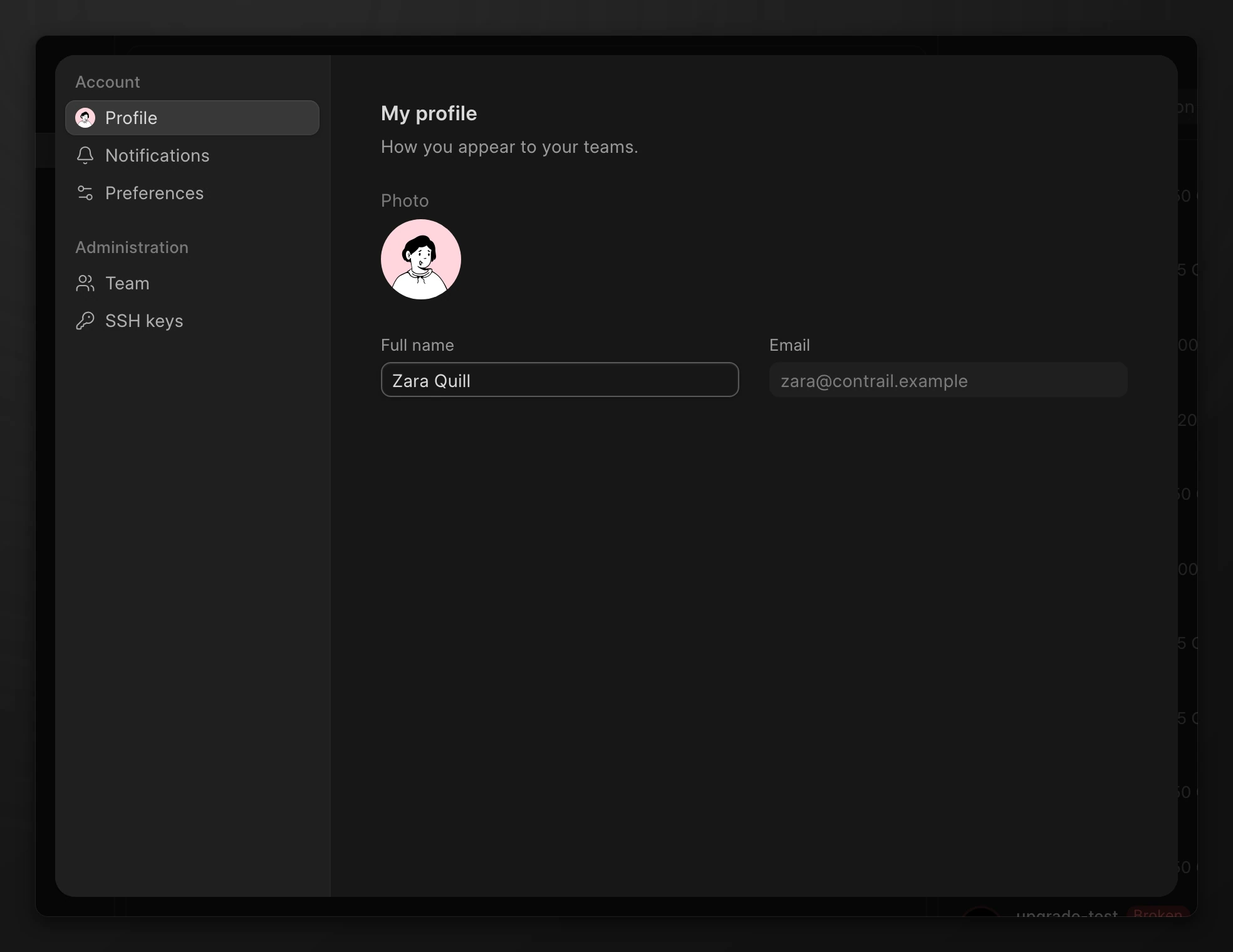
Your email is shown but you cannot change it. It is the address you sign in with and the address invitations go to.
Change your photo
- Open Settings > Profile.
- Click your photo under Photo.
- Click Upload a photo and select an image. To remove the photo, click Remove photo.
Your teammates see the new photo in the member list. Without a photo, the console shows the first letter of your name.
Change the theme
- Open Settings > Preferences.
- Under Theme, click System, Light, or Dark.
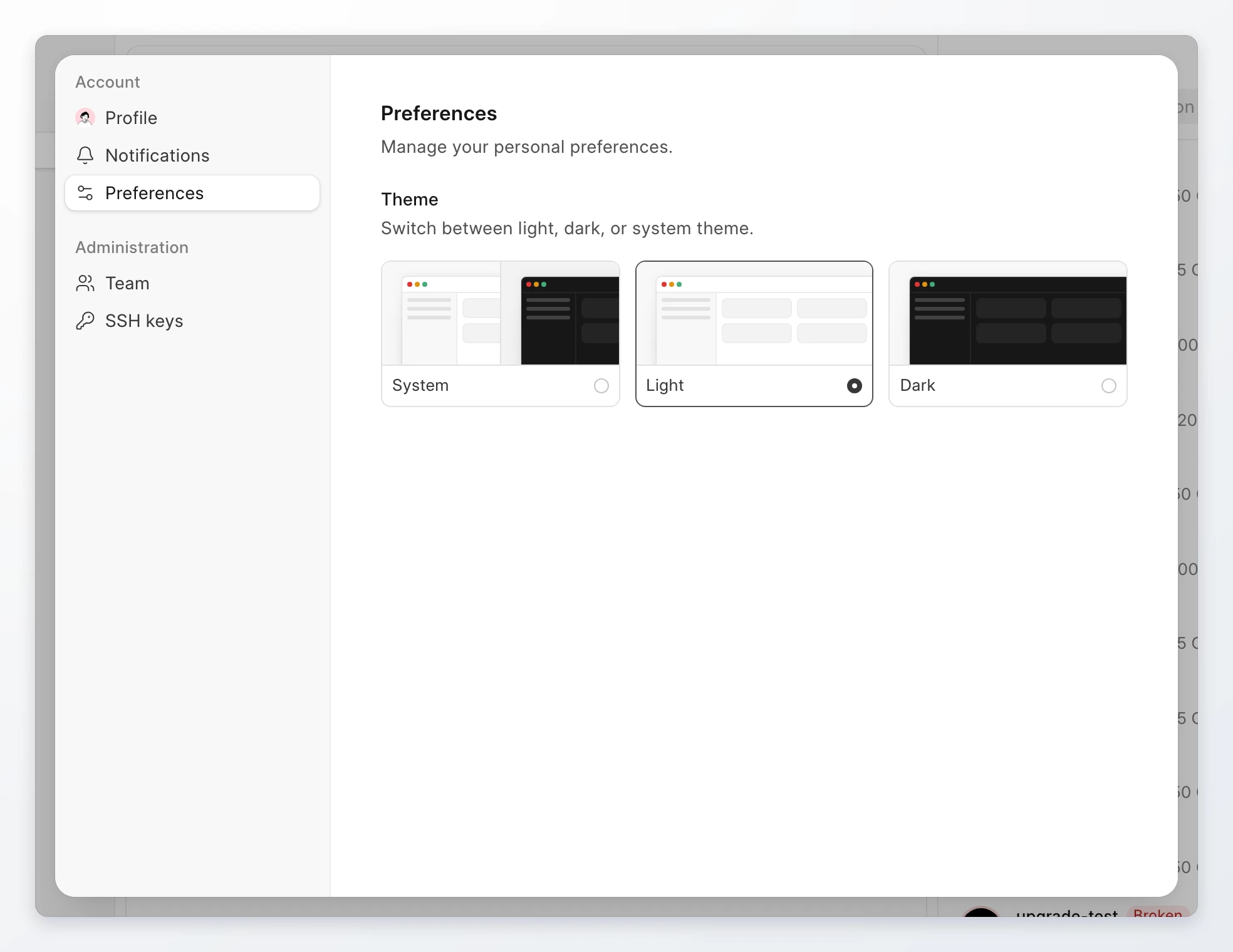
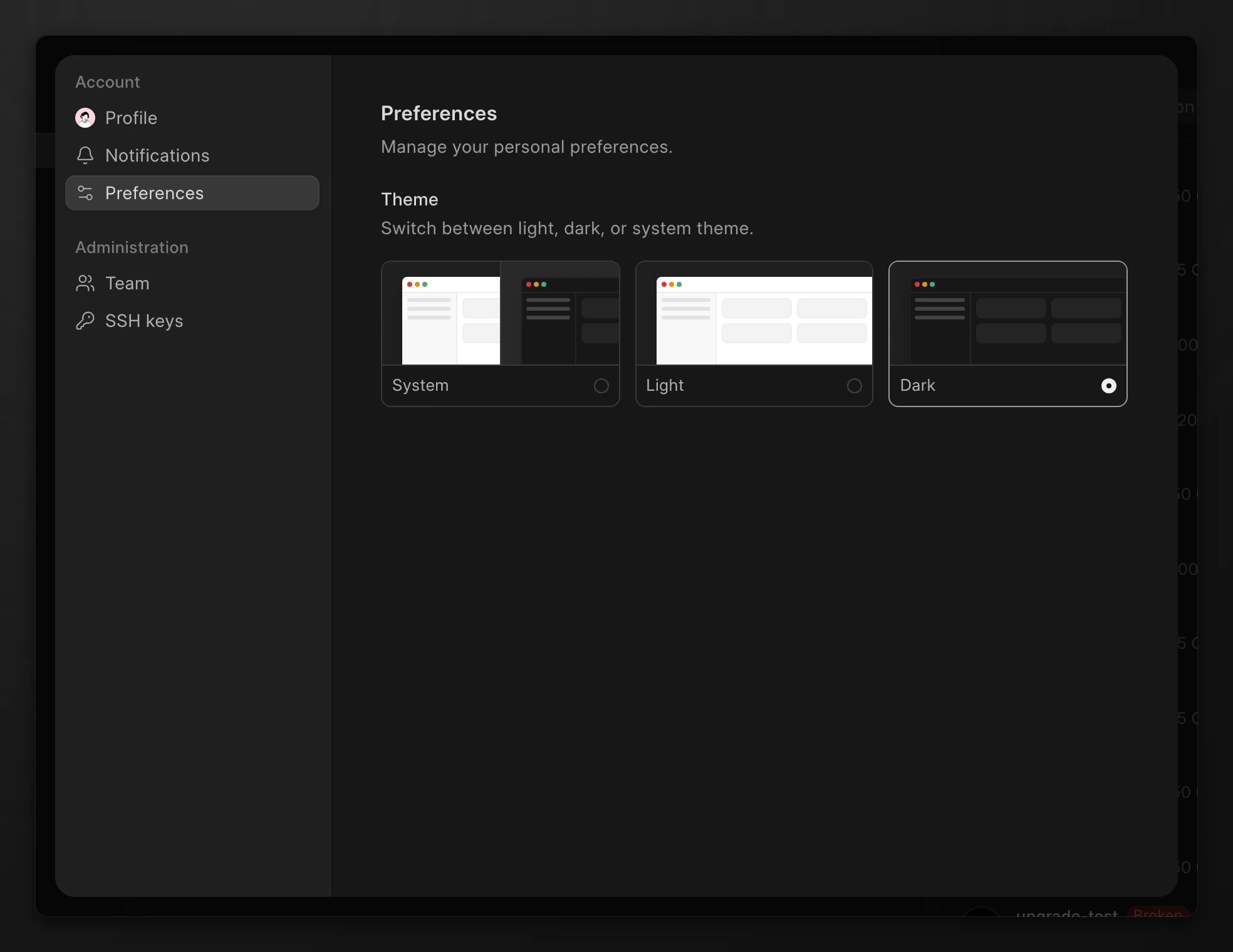
System follows the light or dark setting of your device. The change applies at once.
You can also click your name at the bottom of the sidebar and select Theme. The theme is saved in your browser, so set it again on each browser you use.