Networking and firewall
The Networking tab of a server shows its addresses, its firewall, and the domains that point to it. Go to Servers, click a server, then click Networking.
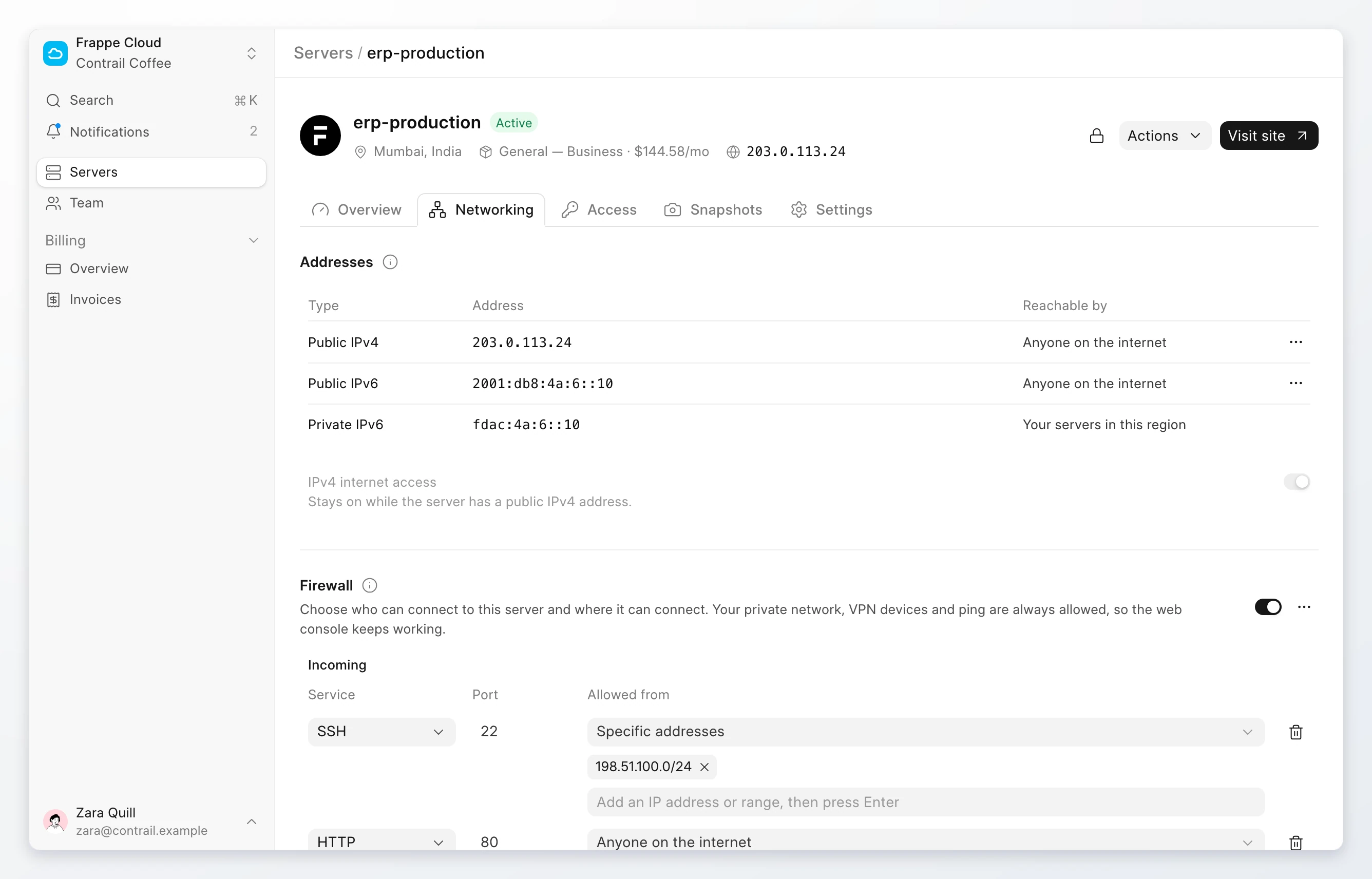
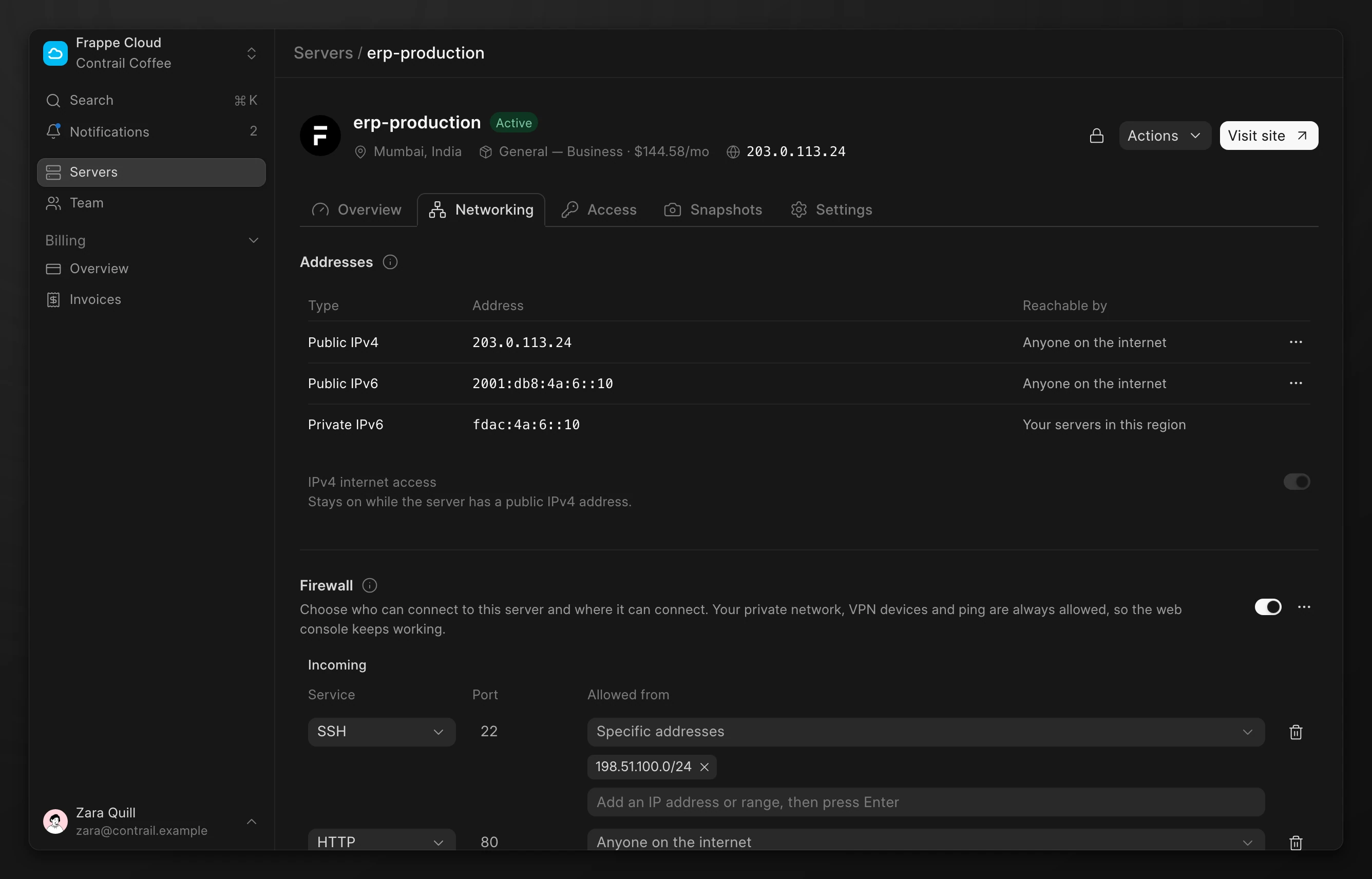
Addresses
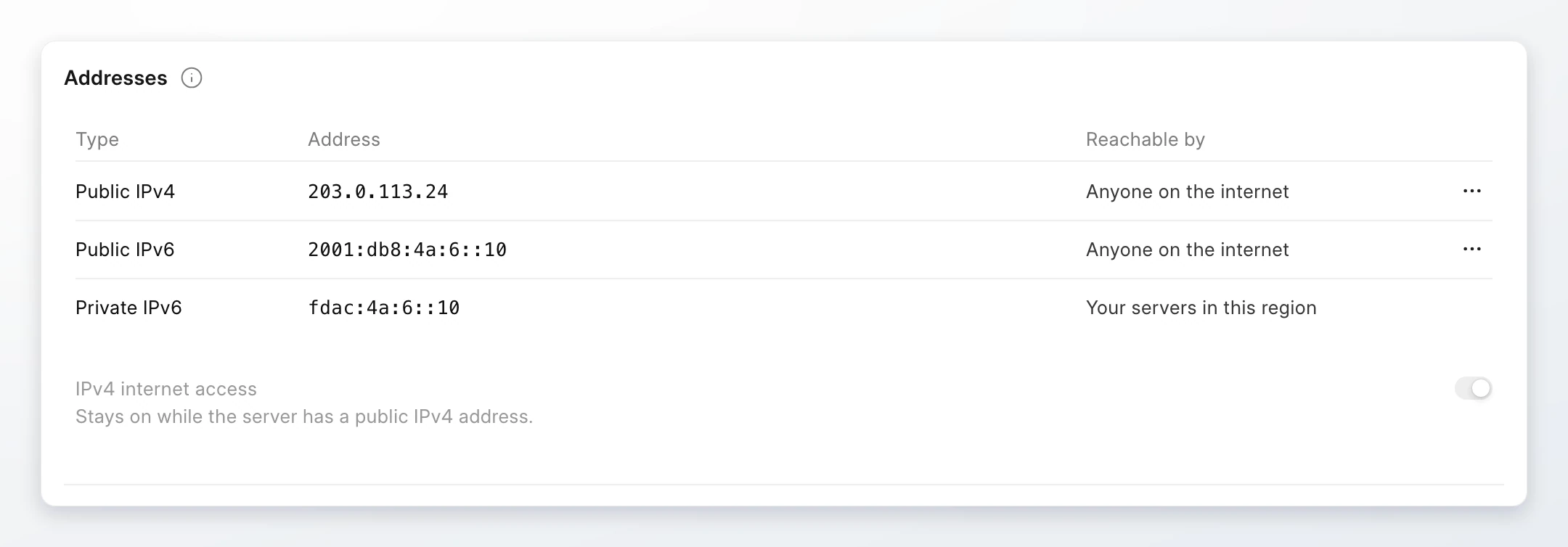
| Type | Reachable by | Price |
|---|---|---|
| Public IPv4 | Anyone on the internet | Monthly price for each region. The button shows the price. |
| Public IPv6 | Anyone on the internet | Free |
| Private IPv6 | Your servers in this region, and your WireGuard VPN devices when WireGuard VPN is on | Free |
Every server gets a private IPv6 address when it finishes setting up. Click an address to copy it.
Attach a public address
- In Addresses, click Attach IPv4 or Attach IPv6 · Free.
- For IPv4, read the price. Click Attach IPv4.
The IPv4 address is billed while it is attached. If the region is still applying the change, the address shows within a few minutes.
Detach a public address
- Open the row menu of the address. Click Detach.
- Click Detach to confirm.
Warning
A detached IPv4 address goes back to the region and its billing stops. You cannot get the same address back. A new IPv6 address can also be different from the old one.
IPv4 internet access
A server without a public IPv4 address cannot reach sites that have only IPv4 addresses. Turn on IPv4 internet access to let it reach them. The switch stays on while the server has a public IPv4 address.
Firewall
The firewall controls who can connect to the server and where the server can connect. The region filters the traffic before it reaches the server.
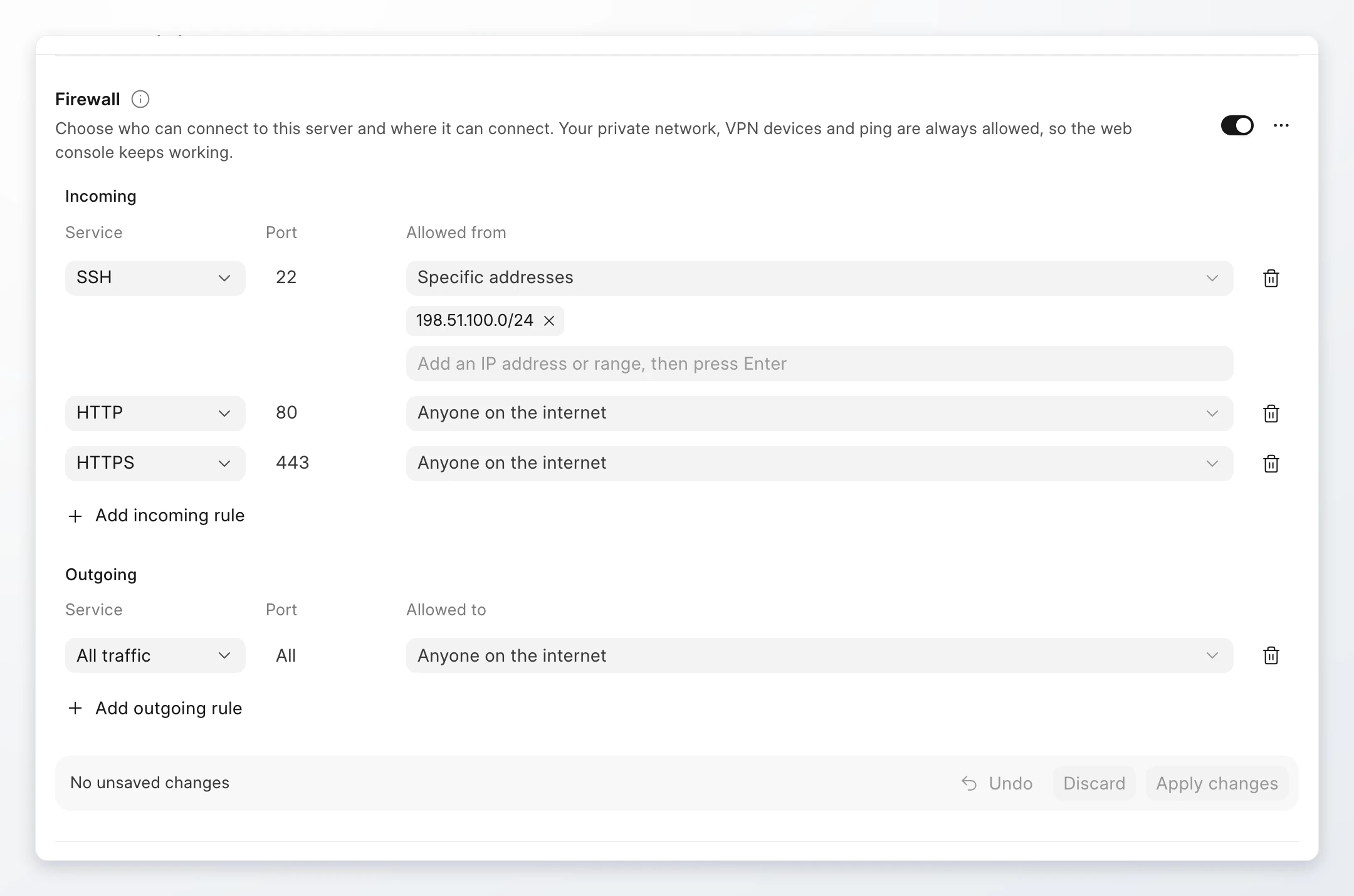
When the firewall is off, every port is open to the internet. When you turn it on, it uses your saved rules. A new server starts with these incoming rules, and all connections out:
| Rule | Why |
|---|---|
All traffic from Private network (fdaa::/16) | The web console, the regional proxy that serves your sites, and your other servers in the region connect through it. |
| Ping from anyone | IPv6 needs ICMP to find neighbours and the path size. |
| SSH, HTTP, and HTTPS from anyone | Sign in, and serve sites directly. |
You can remove any of these rules. If you remove Private network, the web console and your sites stop working through Frappe Cloud. The console warns you before it applies such a change.
The firewall also filters WireGuard VPN devices. To let a device in, add a rule and select the device by its name in Specific addresses.
Change the rules
- In Firewall, make sure the switch is on.
- Under Incoming or Outgoing, click Add incoming rule or Add outgoing rule.
- Select a Service, such as SSH, HTTPS, or Custom TCP.
- For a custom service, type a Port. Use one port, a range such as
8000-8005, or leave it empty for all ports. - In Allowed from or Allowed to, select Anyone on the internet, or select Specific addresses. Then type an IP address or range, such as
198.51.100.0/24, or select a WireGuard VPN device. Press Enter. - Click Apply changes. Confirm the change.
Click Undo to revert the last edit, or Discard to drop all unsaved edits. To delete a rule, click its delete icon.
Use a preset or copy the rules
Click the options button next to the firewall switch:
| Option | Effect |
|---|---|
| Use a preset > Web server | Allow the private network, ping, and SSH, HTTP, and HTTPS from the internet, and all outgoing connections. |
| Use a preset > SSH only | Allow the private network, ping, and SSH from the internet, and all outgoing connections. |
| Use a preset > Private only | Allow the private network and ping. Block other incoming connections. Allow all outgoing connections. |
| Copy to other servers | Apply the same rules to other servers of your team. |
A preset replaces the rules in the editor. Click Apply changes to save them.
Domains
The Domains section lists the site domains and custom domains that point to the server. Click the arrow next to a domain to open it. To add a domain, see Domains and SSL.
Note
Changing addresses and the firewall needs the Owner, Admin, or Developer role.