LLM
LLM gives your team AI inference through an API that is compatible with the OpenAI and the Anthropic SDKs. You call hosted models and models from other providers with one key.
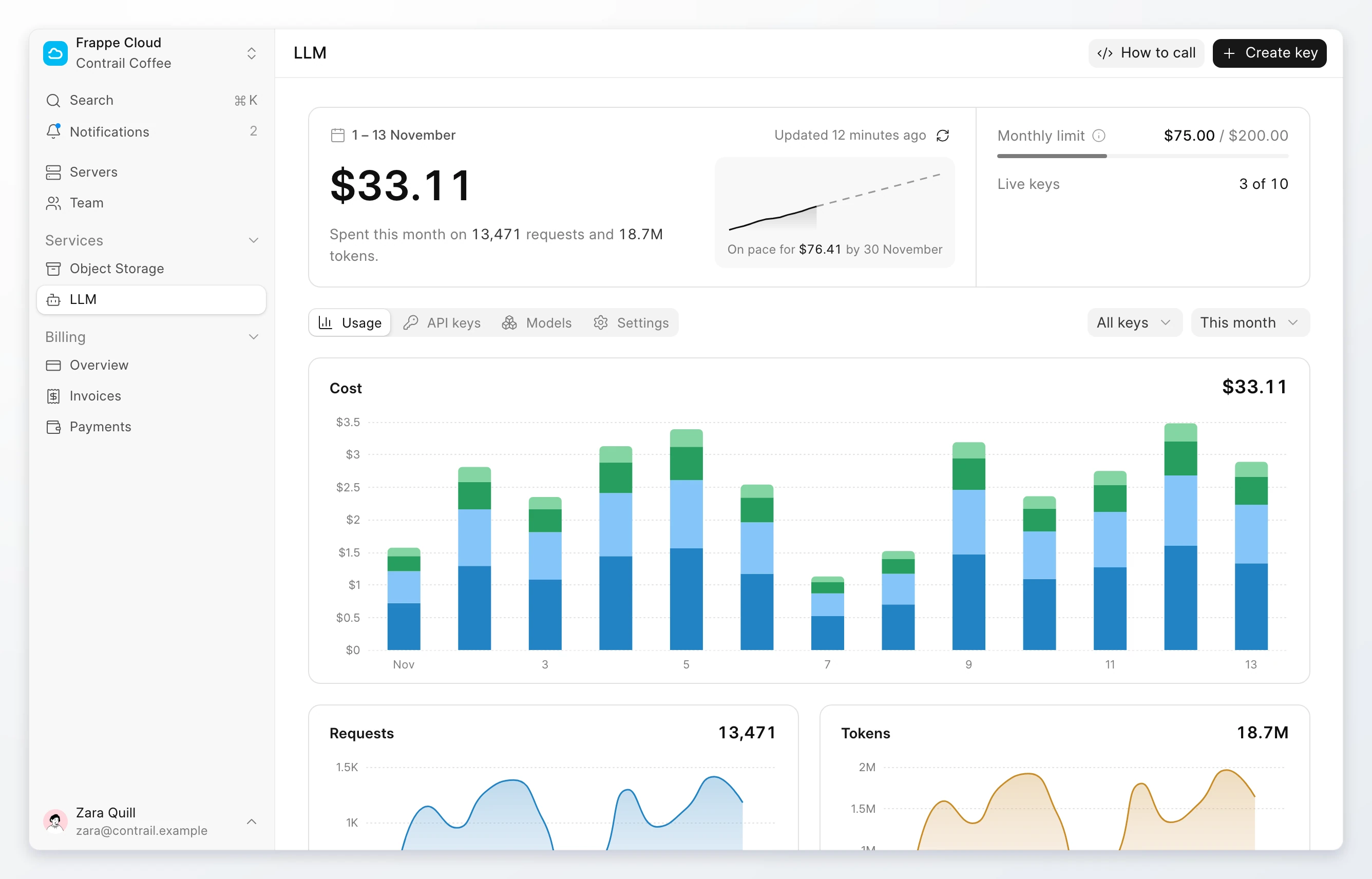
Go to Services, then click LLM.
Note
Reading this page needs the Owner, Admin, Developer, Viewer, or Billing role. Every change needs one of these roles, except Viewer. A team with a server on a free trial cannot turn on LLM.
Turn on LLM
Go to Services > LLM. Click Enable for team.
Create an API key
- Click Create key.
- Type a Label, such as
n8n prod. - Select the Geography. The geography sets where the requests of the key are served. You cannot change it later.
- Type the Cap (USD). This is the most that the key can spend in a month, in whole dollars. The minimum is
1. - Click Create.
A dialog shows the API key.
Warning
The console shows the key only one time. Copy it before you close the dialog. If you lose it, revoke the key and create a new one.
A new key can take a few minutes to start working. Your plan sets how many live keys your team can have. The summary shows this number under Live keys.
Call a model
Click How to call. The dialog shows the base URL and an example request for each geography.
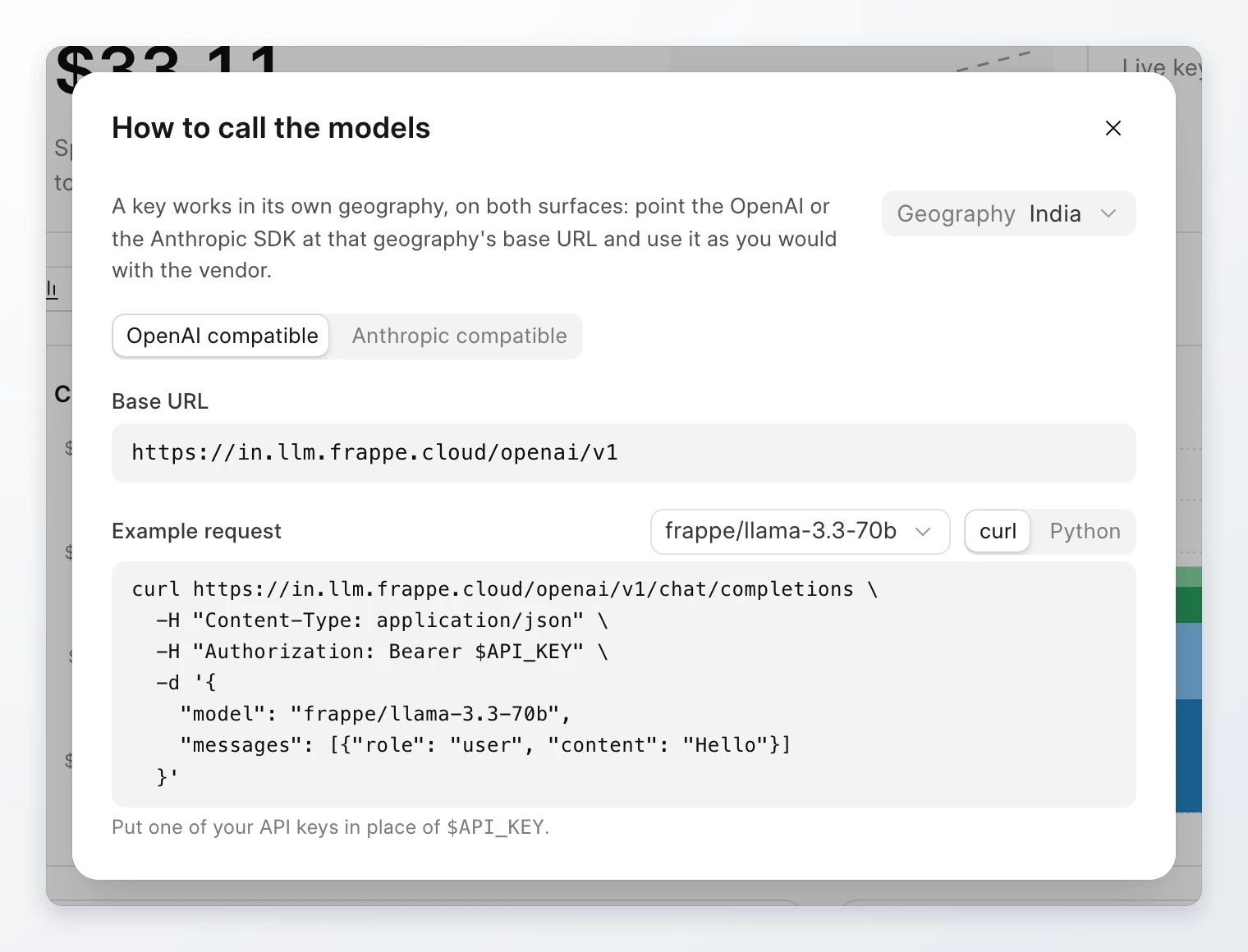
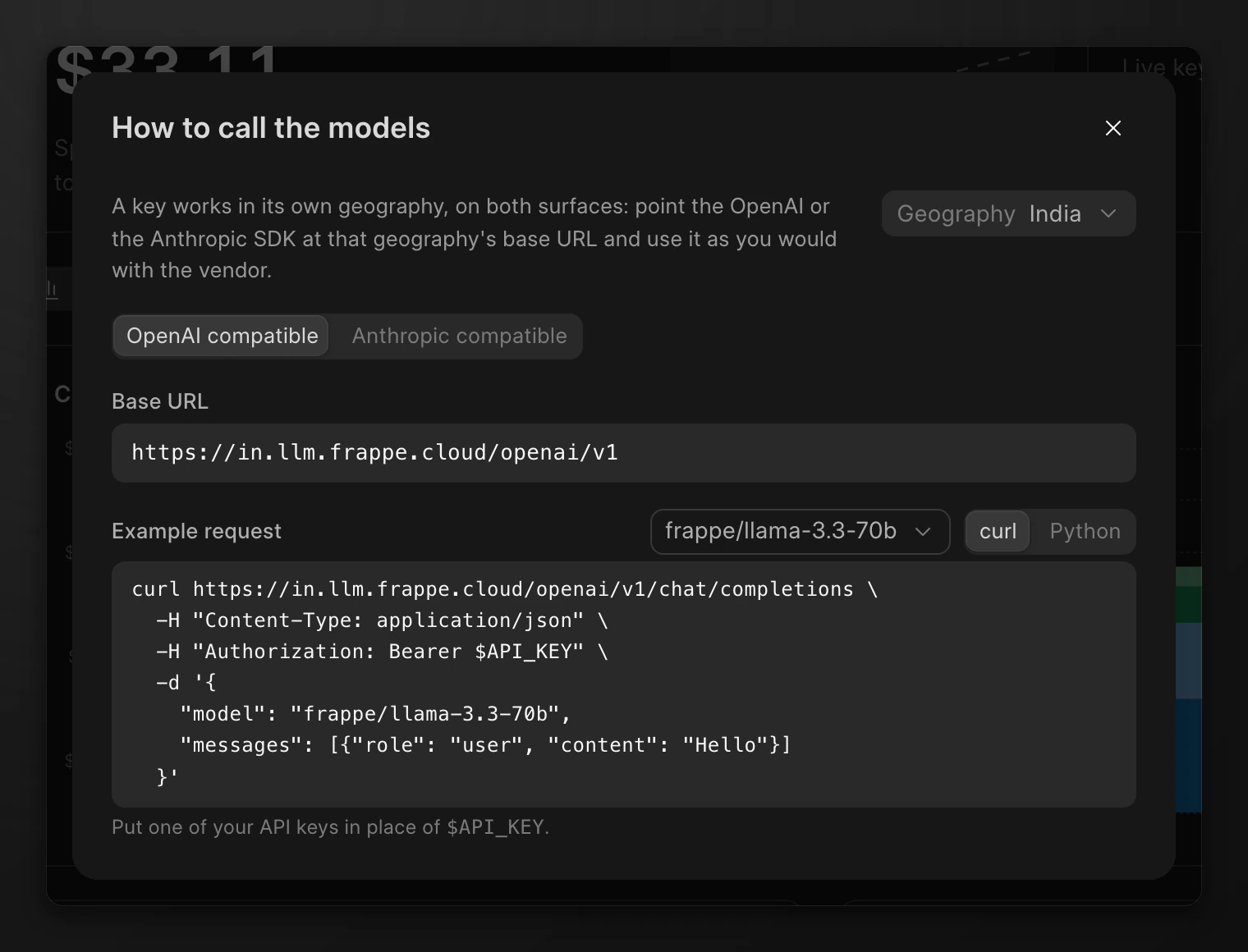
A key works only in its own geography. Use the base URL of that geography.
| SDK | Base URL | Key header |
|---|---|---|
| OpenAI | <gateway URL>/openai/v1 | Authorization: Bearer <key> |
| Anthropic | <gateway URL>/anthropic | x-api-key: <key> |
Set the model to a Model key from the Models tab. This example sends a chat request with the OpenAI API:
curl <gateway URL>/openai/v1/chat/completions \
  -H "Authorization: Bearer $API_KEY" \
  -H "Content-Type: application/json" \
  -d '{"model": "<model key>", "messages": [{"role": "user", "content": "Hello"}]}'
See the models
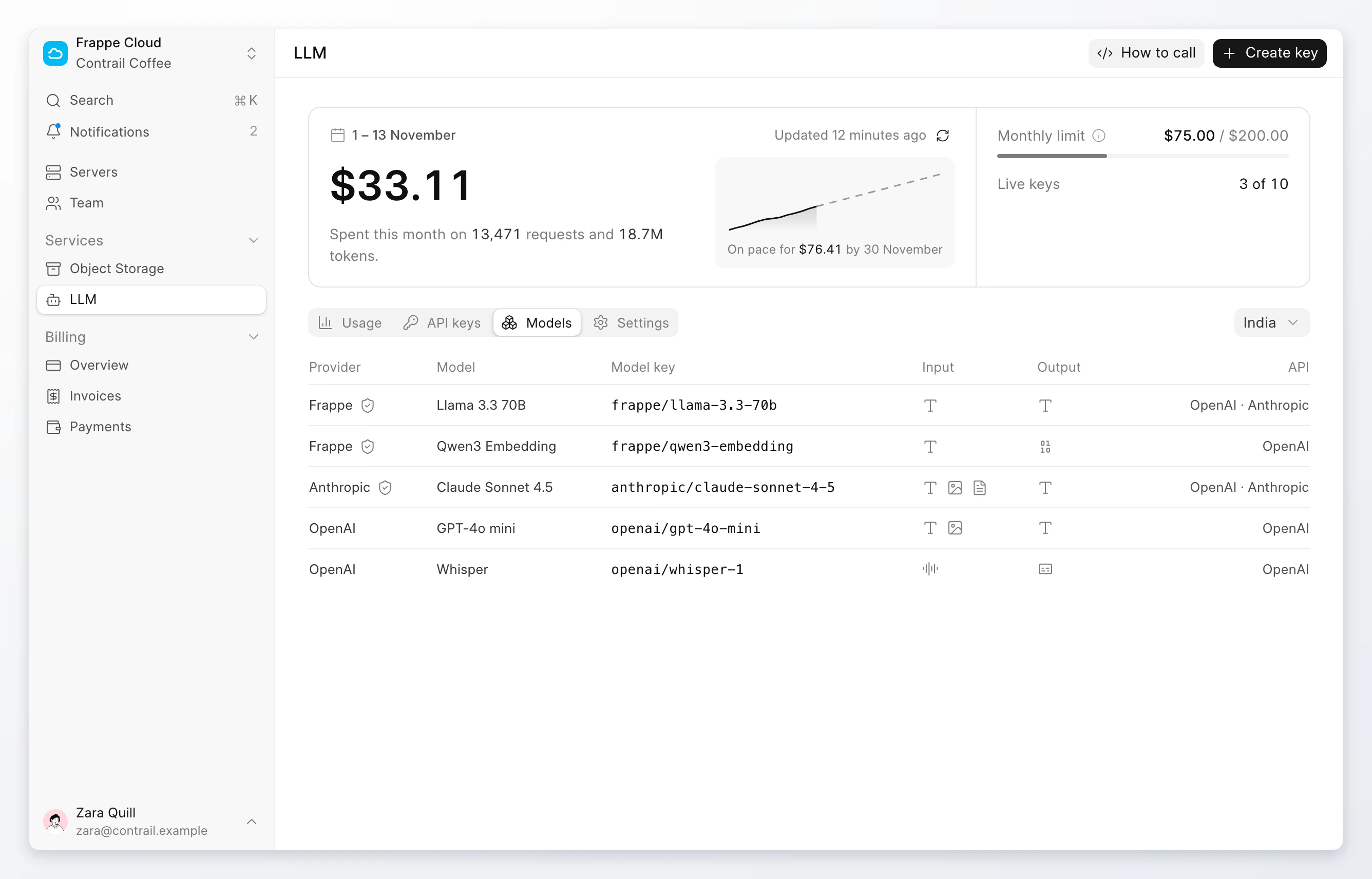
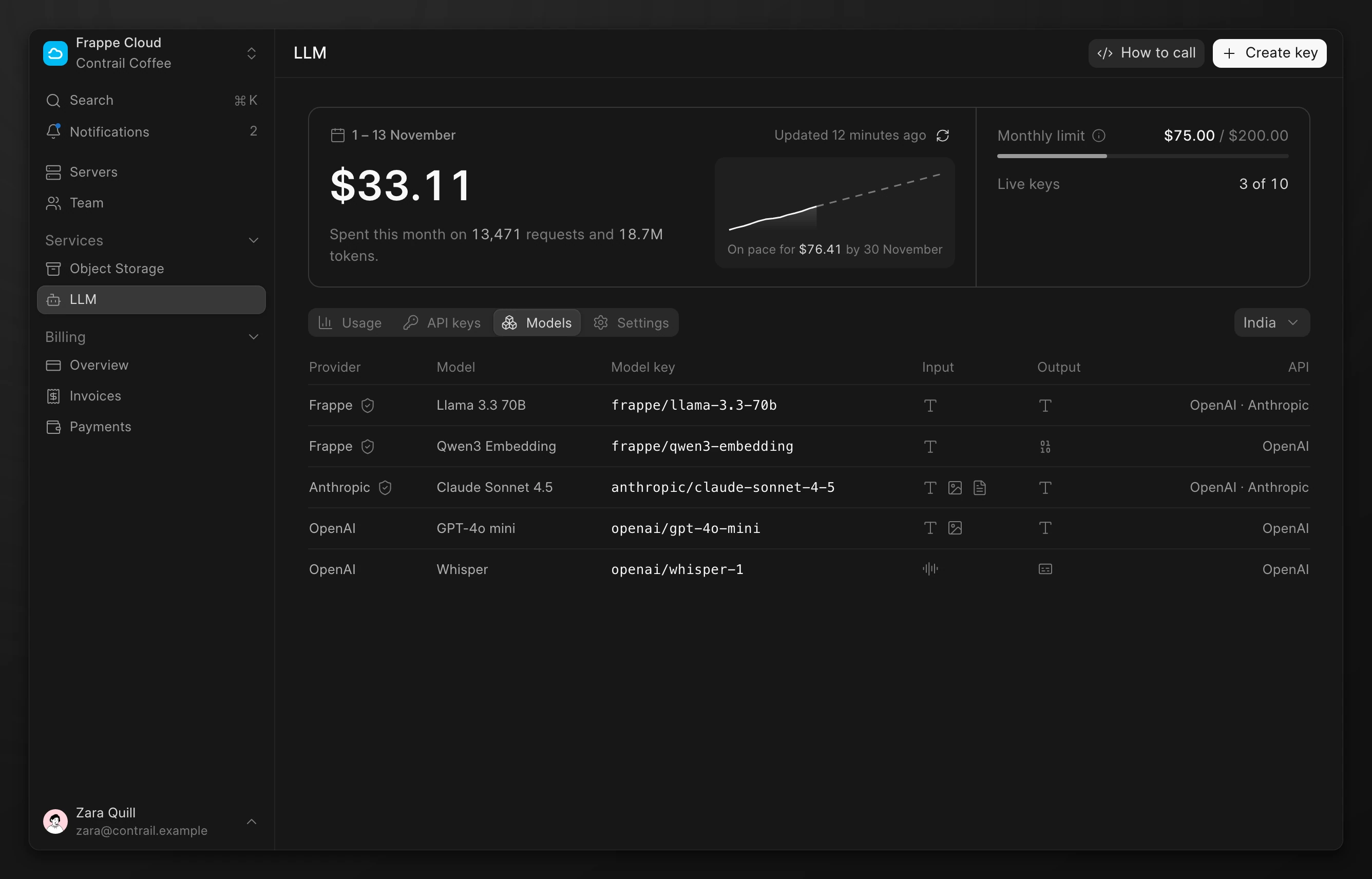
Click the Models tab. Select a Geography to see the models that your keys can call there.
| Column | Shows |
|---|---|
| Provider | The company that runs the model. A shield icon means that the provider keeps nothing of your requests. |
| Model key | The value to send as model in a request. Click it to copy it. |
| Input and Output | The types of data that the model reads and writes, such as text, images, or audio. |
| API | The SDKs that can call the model. |
Read your usage
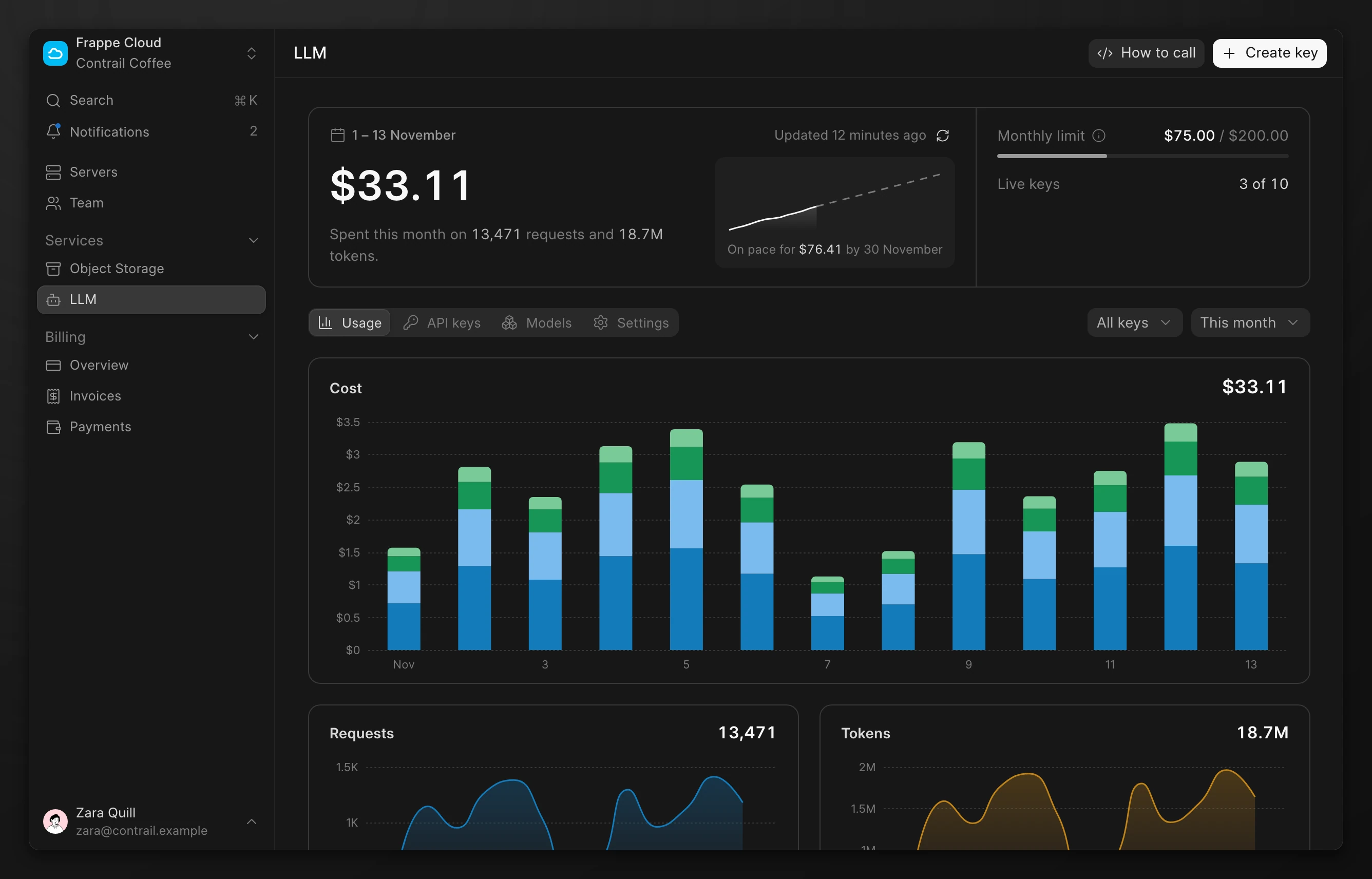
The summary shows the cost of this month, the number of requests and tokens, and the cost that the month is on pace for. Click the refresh icon to get new figures. You can refresh 2 times an hour.
The Usage tab shows Cost, Requests, and Tokens for each day, and a table for each model. Select a key or a period to change what it shows. The periods are Last 7 days, Last 30 days, This month, and Last month. Days are in UTC.
Control spend
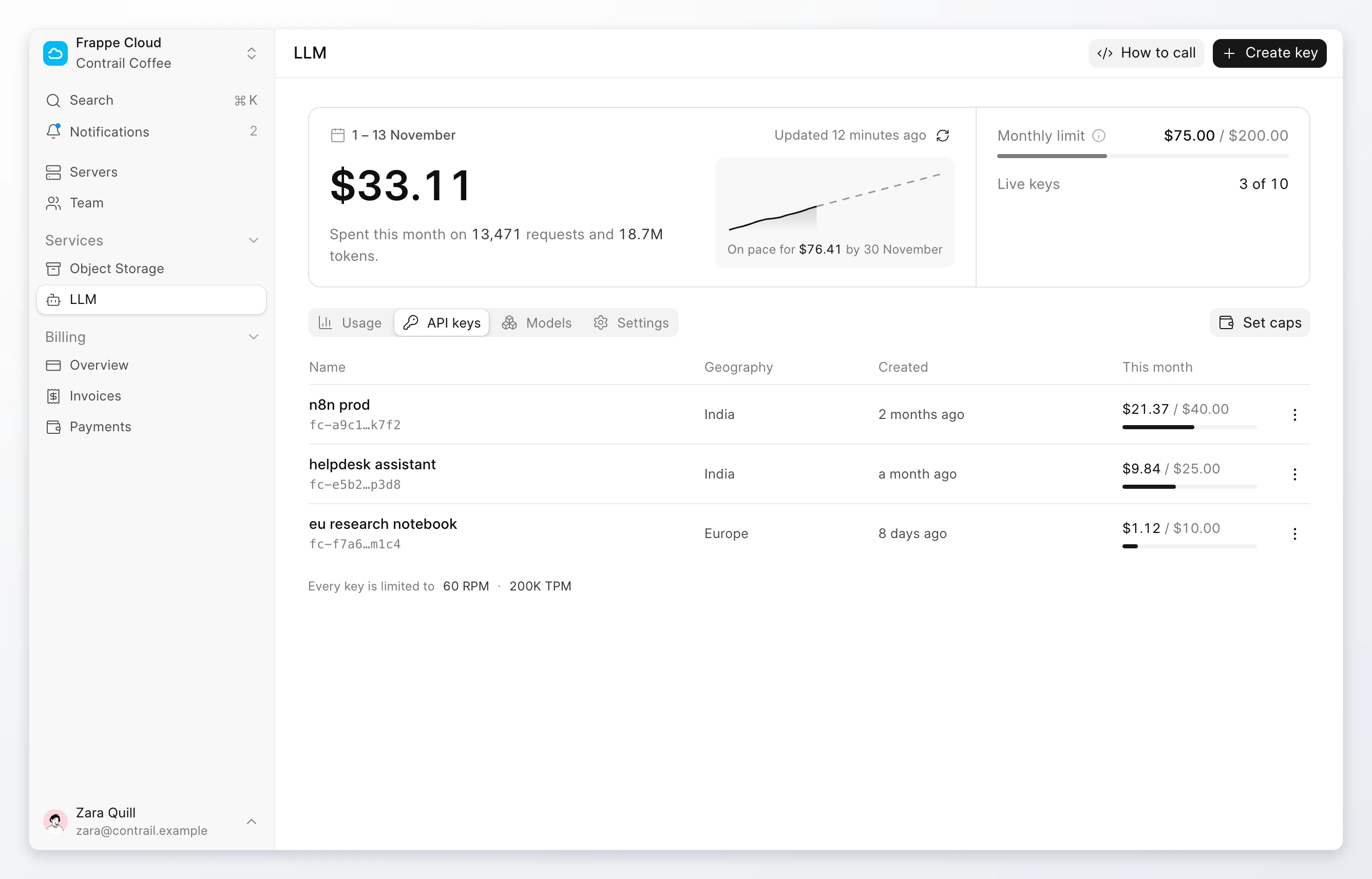
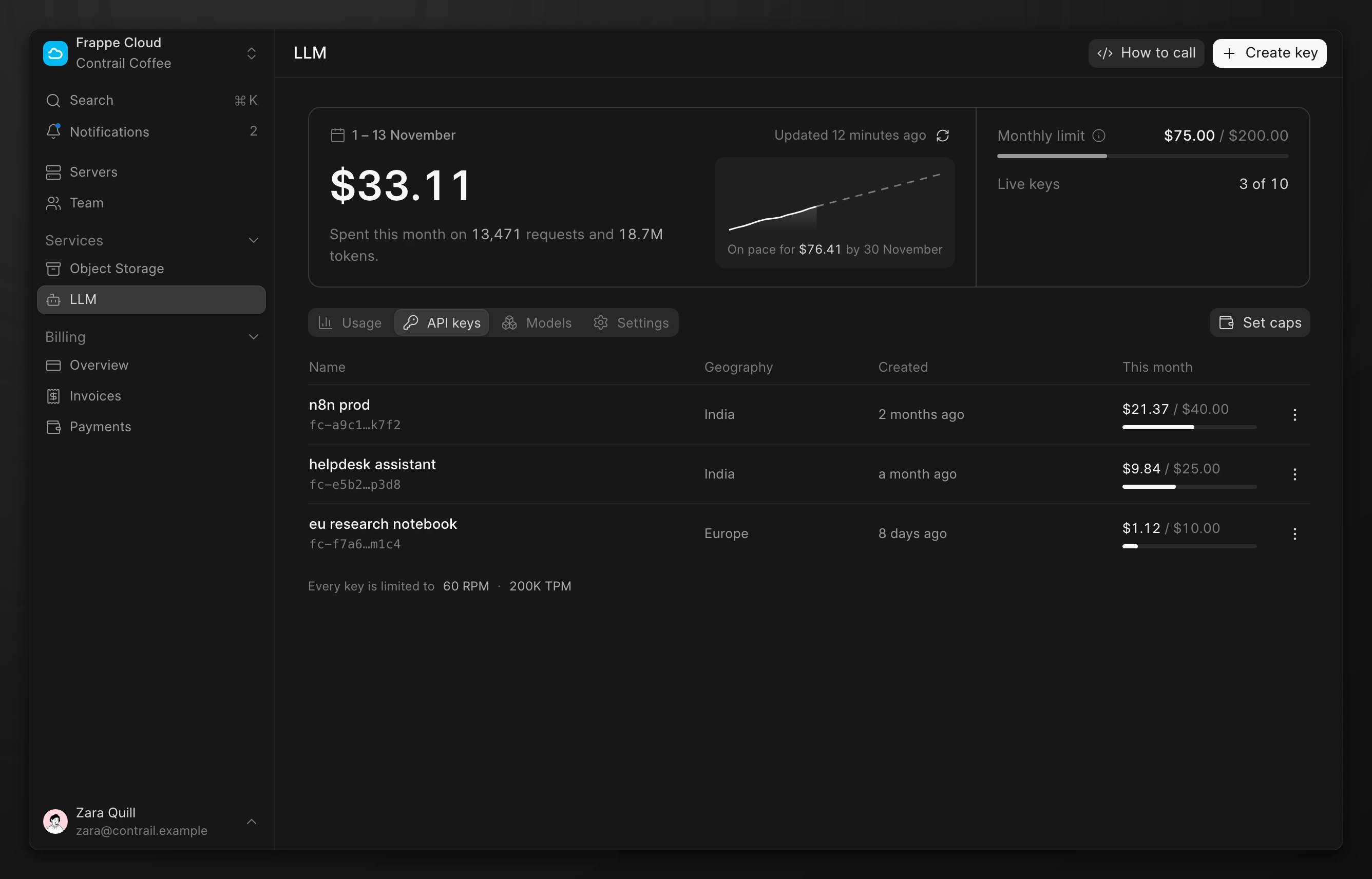
Each key has a cap. A key that reaches its cap is refused until the next month or until you raise the cap.
Your plan has a Monthly limit. The caps of all live keys and the spend of this month must fit in this limit.
To change the caps:
- Click the API keys tab. Click Set caps.
- Type a new Cap (USD) for each key that you want to change.
- Click Save caps.
The console saves all caps together. If the total passes your monthly limit, the console saves none.
Your team pays for its usage at the end of the month. If an invoice is unpaid, the API keys tab shows Keys are paused and every key is refused until you pay.
Revoke a key
You cannot undo this.
- Click the API keys tab.
- Click the actions menu on the key. Click Revoke.
- Click Revoke to confirm.
Apps that use the key stop working in a few minutes. The cap of the key becomes free for another key.
Log prompts and outputs
Click the Settings tab. Turn on Log prompts and outputs to keep the prompts and the model replies. Support can then look into a failed request. This is off until you turn it on.
If LLM is under maintenance
The page shows LLM service is under maintenance when it cannot reach the service. Your API keys keep working. You cannot see or change usage, keys, and caps until the service is back.