Contact support
The support dialog in the console searches help articles and the tickets of your team, and sends a ticket to Frappe Cloud support. Every member of a team can use it.
Open the support dialog
Click your name at the bottom of the sidebar. Click Help, then Contact support.
You can also click Contact support in the Actions menu of a server. The dialog then knows the server and its site, and adds them to the ticket.
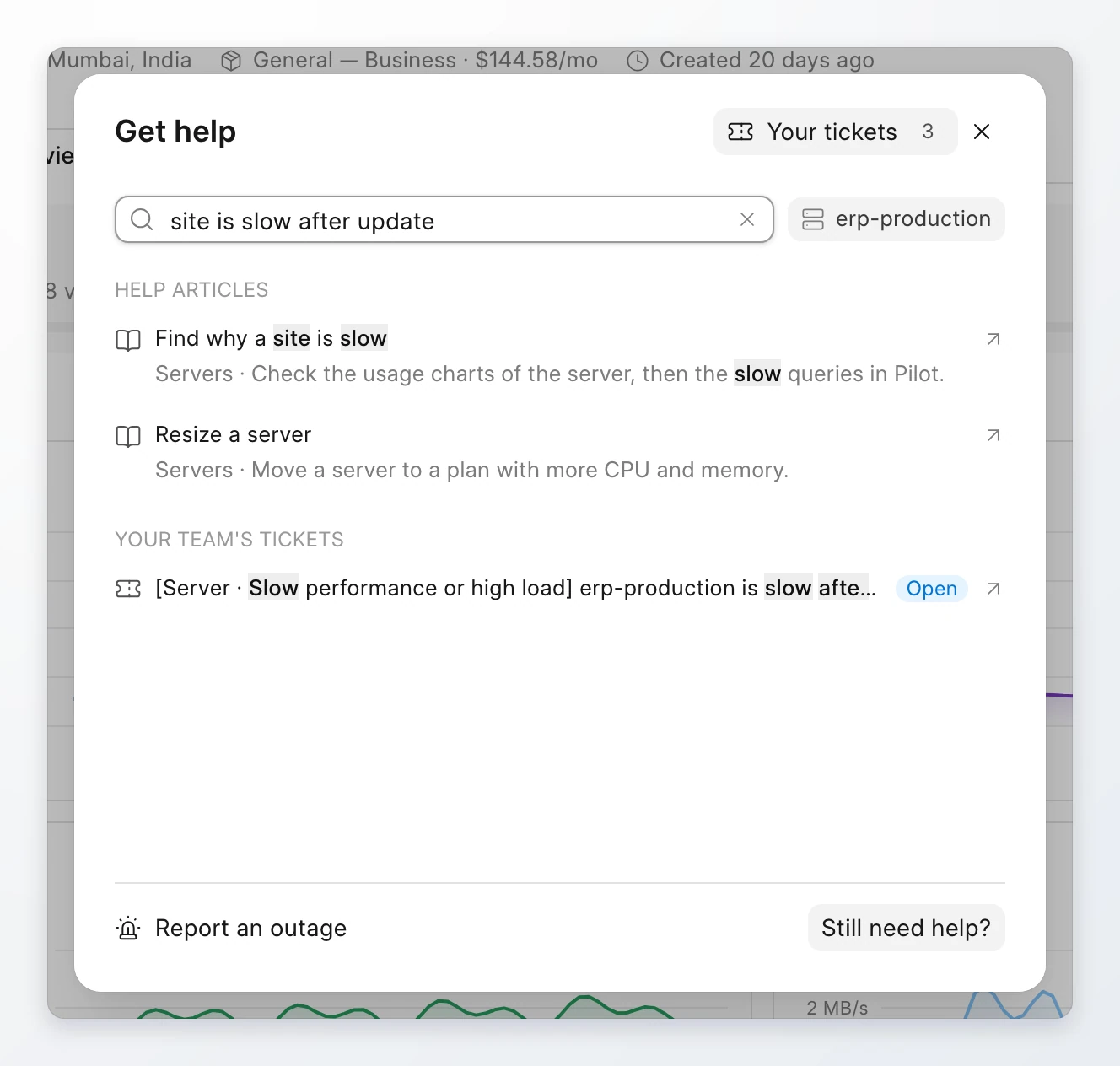
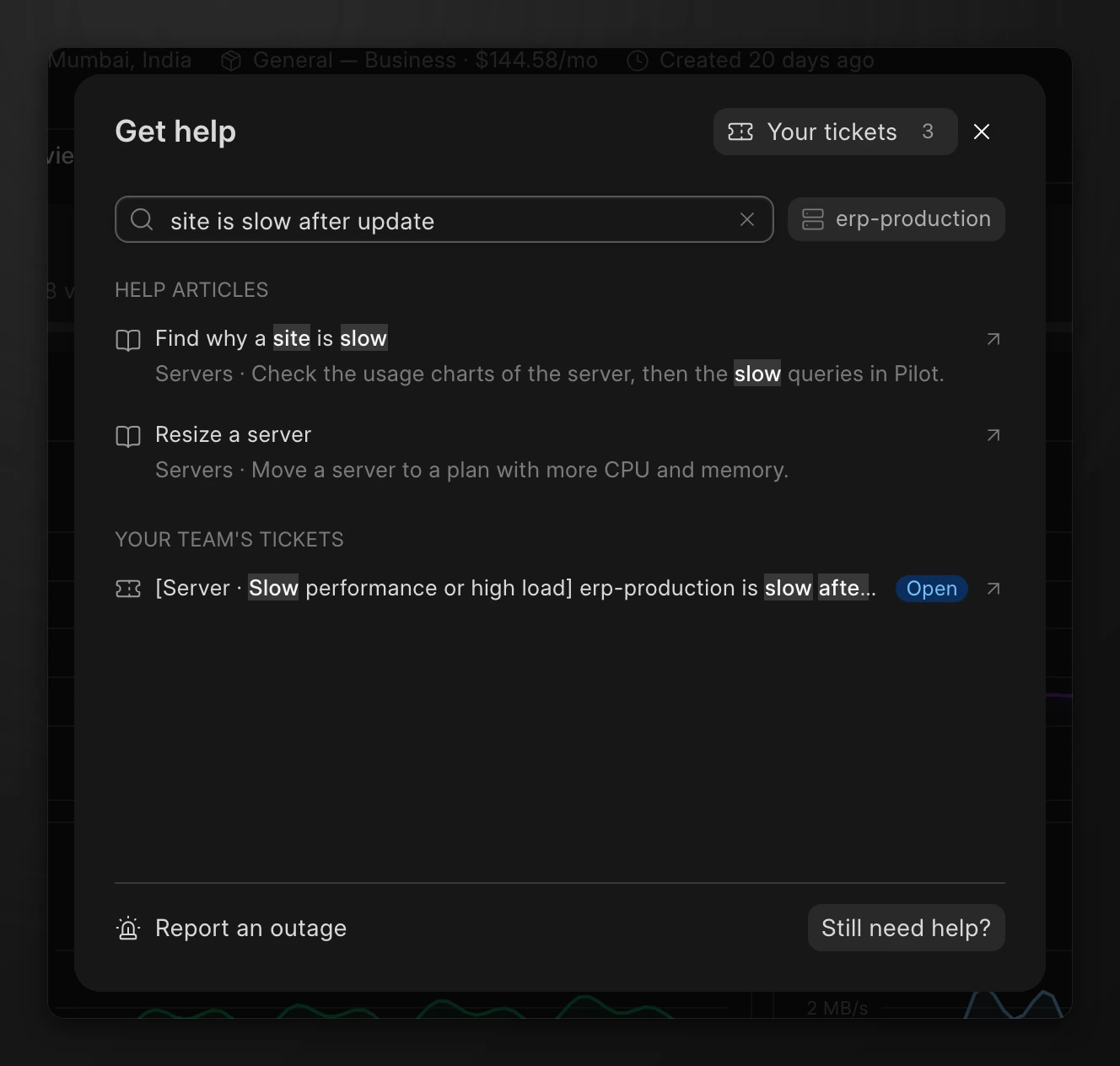
Search for an answer
- In Get help, type what is wrong. Use 3 characters or more.
- Read the results. Help articles open in a new tab. Your team's tickets shows tickets on the same subject.
If no result helps, click Still need help? or Contact support. The dialog keeps your text and puts it in the ticket.
If a server or a site is down, click Report an outage. The form opens with the correct topic and issue.
Send a ticket
- Select a Topic: Server, Site & app, Billing & plans, or Account & team.
- Select the Issue.
- For a server or a site problem, select the Server and the Site. Leave them empty if the problem is not about one server. The dialog fills these fields when you open it from a server.
- In Details for support, write what you did, what you expected, and the error that you saw.
- Click Send to support.
The dialog shows Your tickets with the new ticket in the list.
Support sees these issues first:
| Topic | Issue |
|---|---|
| Server | Unreachable or down |
| Site & app | Site setup or provisioning failed |
| Billing & plans | Payment method or failed charge |
You can send 10 tickets in an hour. The form has no field for files.
Follow your tickets
Open the support dialog. Click Your tickets.
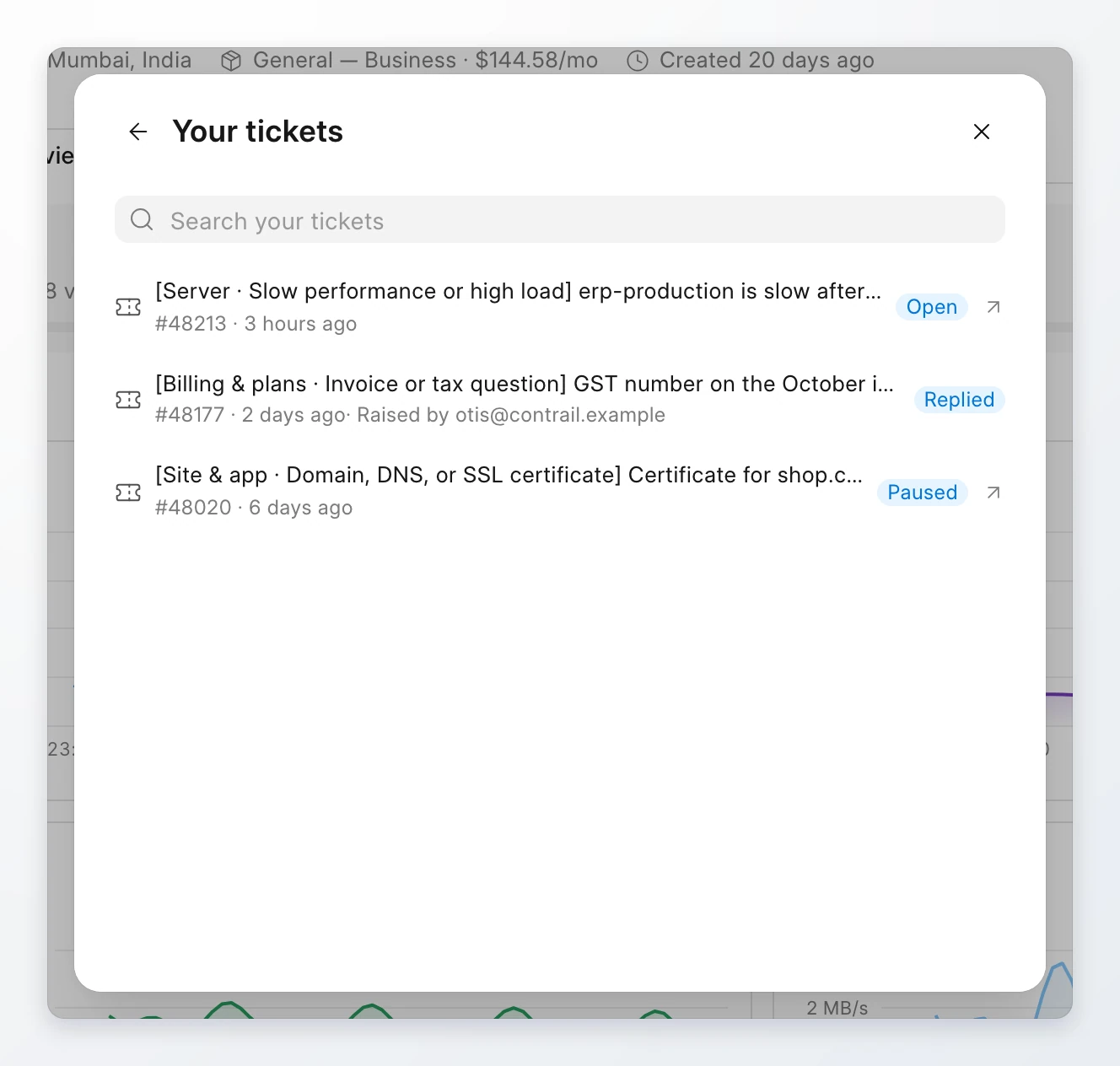
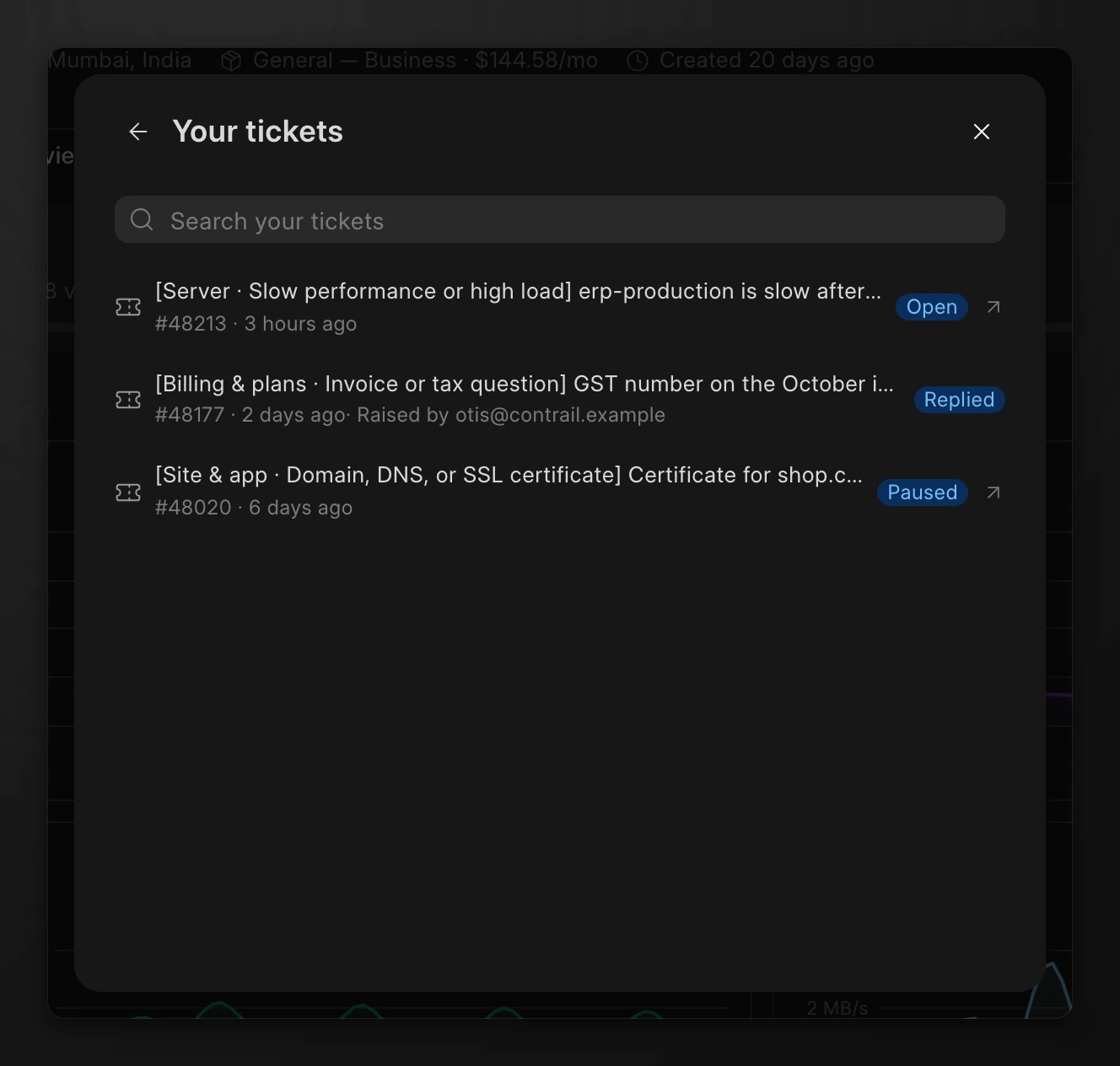
The list shows the open tickets of your team, newest first. It holds at most 50 tickets. A ticket leaves the list when support resolves it.
Click a ticket that you raised to open it and reply. You can see the tickets of your teammates, but you cannot open them.