Resize, stop, and terminate
This page shows how to change the power state, size, and name of a server, and how to delete it. You find these actions in the Actions menu and on the Settings tab of the server.
Note
These actions need the Owner, Admin, or Developer role. The console shows only the actions that are valid for the current status of the server.
The Actions menu
Open the server. Click Actions in the header.
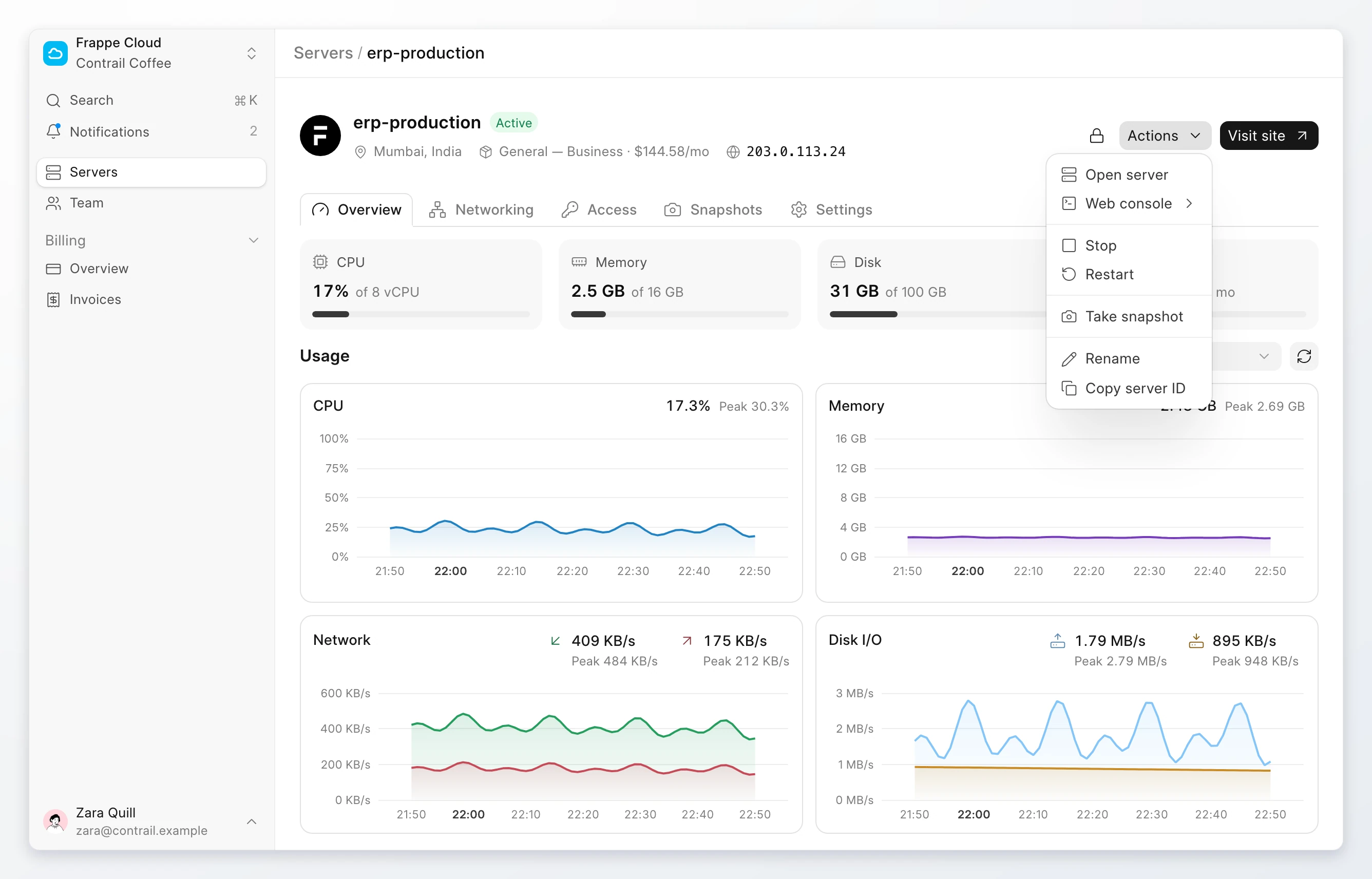
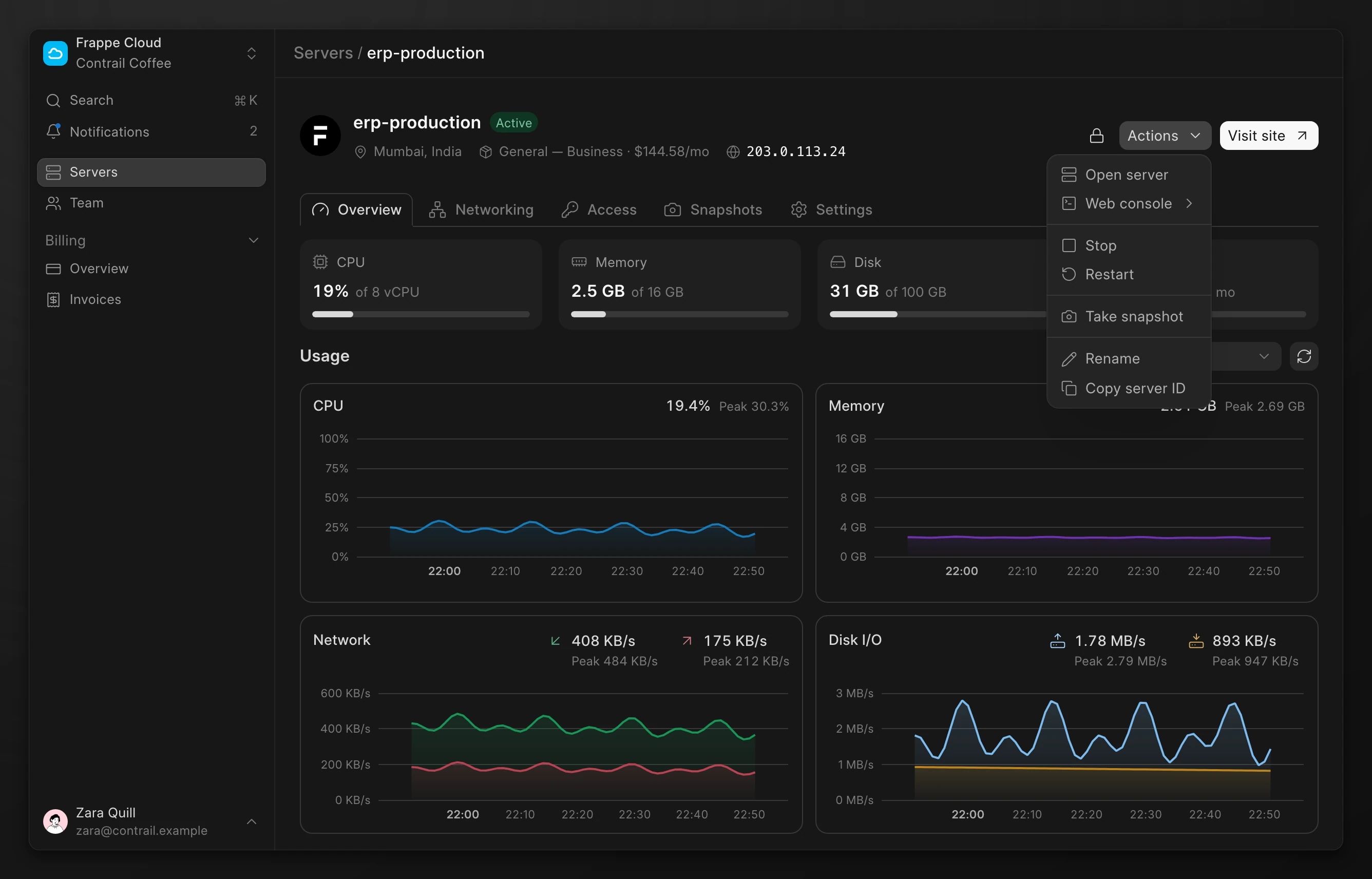
| Action | Effect |
|---|---|
| Open server | Signs you in to Pilot on a Frappe server. |
| Web console | Opens a root shell or a serial console. See Connect with SSH. |
| Start | Starts a server that is Stopped, Paused, or Broken. |
| Stop | Turns off a running server. |
| Restart | Restarts a running server. |
| Take snapshot | Copies the disk. See Snapshots. |
| Rename | Changes the name of the server. |
| Copy server ID | Copies the server ID, for a support request. |
Stop, start, or restart
- Click Actions, then Stop or Restart.
- Click Stop or Restart to confirm.
Sites on the server are unavailable while it is stopped and during a restart. To start the server, click Actions, then Start. Start needs no confirmation.
Resize a server
A resize changes the vCPU, memory, and disk of the server.
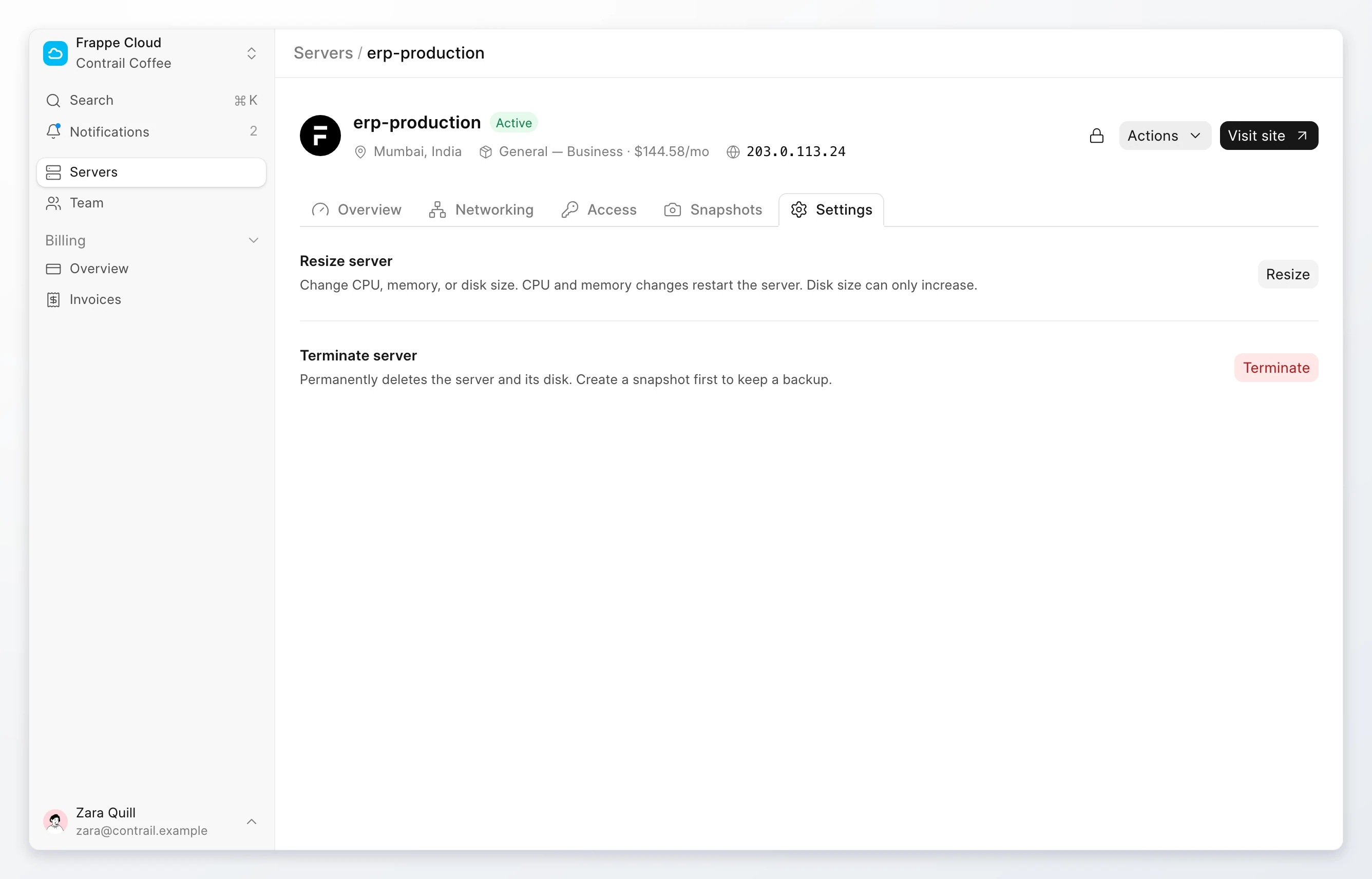
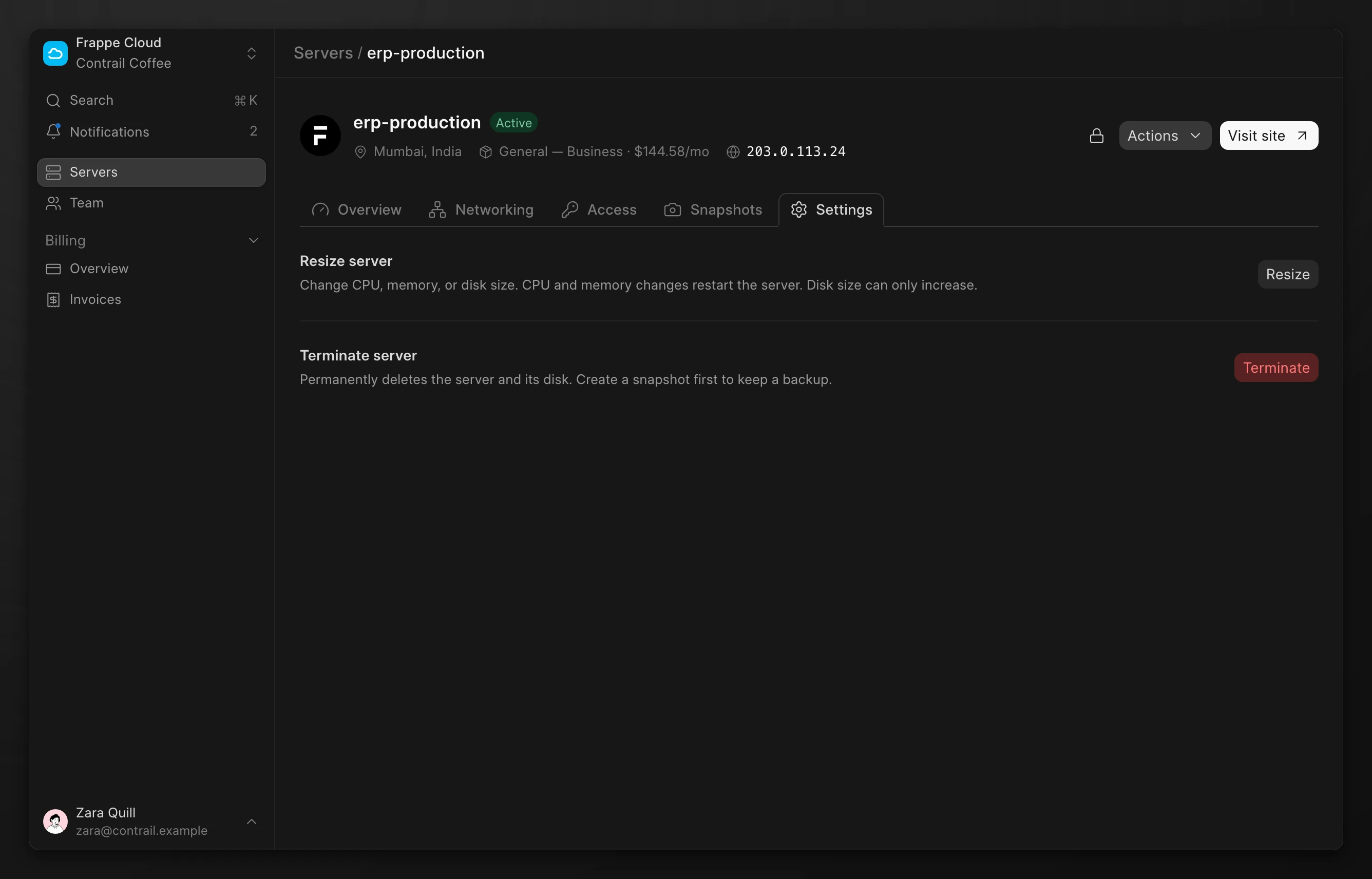
- Open the server. Click Settings. Under Resize server, click Resize.
- Under Storage, select Keep current to keep the disk size, or select Increase storage.
- Select a plan, or select Custom.
- Click Resize.
The status shows Resizing until the change is done. A CPU or memory change restarts the server. A larger disk does not.
Warning
You cannot decrease the disk size later. If the server has an older rate, the dialog shows Resizing will change your rate. The new plan uses current prices, and you cannot get the old rate back.
Turn on termination protection
Termination protection stops anyone from terminating the server by mistake.
- Open the server.
- Click the lock button next to Actions. Its tooltip is Turn on termination protection.
To turn it off, click the lock button again. If the region does not confirm the change, the console shows Termination protection wasn't changed and the setting stays as it was.
Terminate a server
Terminate deletes the server and all data on its disk. The site addresses and custom domains that point to the server stop working. You cannot undo this.
- Open the server. Click Settings. Under Terminate server, click Terminate.
- Read the list of addresses that will stop working.
- To keep a copy of the disk, select Take a final snapshot first.
- Type the server name to confirm.
- Click Yes, terminate.
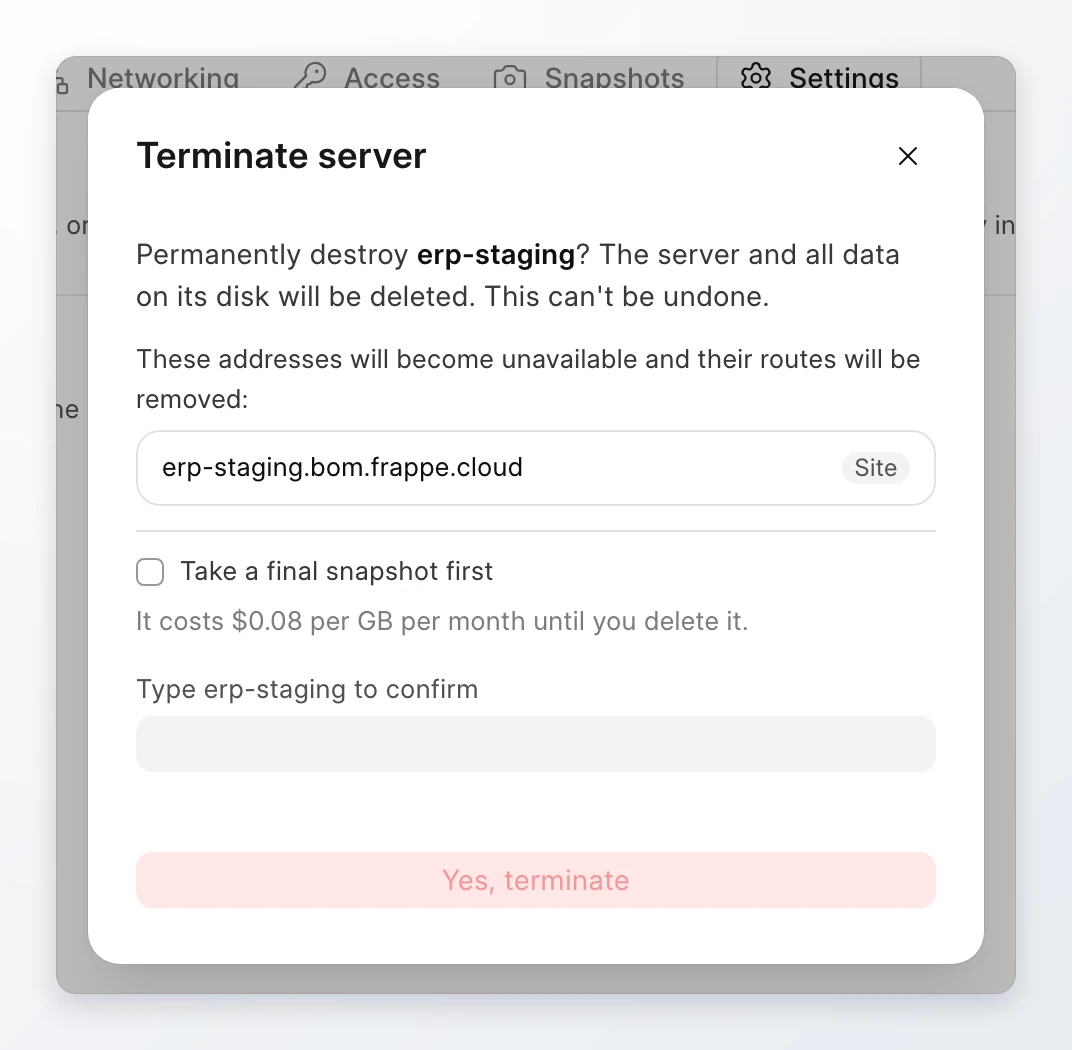
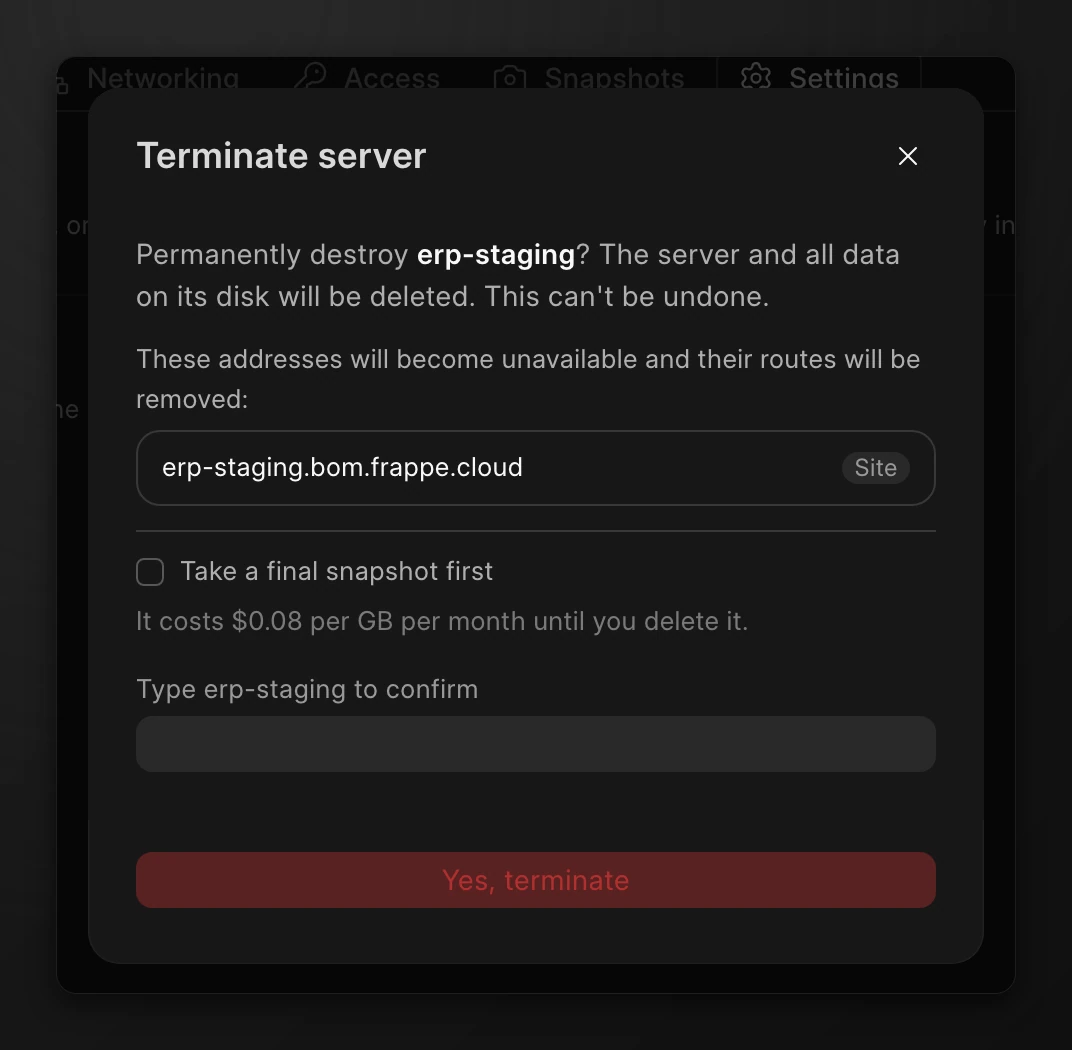
If termination protection is on, the dialog tells you to turn it off first. A final snapshot follows the snapshot prices.