What Pilot is
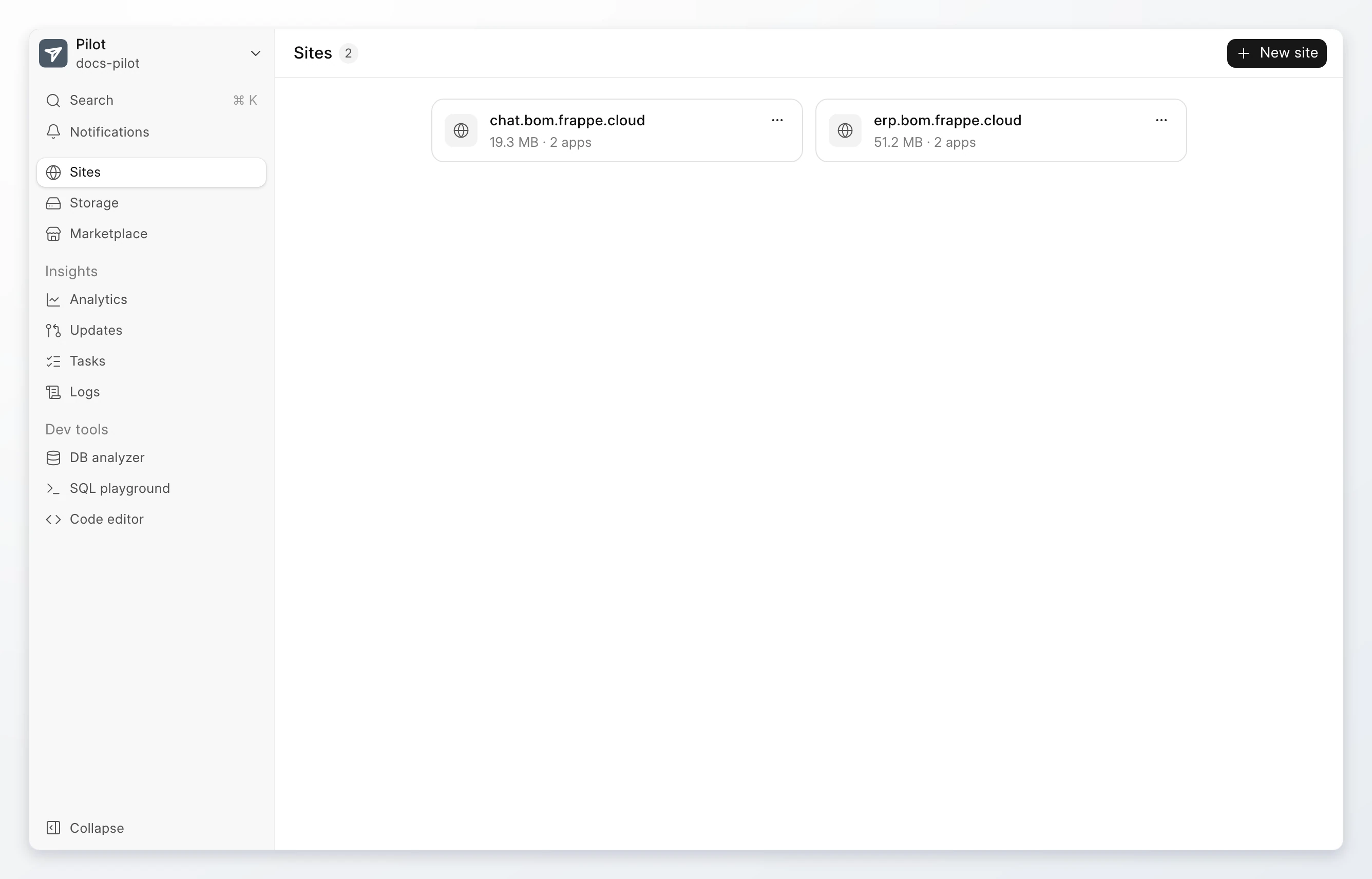
Pilot is the bench manager that runs inside a server with the Frappe image. It has a web interface where you manage the benches, sites, and apps on that one server.
A server with the Ubuntu image does not run Pilot. To use Pilot, create a server with the Frappe image.
What you get inside a Frappe server
A Frappe server starts with one bench. The image build decides if it also has a site.
| Part | What it is | Read more |
|---|---|---|
| Bench | The app code, the Python environment, and the web and background processes. | Benches |
| Site | One Frappe installation with its own database, files, and domain. | Sites |
| App | Code that you install on a site, such as ERPNext or Raven. | Apps |
Image builds
Each Frappe image build has one of three types. The type decides what the server has when it starts.
| Type | The server starts with |
|---|---|
| Base | Ubuntu 24.04, Pilot, and one bench with the Frappe framework. No site. |
| Site | The same bench and one site with no apps. |
| Apps | The same bench and one site with an app and the apps it needs, such as ERPNext. |
A server with a site shows Visit site in the console. A server without a site shows Open Pilot, and you create the site in Pilot.
Bench, site, and app
The three parts nest. A server runs a bench. A bench runs many sites. Each site uses some of the apps on the bench.
Server: erp-production
└── Bench
    ├── Apps: frappe, erpnext, raven
    ├── Site: erp.bom.frappe.cloud    (frappe, erpnext)
    └── Site: chat.bom.frappe.cloud   (frappe, raven)
An app is on the bench once, and many sites can use it. When you update an app, every site that uses it gets the new code.
Open Pilot from the console
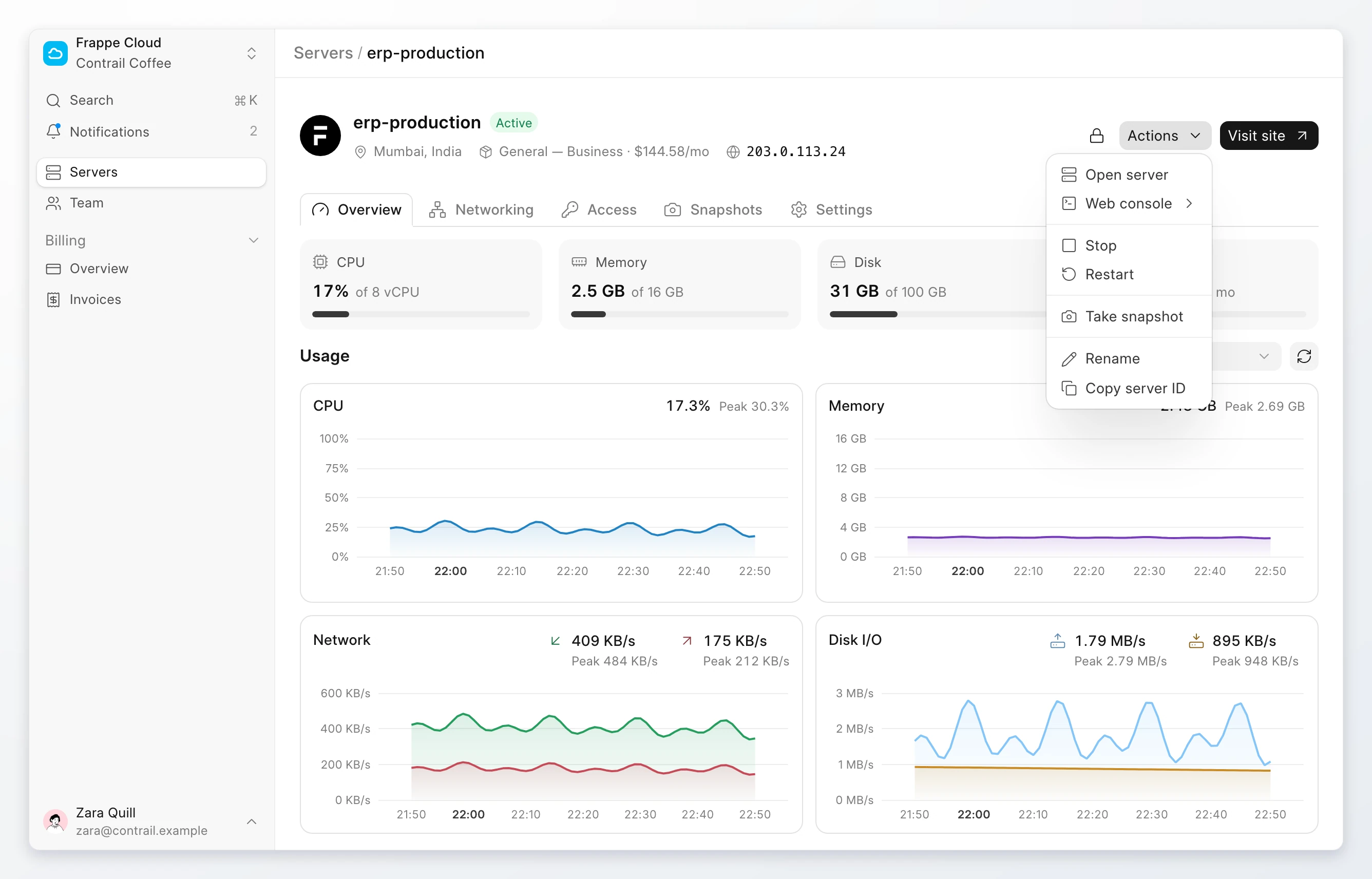
You open Pilot from the server in the Frappe Cloud console. Pilot opens in a new browser tab.
- Go to Servers. Click the server.
- Open Pilot:
- If the server has a site, click Actions > Open server. The Visit site button opens the site, not Pilot.
- If the server has no site, click Open Pilot in the server header.
You do not need a separate Pilot password. The console signs you in with a single-use link that works only for this server. If your Pilot session ends, open Pilot from the console again.
To go back to the console from Pilot, click the Pilot menu at the top of the sidebar. Click Central.
Note
The Owner, Admin, and Developer roles can open Pilot. The Viewer and Billing roles cannot. During a free trial, Open server and Open Pilot are not available. Read Roles and permissions.
The server must be Running to open Pilot. If the server is still setting up, wait until setup finishes.
Pilot pages
The Pilot sidebar groups its pages in three sections.
| Section | Page | Use it to |
|---|---|---|
| Sites | Create sites and open each site's apps, backups, config, and settings. | |
| Storage | See how much disk the apps, sites, backups, logs, and databases use. | |
| Marketplace | Find apps, import an app from GitHub, and install apps on sites. | |
| Insights | Analytics | See CPU, memory, storage, and database use for the server or one site. |
| Updates | Follow app updates and migrations, and recover from a failed one. | |
| Tasks | See every long operation, its steps, and its output. | |
| Logs | Read the log files of the bench processes. | |
| Dev tools | DB analyzer | Inspect database size, processes, locks, slow queries, and indexes. |
| SQL playground | Run SQL queries on a site's database. | |
| Code editor | Edit app code in the browser. It shows when developer mode is allowed. |
Settings and Activity are in the Pilot menu at the top of the sidebar.
Limits
- One server runs one Pilot. Pilot manages only the server it runs on.
- Pilot on Frappe Cloud shows one bench for each server.
- All benches on a server run as the same server user. To keep two workloads apart, put them on separate servers.
See also
Pilot on GitHub: the source code, the command reference, and the developer documentation.